Transient Waveforms & Simulations
Run a transient simulation on the real current or voltage waveforms of your converter: import them from a circuit simulator, choose the periods TRAFOLO simulates, set the time steps and check the spectrum before you solve.
The example is the Flyback Transformer template (Welcome screen › Examples): an RM8 transformer switching at 150 kHz, whose primary and secondary currents come from a circuit simulator. What every control of the tab does: Waveform.
When to run a transient simulation
| Case | Simulation | Why |
|---|---|---|
| Waveform with a large DC component: flyback, buck and boost inductors | Transient | A harmonic run sums the core loss over the harmonics and misses the DC bias of the flux. A transient run computes the core loss from dB/dt with the material's Core Loss Model (GSE or iGSE) and averages it over the periods. |
| Core with a B-H curve, driven towards saturation | Transient | A harmonic run takes the permeability at the fundamental for every harmonic; a transient run applies the B-H curve at every time step. |
| A few harmonics and no large DC component: dual active bridge, LLC, full bridge | Harmonic, through Harmonize | One solve per harmonic, without inrush and without time steps. The losses are summed over the harmonics. |
Core loss models: Core Properties and Models.
Prepare the waveform file
Export the waveforms from the circuit simulator as CSV, TXT, XLSX or XLS. The file needs:
- the column names in the first row: the column boxes of the Import card list them;
- a time column in seconds. One time column serves all sources, so every source column must be sampled at the same times;
- one column per winding with instantaneous values, not RMS: amperes for a winding with Excitation Irms [A], volts for Urms [V] (ElMag);
- at least Periods full periods. You need not cut off the start-up: TRAFOLO takes the last periods of the file, where the converter has settled.
TRAFOLO detects the column separator (comma, semicolon or tab) and reads a decimal comma as a decimal point. A file with decimal commas therefore needs semicolons or tabs between the columns.
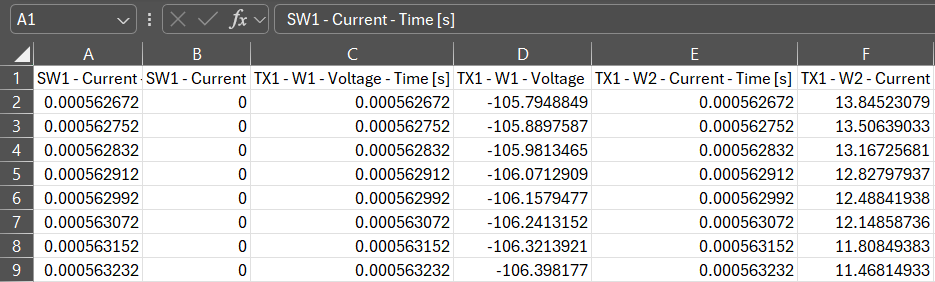
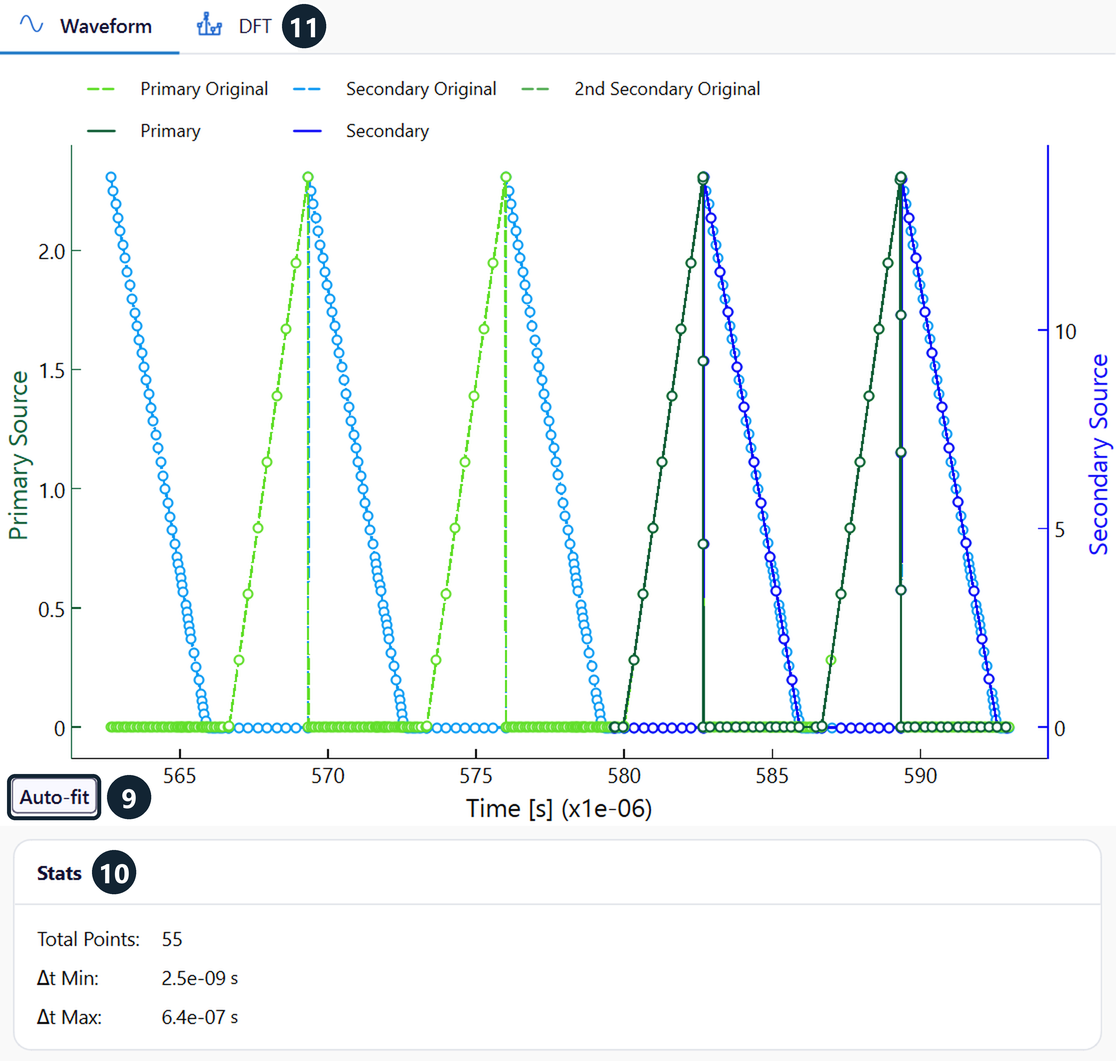
The flyback file has 322 rows over 4.5 periods, 562.7 to 593.0 µs. The template uses column A SW1 - Current - Time [s] as the time, B SW1 - Current as the primary current (0 to 2.31 A) and F TX1 - W2 - Current as the secondary current (0 to 13.85 A). Download it as flyback-transformer-waveforms-150kHz.csv under Files on the Flyback Transformer page; the example project holds the same file as cached\waveform_dump.csv.
Load the waveform
For a sine, square or triangular waveform you need no file: select Generate instead and set each winding on the tab (Waveform).
- On Setup, under ELECTROMAGNETICS, select Transient.
- On ElMag, set the Excitation of each winding: Irms [A] for a current column, Urms [V] for a voltage column. The flyback drives both windings with current.
- On Waveform, under General, set Frequency [Hz] to the repetition frequency of the waveform and Periods to the number of periods to simulate (1). The flyback uses 150000 Hz and 2 periods.
-
Select Load (2).
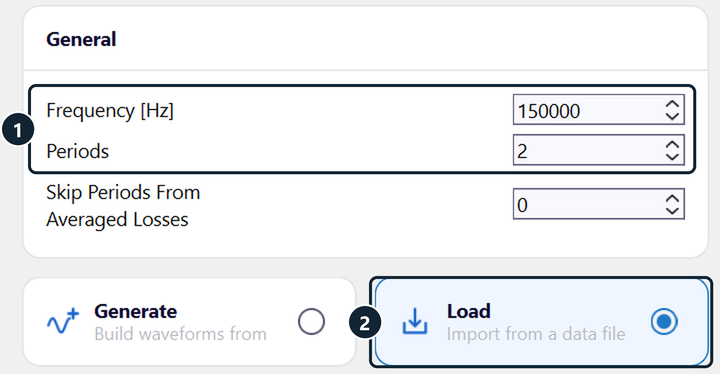
General: Frequency [Hz] and Periods (1); Load (2) to import a file. -
Under Import, click Import (3) and open the file.
- Choose the columns for Time, Primary Source and Secondary Source (4). 2nd Secondary Source is active only when 2nd Secondary Winding is on, on ElMag.
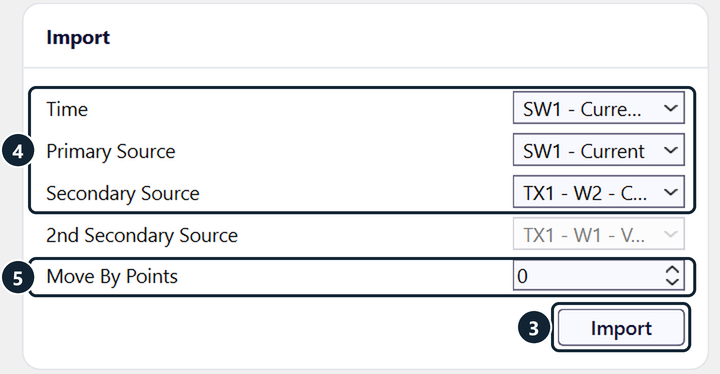
TRAFOLO copies the file into the project as cached\waveform_dump.csv and converts an Excel file to CSV. After you change the original file, click Import again.
A transient model with Phases 3 on Setup cannot load a file: Load and Optimize Timesteps are off. Build the waveform with Generate; TRAFOLO applies it to one phase and shifts it by one third of a period each way for the other two.
Choose the simulated periods
TRAFOLO simulates Periods periods of 1/Frequency [Hz] each, taken from the end of the file. In the flyback that is the last 2 periods, 579.6 to 592.9 µs, which hold 134 rows of the file. On the Waveform plot, the solid curves show this window.
If the file holds fewer periods than Periods, TRAFOLO simulates the whole file, and the run is shorter than set. Check the time axis of the solid curves.
Starting point and inrush
TRAFOLO starts every transient run with zero magnetic flux. If the waveform does not start where the magnetic field energy is lowest, the first periods carry inrush currents or voltage spikes, and the flux can keep a DC bias. Start the window:
- with current excitation, where the winding currents are close to zero;
- with voltage excitation, where the flux crosses zero: at the peak of a sine voltage, in the middle of a pulse of a square-wave voltage.
Move By Points (5) shifts the window earlier by that number of rows of the file: 0 (default) or more. The flyback window starts in the dead time, where both currents are 0 A, so the template keeps 0. The Dual Active Bridge Transformer template sets 41: its window then starts at the zero crossing of the primary current, −0.6 A, instead of near the current peak, −13.7 A.
Skip Periods From Averaged Losses, under General, leaves the first periods out of the averaged losses: 0 (default) to Periods − 1. When the first period carries an inrush, simulate 2 or more periods and skip 1, as the Dual Active Bridge template does. The flyback starts with no stored energy and keeps 0, so its losses average both periods.
In 3-phase models, Controlled point-on-wave energization under General holds two phases at zero for the first 1/6 and 1/3 of a period to limit the inrush.
Set the time steps
Circuit simulators write very short time steps at the switching edges and long ones elsewhere. Optimize Timesteps places new time points where the waveforms change and interpolates the file values linearly onto them. Each point is a time step of the solve, so the number of points sets the run time.
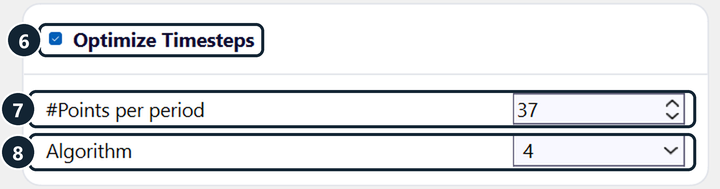
- Keep Optimize Timesteps ticked (6); it is on by default.
- Set #Points per period (7), the target number of points per period: 1 to 1000. The flyback uses 37.
- Set Algorithm (8) to 4.
| Algorithm | Where it places the points |
|---|---|
| 1 | Evenly spaced in time. |
| 2 | At the corners of the primary and secondary waveforms; the rest by the magnitude of the waveforms. |
| 3 | At the corners of the primary and secondary waveforms; the rest spread in time. |
| 4 | Along the arc length of all source waveforms, each scaled to its own amplitude, so a steep edge in any winding gets short time steps; then more points where neighbouring steps differ strongly. Best for most converter waveforms. |
#Points per period is a target. The flyback asks for 2 × 37 + 1 = 75 points; Algorithm 4 ends with 55 points, that is 54 time steps from 2.5 ns to 0.64 µs. With Optimize Timesteps off, every row of the file inside the window is a time step: 134 rows in the flyback, from 10 ns to 0.42 µs. Give the highest harmonic that matters at least 20 points per period; the worked rule is on Waveform, section Time steps.
Check the waveform plot
The Waveform plot shows the file as dashed curves, Primary Original and Secondary Original (at most the last 1000 rows of the file), and the simulated window as solid curves, Primary and Secondary, with one point per time step. Check that the solid curves start where you planned and follow every edge and peak of the dashed ones. If a peak is cut, raise #Points per period.
- Zoom with the mouse wheel and drag to pan; Auto-fit (9) shows the whole waveform again.
- Click a legend entry to hide or show its curve.
- Stats (10) shows Total Points (one more than the number of time steps), Δt Min and Δt Max.
Check the spectrum (DFT)
Click the DFT tab (11) of the plot. TRAFOLO samples the first simulated period at 256 points and shows the amplitude of each harmonic from 0 Hz up to the 63rd harmonic: peak values in A or V, and the mean value at 0 Hz. Check:
- DC component. A waveform without DC bias has no 0 Hz bar, apart from numerical noise. The flyback secondary current has 3.39 A at 0 Hz against 5.18 A at 150 kHz.
- Turns ratio. In a transformer, the voltage harmonics follow the turns ratio, apart from the drop across the leakage inductance, and the current harmonics follow its inverse, apart from the magnetizing current. A larger deviation points to a wrong column or a scaled signal. A flyback stores energy between its two conduction intervals, so its currents do not follow this rule.
- Number of harmonics. Keep the harmonics with a significant amplitude; the others add run time and numerical noise. A smooth, sine-like waveform needs fewer.
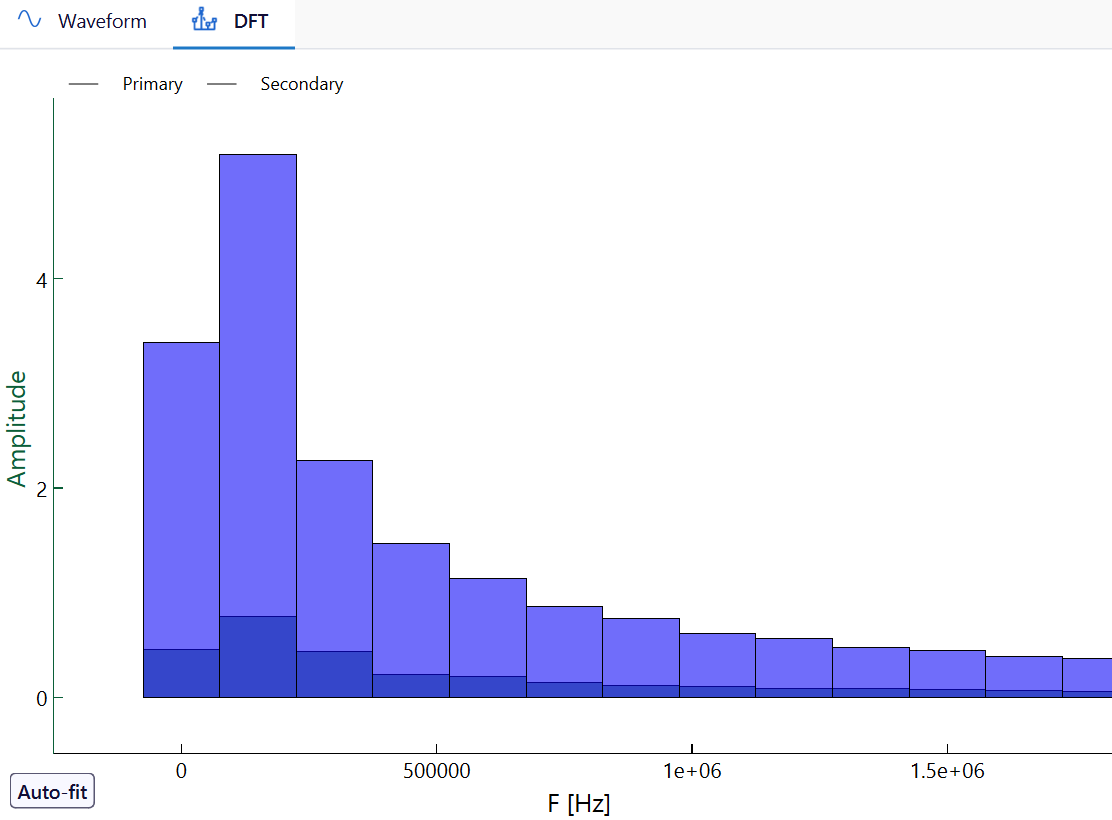
Number of harmonics, under Discrete Fourier Transform at the bottom of the left panel, takes the components with the largest amplitude relative to the largest component of each winding, 0 Hz included: 1 (default) to 64, the number of DFT components. Harmonics to export lists them. The flyback uses 7: 150000.0, 0.0, 300000.0, 450000.0, 600000.0, 750000.0, 900000.0 Hz. Its 0 Hz component is the second largest, so the flyback stays transient.
Waveform settings of the flyback
| Setting | Flyback | Default and range |
|---|---|---|
| Frequency [Hz] | 150000 | 1 (default) to 10,000,000 |
| Periods | 2 | 1 (default) to 1000 |
| Skip Periods From Averaged Losses | 0 | 0 (default) to Periods − 1 |
| Time, Primary Source, Secondary Source | SW1 - Current - Time [s], SW1 - Current, TX1 - W2 - Current |
Column names from the first row of the file |
| Move By Points | 0 | 0 (default) or more rows |
| Optimize Timesteps | On | On (default) |
| #Points per period | 37 | 1 to 1000 |
| Algorithm | 4 | 1 to 4 |
| Number of harmonics | 7 | 1 (default) to 64 |
Winding losses in transient simulations
The winding loss of Litz and stranded windings depends on the method chosen in Configure Wire (Coil tab). With Rac/Rdc coefficient, the fixed Proximity Factor applies to the whole waveform; 1 (default) is the DC resistance, without skin or proximity loss. With Dowell's Equation, TRAFOLO computes an effective Rac/Rdc from the amplitudes of the largest harmonics (Number of harmonics) and applies it to the whole waveform. With Homogenization, the strand losses are computed in the transient simulation itself (open coils only). For solid wires, the current distribution in the windings gives the losses.
For Homogenization, TRAFOLO fits the strand model from a 2D scan at 0 Hz, the odd harmonics 1 to 13 of Frequency [Hz] and the frequencies in Harmonics to export: 0 Hz to 1.95 MHz in the flyback. The flyback windings then lose about 1.5 times IRMS²·Rdc, the loss of their RMS current in the DC resistance. On the Results tab, Proximity Factors shows the factor that each group with Rac/Rdc coefficient or Dowell's Equation used. Details: Coil and Homogenization of Litz and Stranded Windings.
Harmonize waveforms without DC bias
Harmonize turns the transient set-up into a harmonic one: TRAFOLO writes the harmonics of the DFT into the Harmonics table and switches Setup to Harmonic. Use it for waveforms that a few harmonics describe and that have no large DC component, such as the currents of the Dual Active Bridge Transformer. Do not harmonize the flyback: its DC component is the second-largest in the spectrum.
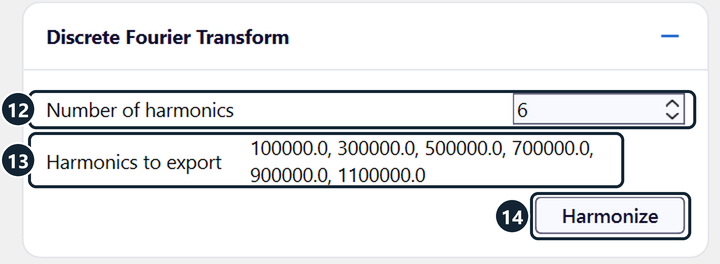
- Under Discrete Fourier Transform, set Number of harmonics (12). The dual active bridge uses 6.
- Check Harmonics to export (13). For the dual active bridge it holds the odd harmonics from 100 kHz to 1.1 MHz; its 0 Hz component, 0.43 A against 17.9 A at 100 kHz, is left out.
- Click Harmonize (14) and confirm the message "This operation will change the simulation type to Harmonic. Do you wish to continue?".
The Harmonics table on Waveform then holds one column per harmonic: F [Hz], the RMS value of each winding and φ [deg], the phase of the secondary relative to the primary. The RMS value is the DFT amplitude divided by √2 (a 0 Hz column keeps the mean value): the 17.9 A peak at 100 kHz becomes Primary Irms [A] 12.66 A. The columns follow the order of Harmonics to export, the largest component first, so Fundamental is the largest component. The column headings count the columns, not the harmonic order: 2nd is 300 kHz, the 3rd harmonic. With a 2nd secondary winding, Effective secondary waveforms gives both secondaries the mean of their RMS values, for centre-tapped secondaries whose halves conduct in turn.
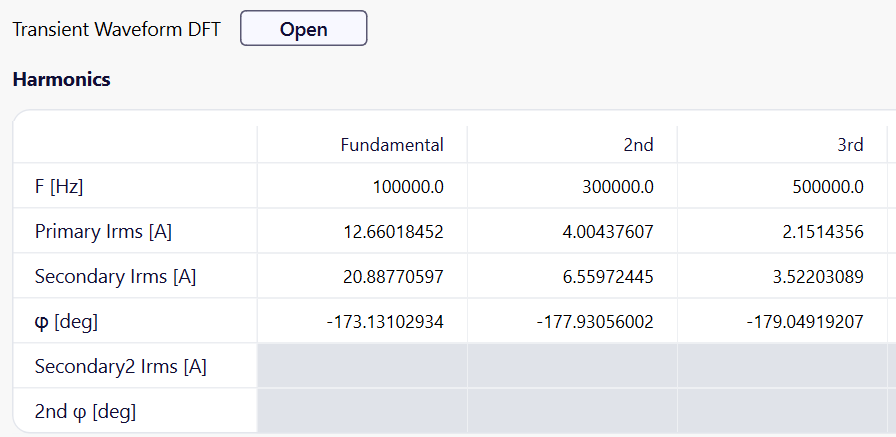
Harmonize replaces every column of the Harmonics table. The harmonic run sums the losses over the harmonics and applies a B-H curve at the Fundamental column only.
In a project that is already set to Harmonic, Transient Waveform DFT › Open on Waveform does the same in one dialog: Switching Frequency [Hz], Import, the column boxes, Number of harmonics and Harmonize. It takes the last 5 periods of the file, without Move By Points or Optimize Timesteps.
Read the results
On the Results tab
Mesh and solve as usual: the solver steps through the time points one by one. The flyback, with 55 points, takes about 1.5 min on 8 CPU cores. On the Results tab:
- Summary holds the losses averaged over the simulated periods that follow Skip Periods From Averaged Losses.
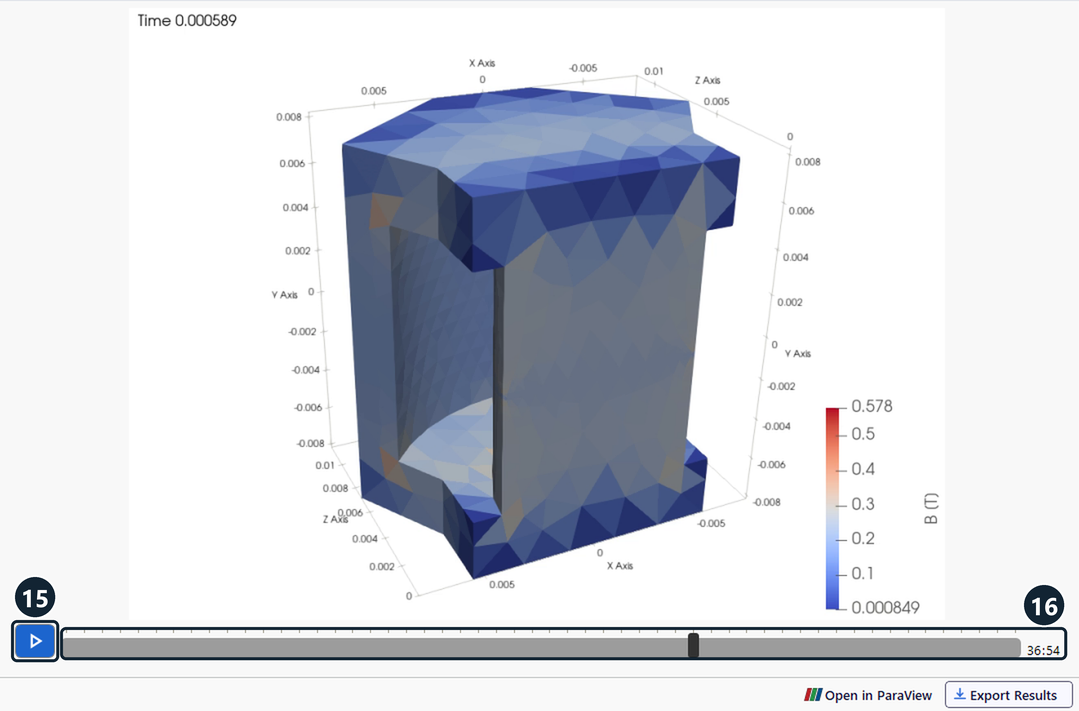
- Magnetic Flux, Coil Losses, Core Losses and Other Losses show the field on the model at each time step, with the time in seconds at the top left. Click play (15) or move the slider (16); the counter shows the frame and the number of frames.
- Graphs plots any computed value over time.
In ParaView
Open in ParaView, at the bottom right of the Results tab, opens the field results of the last run. The shipped templates keep their views but not the field files: run a template again before you open it in ParaView. Generic use, filters and state files: ParaView (post-processing). What is specific to transient results:
- Electromagnetic Results Raw holds the fields at every time step: select it in the Pipeline Browser for fields that change over time. General Results Raw holds the time-averaged results, such as the temperature distribution.
- For the flux density in the core alone, show only the Core filter under Electromagnetic Results Raw (eye icons in the Pipeline Browser) and pick
bt. - Pick a time step in the time toolbar at the top, or click Play to animate the fields.
- For a graph of one element over all time steps, select the element, apply the filter Plot Selection Over Time and click Apply. ParaView splits the view and plots every field of that element; untick the fields you do not need, for example to keep only
bt, the magnetic flux density in T.
Further reading
- CORE LOSSES. What's the point of using CURRENT instead of VOLTAGE? #8 (TRAFOLO on LinkedIn): inrush and the choice of excitation.
- Dowell equation, homogenization, and the role of academia in solving our engineering problems (TRAFOLO on LinkedIn)
- HOMOGENIZATION. Hands-on modeling of litz in 3D FEM #9 (TRAFOLO on LinkedIn)