3D View
Most geometry and physics tabs show the model in a 3D view with a toolbar above it. Use it to check shape, size and position of the geometry and the settings on it. This page describes the toolbar, the readouts in the view and the Group, Fuse, Common and Cut tools.
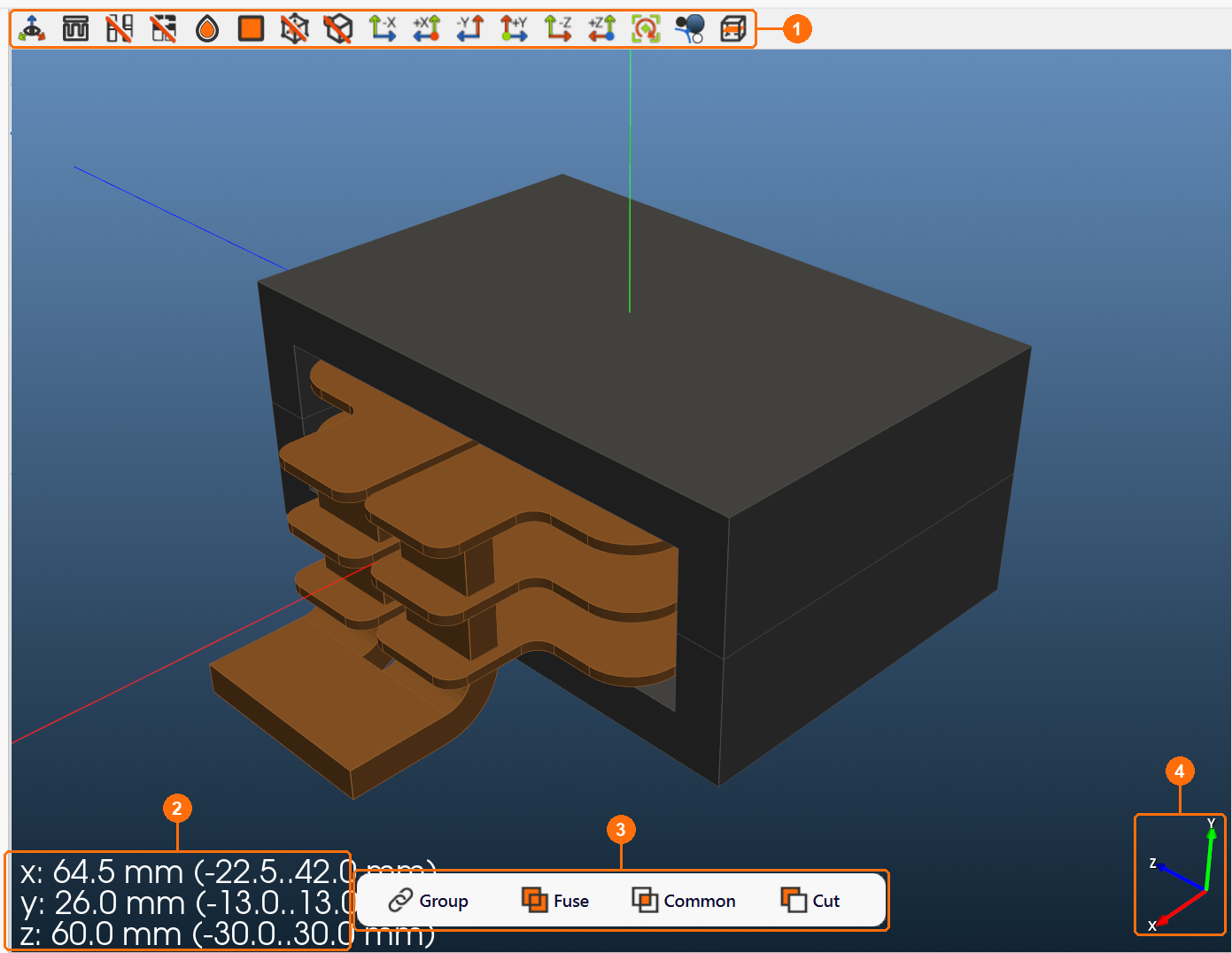
| # | Area | What it shows |
|---|---|---|
| 1 | Toolbar (5 to 21) | Visibility, display style, picking and camera buttons (Toolbar). |
| 2 | Dimension readout | Size of everything shown along x, y and z, with the minimum and maximum coordinate (Dimension readout). |
| 3 | Group, Fuse, Common, Cut | Operations on geometry groups (Group, Fuse, Common, Cut). |
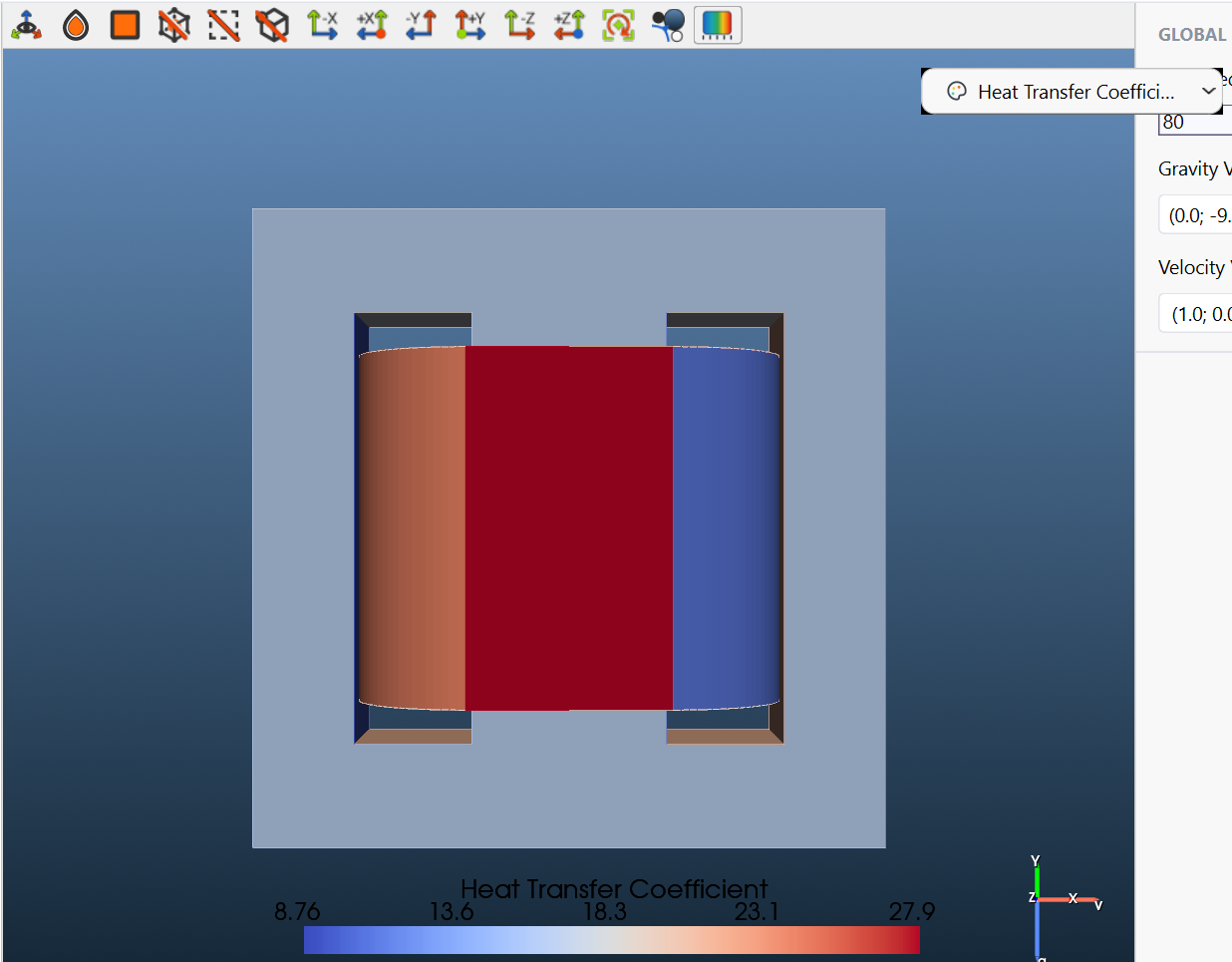
| 4 | Axis triad | Directions of the x (red), y (green) and z (blue) axes in the current view. On the Heat tab it also shows the Gravity Vector (g) and the Velocity Vector (v). |
Where the 3D view appears
| Tab | Toolbar | Also in the view |
|---|---|---|
| Core, Coil, Other, Bobbin, and each group's own tab | Full toolbar, with visibility buttons for the other part types | Group, Fuse, Common, Cut (on the list tab); Specification panel with the builder sketch (on a group's tab) |
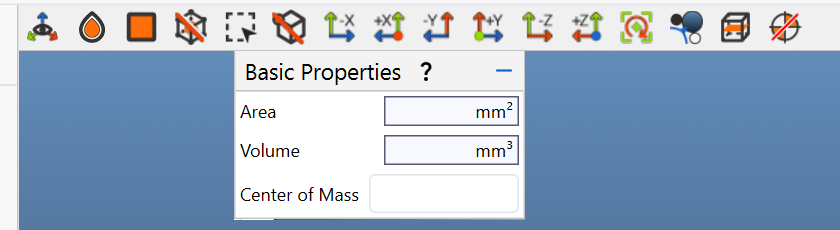
| Cad Editor | No visibility buttons; adds rectangle selection and Basic Properties | The Cad Editor tools (Create, Import, Group, Explode, Boolean, Faces, Transformations, Show Intersections), see Import / CAD Editor |
| Assembly | No visibility buttons, no symmetry plane | An eye button per part in the table hides or shows it; the readout adds the volume |
| ElMag | None | A Windings / Terminals switch |
| Heat (Boundary Conditions) | No visibility buttons, no symmetry plane; adds rectangle selection and the Color Filter | Gravity and velocity vectors on the axis triad |
| Mesh | No visibility buttons, no symmetry plane; adds rectangle selection | An eye button per mesh group |
| Results | None | Result fields with a slider for the time step or iteration; Open in ParaView for full post-processing |
Setup, Materials, Circuits, Waveform and Solve have no 3D view.
Mouse controls
| Action | Mouse |
|---|---|
| Rotate | Left-drag |
| Pan | Middle-drag, or Shift + left-drag |
| Zoom | Wheel, or right-drag |
| Roll about the viewing direction | Ctrl + left-drag |
Toolbar
The toolbar buttons are toggles unless noted; the tooltip changes with the state (for example Show Core / Hide Core). Numbers follow the order on the Coil tab.

| # | Tooltip | What it does |
|---|---|---|
| 5 | Show Axes / Hide Axes | Shows or hides the axis lines through the origin. |
| 6 | Show Core / Hide Core | Shows the core as reference. The dimension readout then includes it. |
| 7 | Show Other Geometry / Hide Other Geometry | Shows the parts of the Other tab (shields, brackets, heat sinks). |
| 8 | Show Bobbin / Hide Bobbin | Shows the bobbin. |
| 9 | Make Objects Transparent / Make Objects Opaque | Draws the geometry semi-transparent, so inner parts are visible. |
| 10 | Enable Grid View / Disable Grid View | Draws the geometry as a wireframe. |
| 11 | Enable Bounding Box / Disable Bounding Box | Draws the bounding box of the shown geometry, with the minimum and maximum coordinates on its edges. |
| 12 | Enable Render Picking / Disable Render Picking | Opens the Coordinates panel. |
| 13–18 | -X, +X, -Y, +Y, -Z, +Z | Views along an axis. With +X the +x axis points towards you, with -X away from you; the same for y and z. One click each, not a toggle. |
| 19 | Reset | Resets the camera to the initial view. One click, not a toggle. |
| 20 | Change Background Color | Cycles the background: blue gradient (default), white, dark grey. |
| 21 | Show Symmetry Plane / Hide Symmetry Plane | Shows the symmetry plane of the model, as set on the Setup tab. |
Buttons on other tabs
| Tooltip | Tabs | What it does |
|---|---|---|
| Show Coil / Hide Coil | Core, Other, Bobbin, group tabs | Shows the coils as reference. Each list tab has visibility buttons only for the other part types: Core has no Show Core, Other no Show Other Geometry, Bobbin no Show Bobbin. |
| Change selection mode | Cad Editor, Heat, Mesh | Switches picking to rectangle selection of cells on the visible surfaces. |
| Show Basic Properties / Hide Basic Properties | Cad Editor | Shows Area (mm²), Volume (mm³) and Center of Mass of the selected geometry. |
| Show Color Filter / Hide Color Filter | Heat | Shows a selector that colours the faces by Geometry (default), Type, Temperature, Heat Transfer Coefficient or Heat Flux, with a colour bar. Use it to check the heat boundary conditions at a glance. |
Dimension readout
The readout at the bottom left gives the size of everything shown along each axis, and in brackets the minimum and maximum coordinate, for example x: 64.5 mm (-22.5..42.0 mm) on the Coil tab of the Planar Winding template. It follows the visibility buttons: with the core shown, y: 20.0 mm (-13.0..7.0 mm) becomes y: 26.0 mm (-13.0..13.0 mm) and z: 45.0 mm becomes z: 60.0 mm. On a group's tab and on the Assembly tab it also gives the volume, for example Volume: 917.9 mm3 for Primary1.
Use the readout to check the size of imported CAD geometry (with a wrong Scale the size is off by a factor of 10, 25.4, 304.8 or 1000) and the position of a group after Translation and Rotation.
Coordinates panel
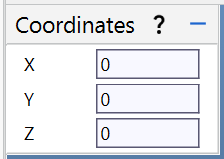
Click a point on the geometry to show its X, Y and Z coordinates. Use it to find overlaps and to work out how far to translate one group relative to another.
Group, Fuse, Common, Cut
At the bottom of the 3D view on the Core, Coil, Other and Bobbin tabs.

- Click Group, Fuse, Common or Cut. The bar changes to Apply and Cancel.
- Click the geometries in the 3D view to select them. For Cut, set the switch to Objects and click the bodies to be cut, then set it to Tools and click the bodies that cut.
- Click Apply. Cancel leaves without changes.
| Operation | Selection | Result |
|---|---|---|
| Group | At least two geometries | Puts the selected geometries into one group. The bodies stay separate; they are not fused. |
| Fuse | At least two geometries | Fuses the selected geometries into one body. Fuse also has Options. |
| Common | The geometries to intersect | Keeps only the volume the selected geometries share. |
| Cut | At least one object and one tool | Removes the volume of the tools from the objects. |