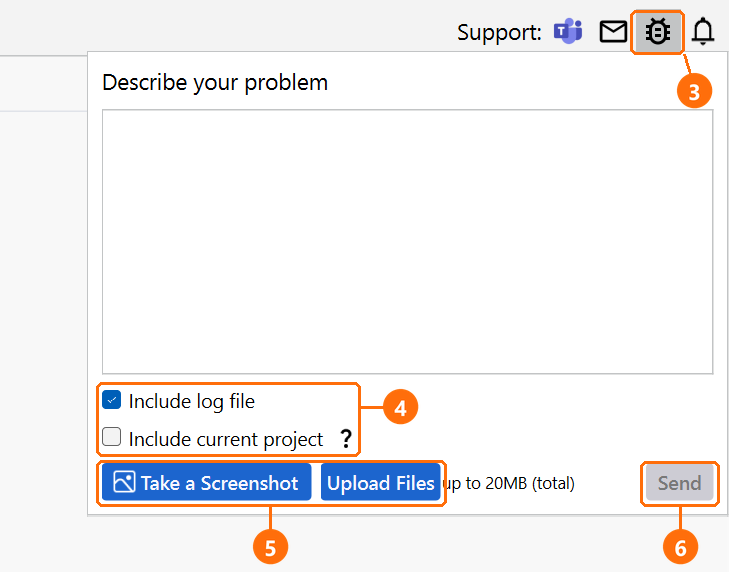
Most TRAFOLO messages name the tab and the setting to change. This page covers what the messages do not say, and how to get help.
Where to look
Tool
Where
What it shows
Notifications
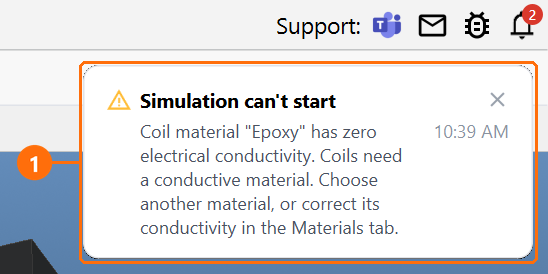
The bell at the top right of the window; a new message also pops up below it
Errors that stop a step, for example Simulation can't start, with the setting to change. The status bar keeps its last status, so look here first.
Console
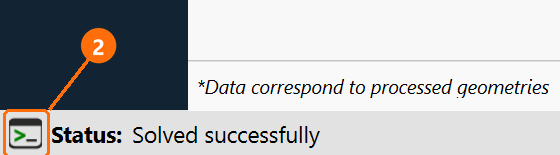
The >_ button at the bottom left of the window, next to Status
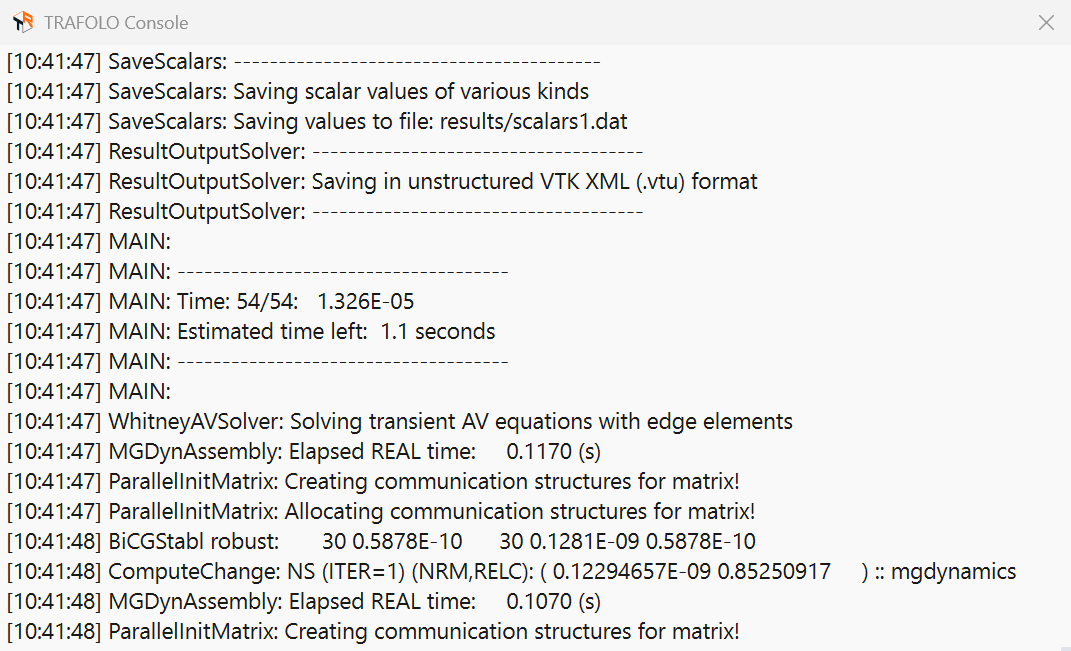
Solver output of each run: time step, estimated time left, linear-solver iterations and residuals, and the change per nonlinear iteration (ComputeChange)
Log files
Help › Open Current Log; all logs: Help › Open Log Directory (%APPDATA%\Trafolo\logs)
User actions, solver output and errors; no parameter values or design details
A notification (1) below the bell: Simulation can't start, with the cause and the setting to change.The console button (2) at the bottom left of the window, next to Status.Console during a run: time step and time left (MAIN), linear-solver residuals (BiCGStabl), nonlinear change (ComputeChange).
Common problems
Start-up and license
Problem or message
What to do
"msmpi.dll was not found", or TRAFOLO asks for Microsoft MPI at start
Run %LOCALAPPDATA%\Programs\Trafolo\third_party\ElmerFEM\redist\msmpisetup.exe (needs administrator rights), then restart TRAFOLO.
File › Select Third Party Software: download ParaView, or enter the path of an existing installation of the version the form suggests.
A permission error with third-party software, or "You don't have permission to use this folder"
The software or the project is in a folder that needs administrator rights. Keep third-party software in the default folder %LOCALAPPDATA%\Trafolo_third_party and projects in a folder you own.
Windows or security software blocks the installer or TRAFOLO
Allow it, or ask your IT department to allow it. All executables from TRAFOLO are signed electronically by TRAFOLO Engineering. Questions: info@trafolo.eu.
"TRAFOLO couldn't connect to the license server"
Check the internet connection and the Server Endpoint in Help › Activate License. Behind a proxy: File › Settings, Use proxy to verify license. No internet access: offline activation, see Licensing.
"This license is already active on another device", "maximum number of activations", "Your license has expired"
To move, extend or renew a license, write to info@trafolo.eu.
Geometry and mesh
Problem or message
What to do
"Some solids overlap each other, so the geometry can't be assembled."
The console shows the details. Move or resize the parts on their tabs, or fix the CAD file, then click Reset Geometry and Assemble Geometry on Assembly.
"The mesher couldn't create a mesh for this assembly", "Failed to create a mesh"
On Mesh, start from a coarse Mesh Refinement; remove very small features from the CAD geometry (Importing CAD Geometries); or switch Mesh Algorithm between Netgen and Gmsh. Gmsh must be installed first (File › Select Third Party Software).
Solving
Problem or message
What to do
"The iterative linear solver could not solve the field equations", or "did not converge", in a Harmonic or Inductance run
On Solve, under Solver settings: WhitneyAV, set Linear Solver to MUMPS (direct) and run again. MUMPS needs much more memory. Transient runs always use the iterative solver, so this setting does not change them.
The same messages in a Transient run
On Solve, set Solver Preset to Slow, or lower the Nonlinear Relaxation Factor; both make the run longer. On Waveform, use smaller time steps: raise #Points per period, with at least 20 points per period of the highest frequency in the waveform. If it still fails, change Mesh Refinement on Mesh and run again.
Imported solid multi-turn windings do not converge at high frequency
"The nonlinear iterations reached their limit", or "some steps may not have converged"
Check the results before you use them. For nonlinear B-H curves, set Solver Preset to Slow, or lower the Nonlinear Relaxation Factor; both make the run longer.
"ElmerFEM solver has encountered a numerical error."
Change Mesh Refinement on Mesh or Parallel cores on Solve, then run again.
"Elmer could not break the mesh into partitions and will use 1 CPU core"
The run continues on one core. For the next run, choose another Parallel Mesh Partitioning Method on Solve.
The PC runs out of memory
A relatively small simulation needs about 16 GB of RAM, so the PC needs 32 GB in total; 128 GB is recommended for large models. Use a coarser Mesh Refinement, keep the iterative linear solver (MUMPS needs much more memory), and solve half the model with Symmetric on Setup where the model is symmetric.
Results
Problem or message
What to do
"There are no simulation results to open in ParaView."
Templates ship without 3D field data. Run the simulation on Solve first.
Inductance far too low, or losses far off, in a transformer or a coupled inductor