Getting started with TRAFOLO
From installation to first results with the Flyback Transformer template, in six steps.
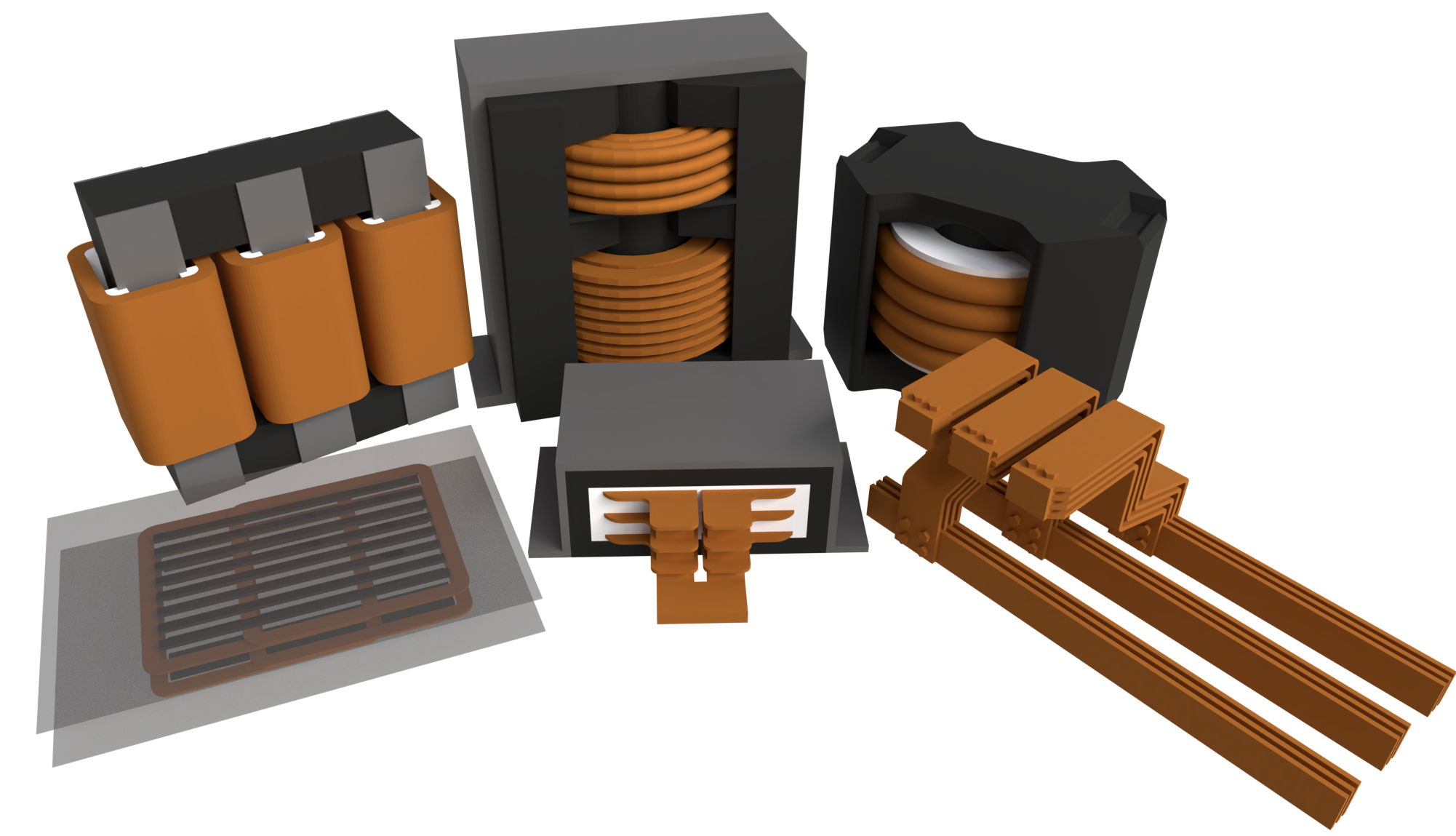
1. Install
Fill in the form on the download page to get TRAFOLO and a 14-day free trial license, then run the installer. Requirements and details: Installation.
2. Activate the license
The license key is sent to your email. To activate it, online or offline, see Licensing.
3. Open the template
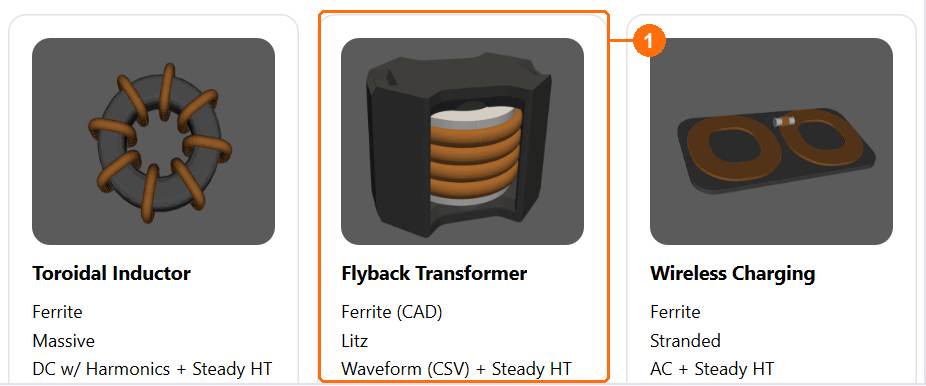
On the Welcome screen, under Examples, click Flyback Transformer (1).
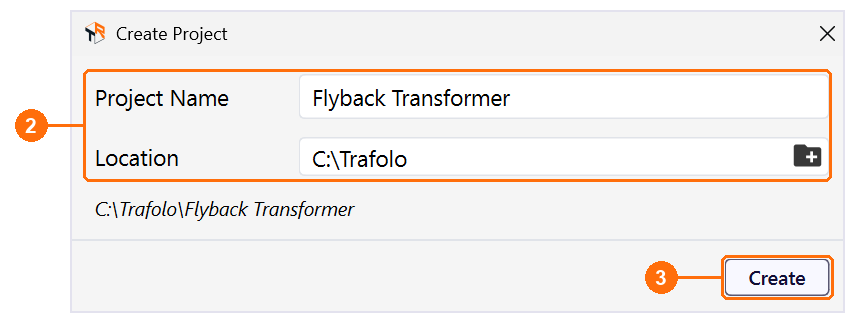
In Create Project, enter a Project Name and a Location (2), then click Create (3). TRAFOLO copies the template into a new project folder and opens it.
4. Look at the model
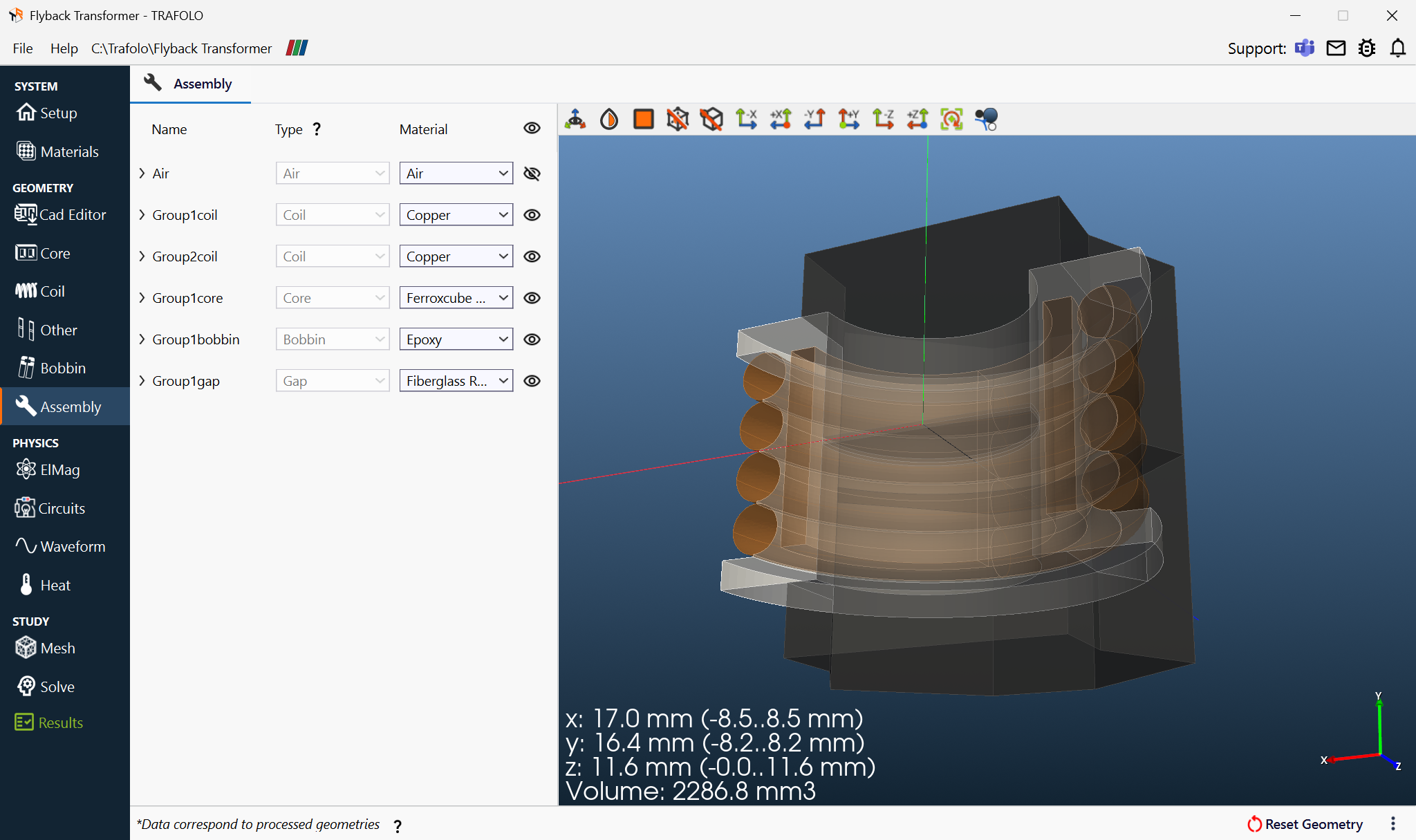
The sidebar lists the tabs in the order you work through them, from Setup to Results. In the template every input is already set. The Interface Reference Manual describes each tab; the Flyback Transformer walkthrough builds a similar model step by step.
5. Run the simulation
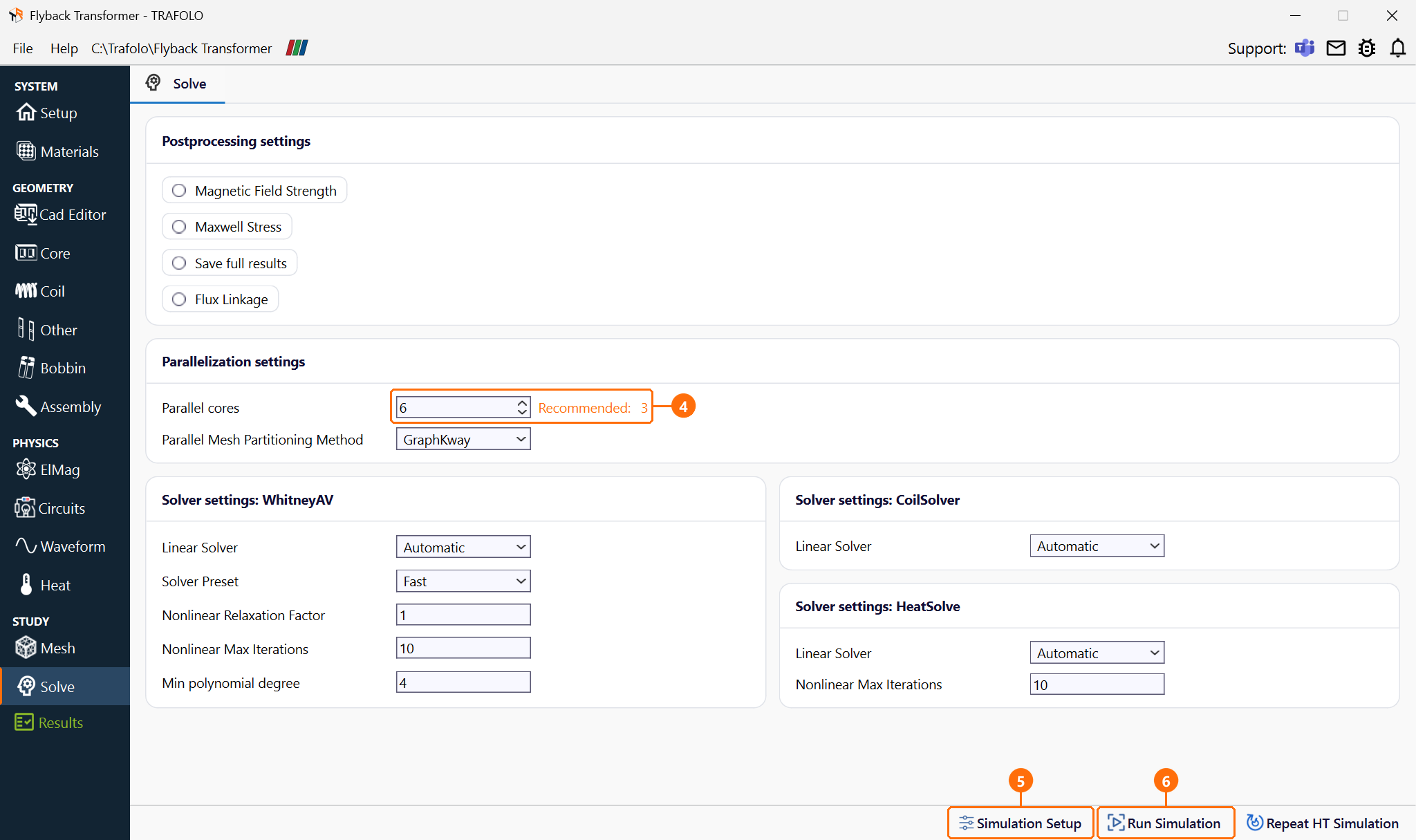
On the Solve tab, set Parallel cores (4) to the number of performance (P) cores of your CPU; Recommended shows an estimate for the model size. Click Simulation Setup (5) to write the solver input files, then Run Simulation (6). When the run ends, the status bar shows Solved successfully.
On a laptop CPU with 6 P cores (Intel Core Ultra 7 155H), Simulation Setup takes about 15 s and the run about 1.5 minutes.
6. Read the results
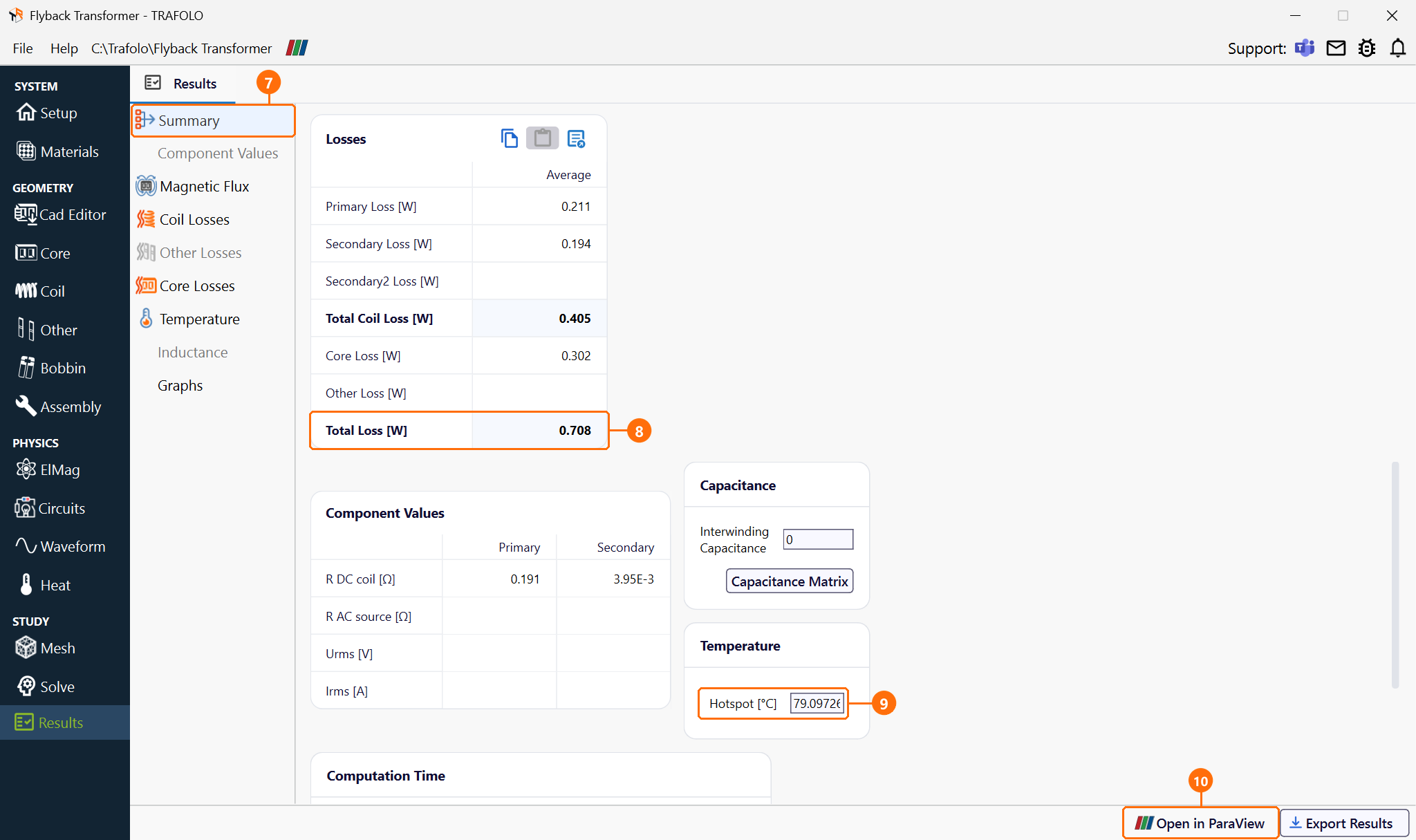
On the Results tab, Summary (7) lists the losses per winding and in the core (Total Loss [W] (8)), the component values, the Hotspot [°C] (9) and, further down, the Computation Time.
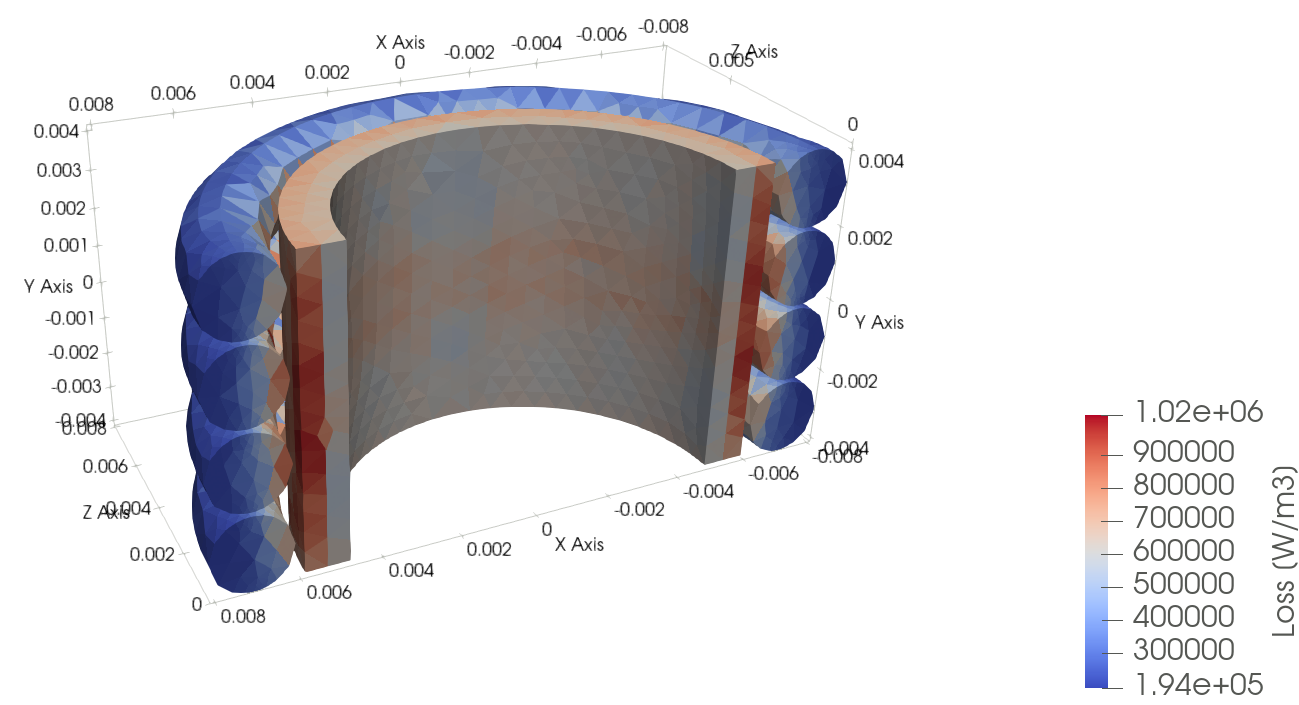
Magnetic Flux, Coil Losses, Core Losses and Temperature show the 3D fields in TRAFOLO; the slider under the view steps through the time steps.
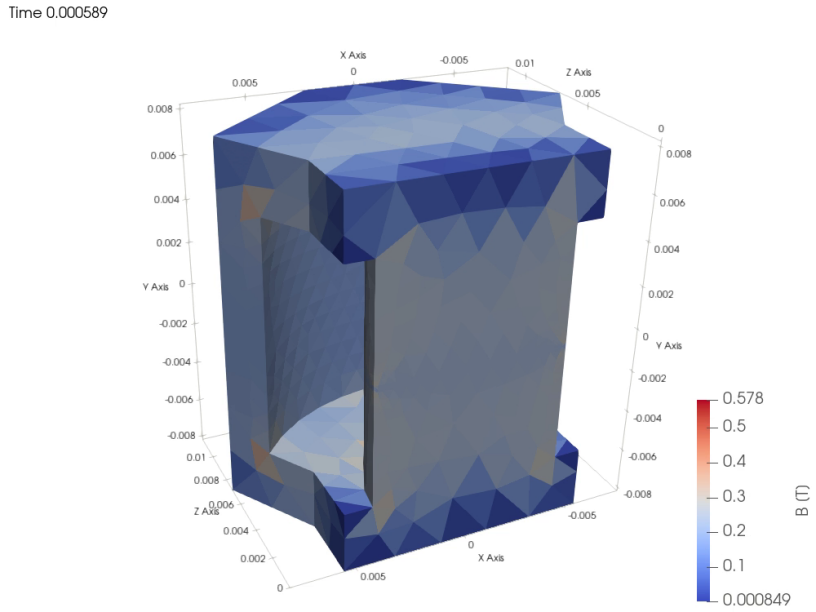
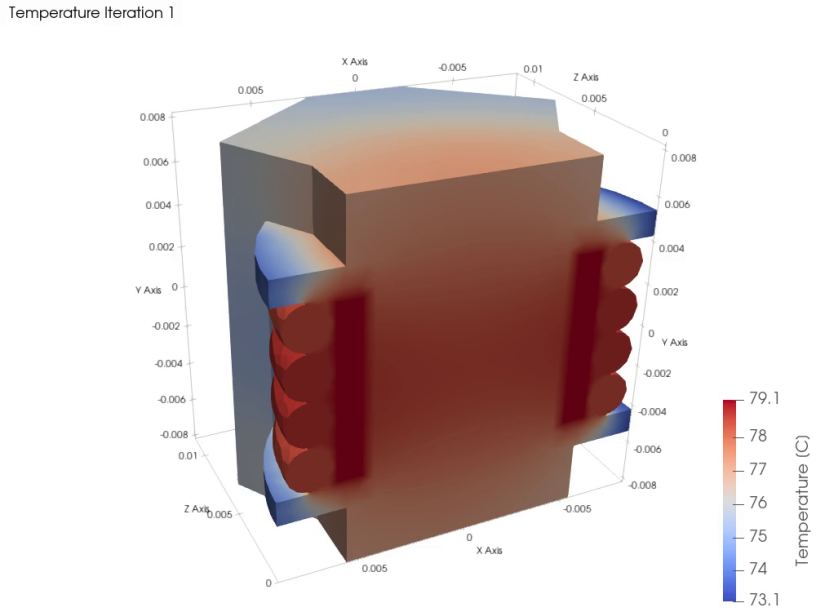
Open in ParaView (10) opens them in ParaView, see ParaView (post-processing).
Next
- Change the model to your design: geometry on Core and Coil, excitation on Waveform, materials on Materials. After a geometry change, click Reset Geometry and Assemble Geometry on Assembly, then Evaluate Mesh and Compute Mesh on Mesh, and run again.
- Find the template closest to your component: Templates.
- If a message appears: Troubleshooting.
Video (16 min): what to know before you model your own component, from input data and limits to typical use cases.