Installation
Download
Fill in the form on the download page to get TRAFOLO and a 14-day free trial license.
System requirements
- 64-bit Windows 10 or newer
- RAM: 32 GB minimum, 128 GB recommended. RAM sets the largest model you can solve.
- CPU: only the performance (P) cores count, so compare CPUs by their number of P cores. TRAFOLO solves on this one PC, not on a cluster, HPC system or cloud, and does not limit the number of cores; the run time does not fall in proportion to the cores.
- GPU: required. An integrated GPU is enough.
- 50 GB free disk space, preferably SSD
- Screen: 1920 × 1080 or more
Install
- Run the installer. It needs no administrator rights and installs TRAFOLO for your Windows user into
%LOCALAPPDATA%\Programs\Trafolo(default) or into another folder you can write to without administrator rights. - If Windows asks before the installer runs, allow it. All executables from TRAFOLO are signed electronically by TRAFOLO Engineering.
- Start TRAFOLO. At the first start it checks for Microsoft MPI, which the solver needs to run on several cores, and offers to install it. This is the only step that needs administrator rights.
- Install ParaView, and Gmsh if you need it (below).
- Activate your license: Licensing.
ElmerFEM, ParaView and Gmsh
ElmerFEM, the solver, comes as a bundle with TRAFOLO, so you do not install it separately.
ParaView shows the 3D results. TRAFOLO opens the Third Party Dependencies Downloader at the first start to install it; later, open the downloader with File › Select Third Party Software. If the download fails, download ParaView 5.11.0 (813 MB) yourself, unzip it into %LOCALAPPDATA%\Trafolo_third_party and select it with Browse (step 2 below).
Gmsh is optional. Install it if you select it as the Mesh Algorithm on the Mesh tab, and before you open a template that uses it: Autotransformer, Heat Transfer, Homogenization or Planar Transformer. If the download fails, download the Gmsh 4.10.3 SDK (39 MB) yourself, unzip it into the same folder and select it with Browse.
The downloader shows the state of each package, for example Up to date, and its Installed and Required versions. To install ParaView or Gmsh:
- Tick the package (1) and click Download and Install (2). Packages are saved to
%LOCALAPPDATA%\Trafolo_third_party. - Or click Browse (3) and select an installation of the Required version that you already have: the
binfolder of ParaView, thelibfolder of the Gmsh SDK. - Click Apply (4).
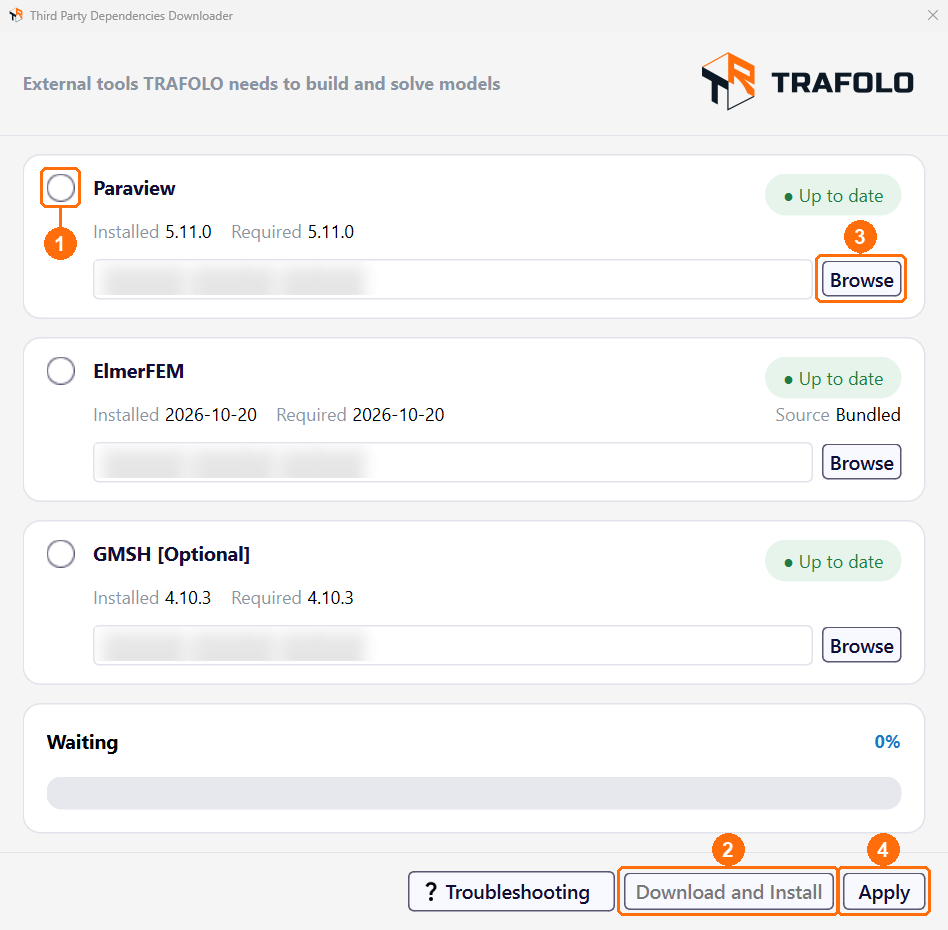
If a download fails, click Troubleshooting in the downloader: it offers Open Network Settings, Open Log File and Contact Support. Behind a proxy, set the proxy (see Proxy below) and try again.
Updates
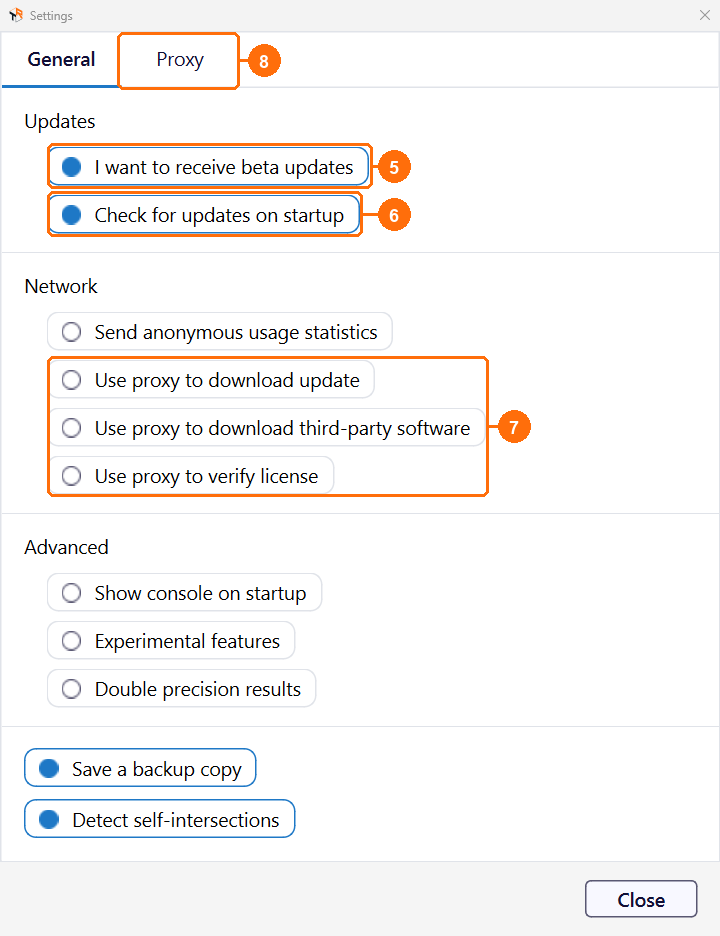
TRAFOLO looks for updates at each start (Check for updates on startup (6) in File › Settings); Help › Check for Updates looks now. Help › What's New shows the release notes, including anything an update needs you to do. When an update needs a newer ParaView or Gmsh, the Third Party Dependencies Downloader opens and marks the package: click Download and Install, then Apply. ElmerFEM comes with each TRAFOLO update.
Beta versions: tick I want to receive beta updates (5), then click Help › Check for Updates.
Proxy
Behind a proxy, open File › Settings, tick Use proxy to download update, Use proxy to download third-party software and Use proxy to verify license (7), then enter the proxy on the Proxy tab (8).
Uninstall
Uninstalling TRAFOLO does not remove the third-party software: ParaView, Gmsh and any ElmerFEM that older releases downloaded. To remove it too, delete %LOCALAPPDATA%\Trafolo_third_party.
Problems
- If your security software blocks TRAFOLO, ask your IT department to allow it.
- Missing msmpi.dll or VCRUNTIME140.dll, permission errors and the log files: Troubleshooting.