Heat Transfer
An inductor heated by known losses: a transient heat transfer run over 300 s, with no electromagnetic solve.
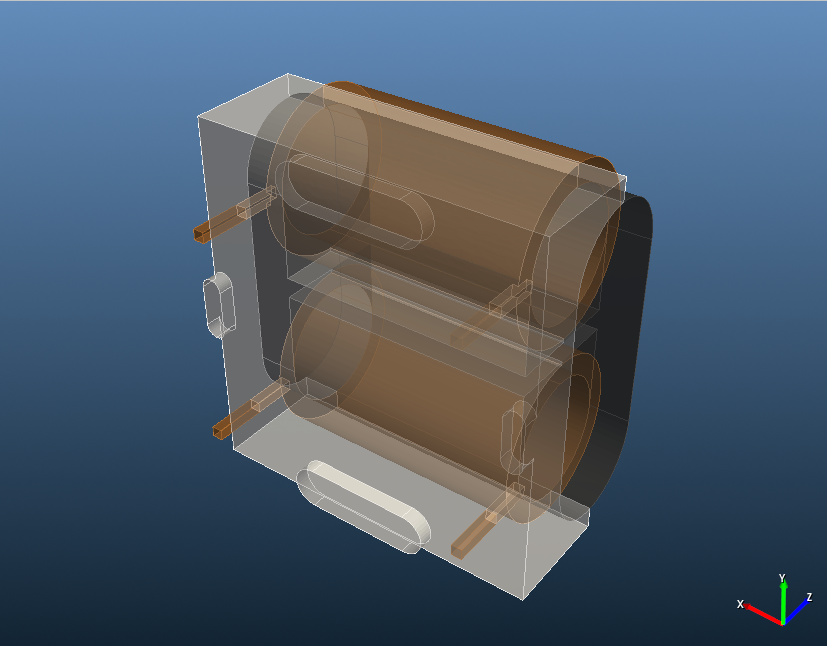
- Component: ferrite core with two windings in a PVC enclosure, imported from CAD in four parts.
- Simulation: Transient heat transfer, ELECTROMAGNETICS Off; full model.
- Heat sources: 1.5 W in the core and 2.0 W in each winding.
- You get: the temperature field and the hotspot at each time step.
- Files: the geometry comes with the example; its source is the Inductor model on GrabCAD.
- In TRAFOLO: Welcome screen › Examples › Heat Transfer is this model with its results.
- Run time: under 30 s.
Model description
When the losses are known, from an electromagnetic run or a datasheet, a heat transfer run alone gives the temperatures within seconds. Here the losses are spread evenly over each part; the enclosure has none.
Modelling instructions
Setup
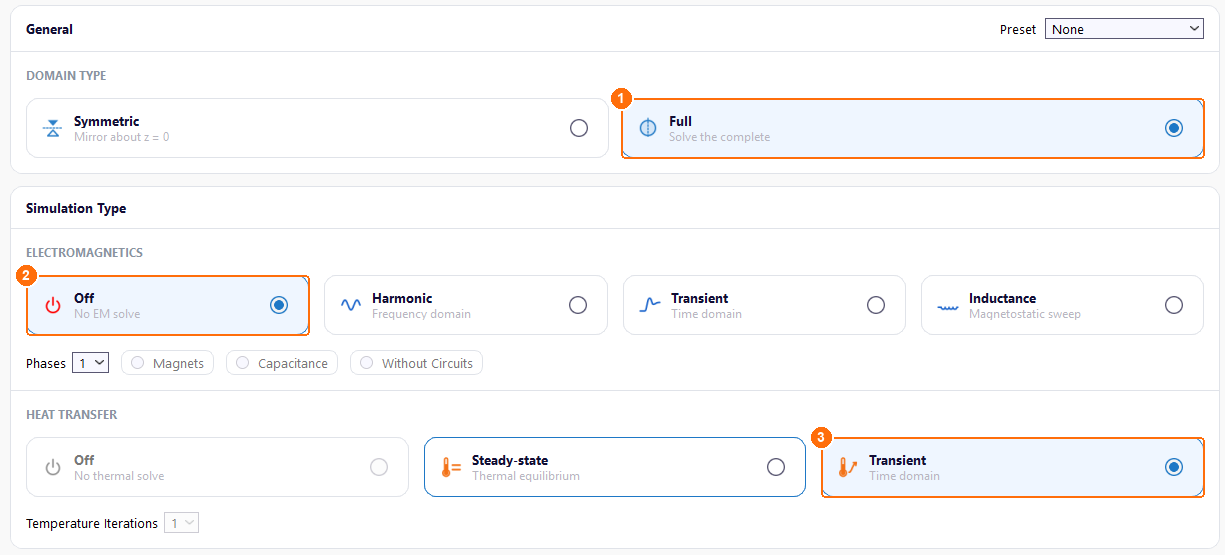
- Under DOMAIN TYPE, select Full.
- Under ELECTROMAGNETICS, select Off.
- Under HEAT TRANSFER, select Transient.
Materials
- Under Global Materials, select Polyvinyl chloride (PVC ) and click Copy. Copy Copper the same way.
-
The ferrite is not in Global Materials. Click Add New Material, set Name to Ferrite and Material Type to Core, enter the Thermal properties below and click Save. With the electromagnetic solve off, only these three properties are used.
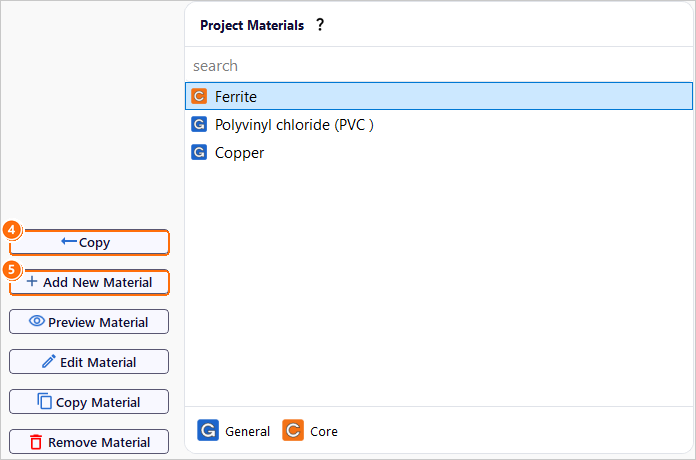
Copy (4) and Add New Material (5); Project Materials lists Ferrite, Polyvinyl chloride (PVC ) and Copper. Heat Capacity [J/kg.K] Heat Conductivity [W/m.K] Density [kg/m3] 750 4.0 4800 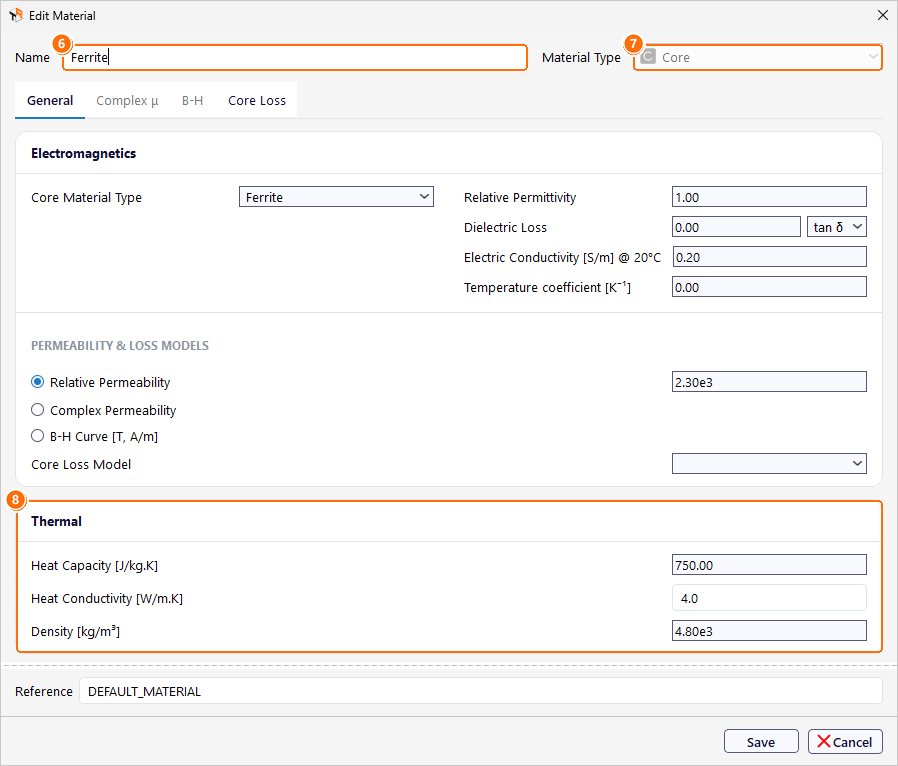
The Ferrite material: Name (6), Material Type (7) and the three Thermal properties (8). -
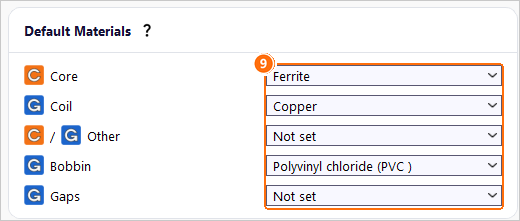
Under Default Materials, set the material of each component:
| Core | Coil | Other | Bobbin | Gaps |
|---|---|---|---|---|
| Ferrite | Copper | Not set | Polyvinyl chloride (PVC ) | Not set |
Core
- On Core, click New Group. Group1core appears.
- Click Configure next to Group1core.
-
Set Source to CAD and click Import.
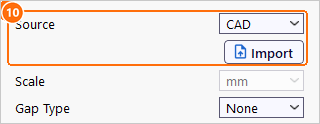
Group1core: Source CAD and Import (10). -
In Import CAD geometry, click Import and open the core file. Keep Scale mm, set Geometry Handling Algorithm to Unmodified and click Ok. Keep Gap Type None.
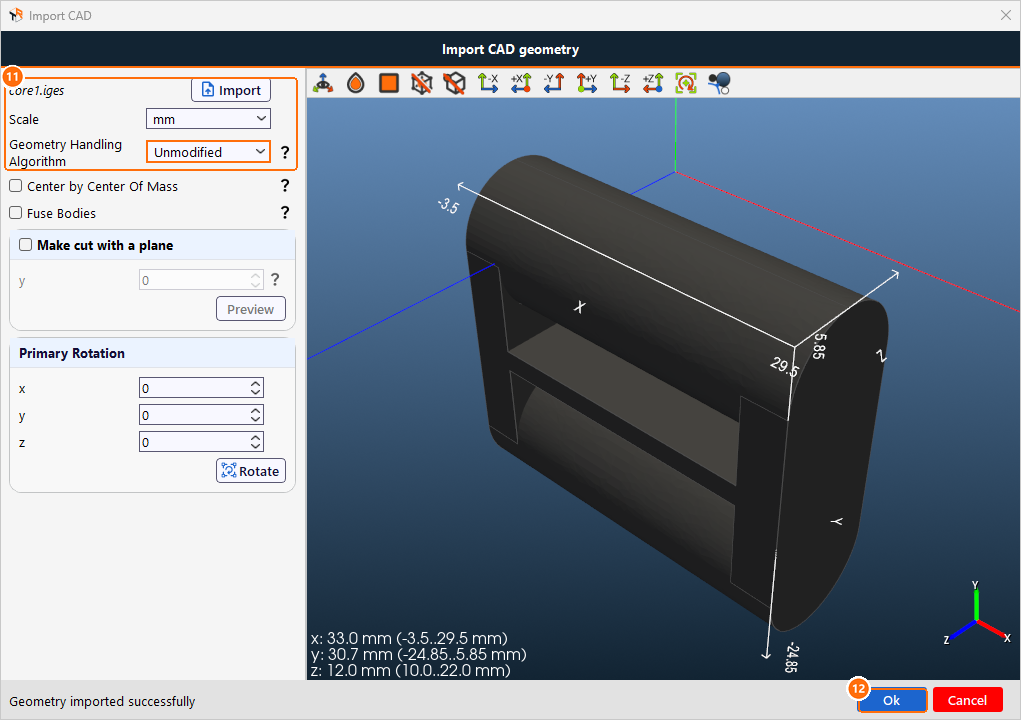
Import CAD geometry: file, Scale and Geometry Handling Algorithm (11), then Ok (12).
Coil
- On Coil, click New Group. Group1coil appears.
-
Click Configure next to Group1coil.
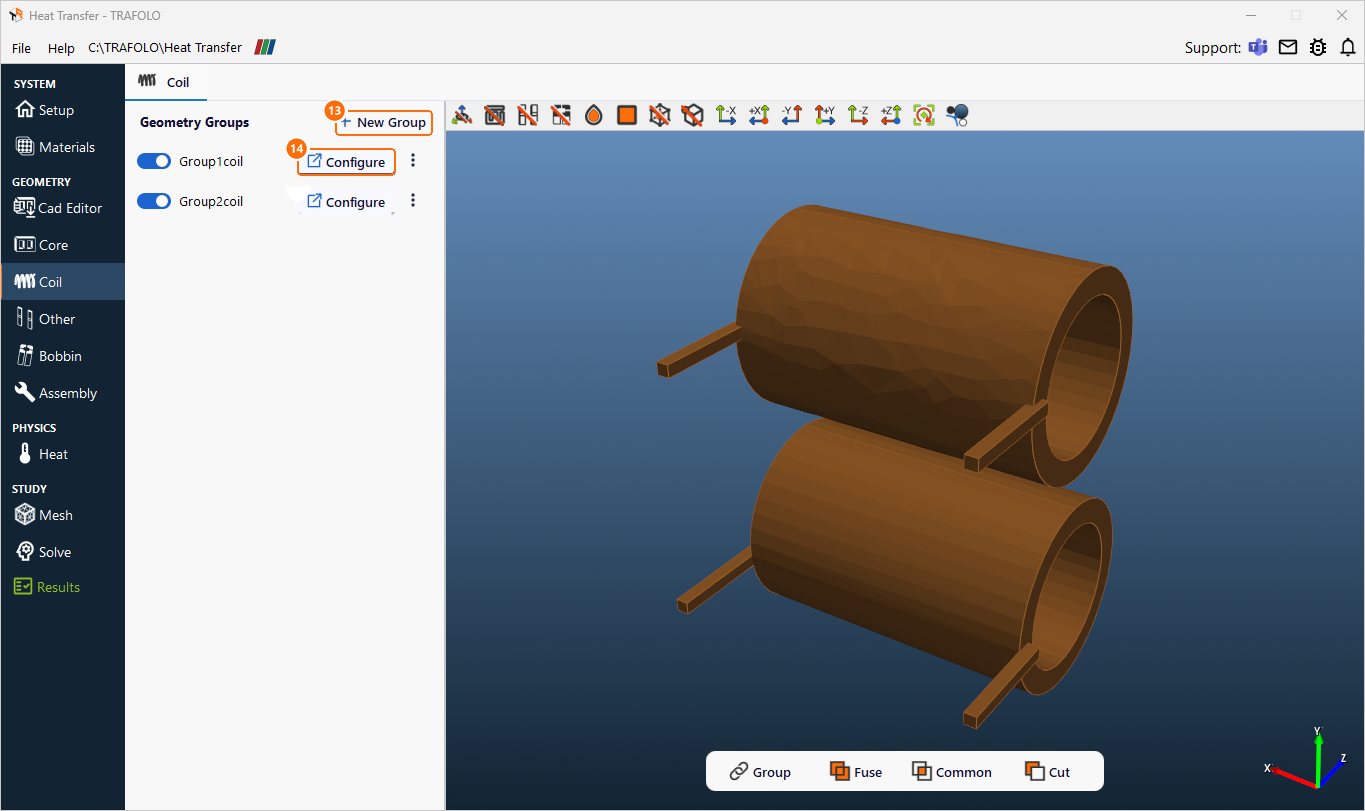
Coil tab: New Group (13) and Configure (14) for Group1coil; Group2coil is set up the same way. -
Set Source to CAD and click Import.
- Import the first winding as for the core: Scale mm, Unmodified, Ok.
-
Set Wire Type to Stranded & Litz.
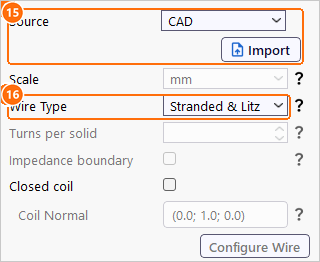
Group1coil: Source CAD and Import (15), Wire Type Stranded & Litz (16). -
Repeat steps 1 to 5 for the second winding, Group2coil.
Bobbin
- On Bobbin, click New Group. Group1bobbin appears.
- Click Configure next to Group1bobbin.
- Set Source to CAD and click Import.
-
Import the enclosure with Scale mm and Geometry Handling Algorithm Cut by Other Objects, so that the core and the windings cut it where they overlap, and click Ok.
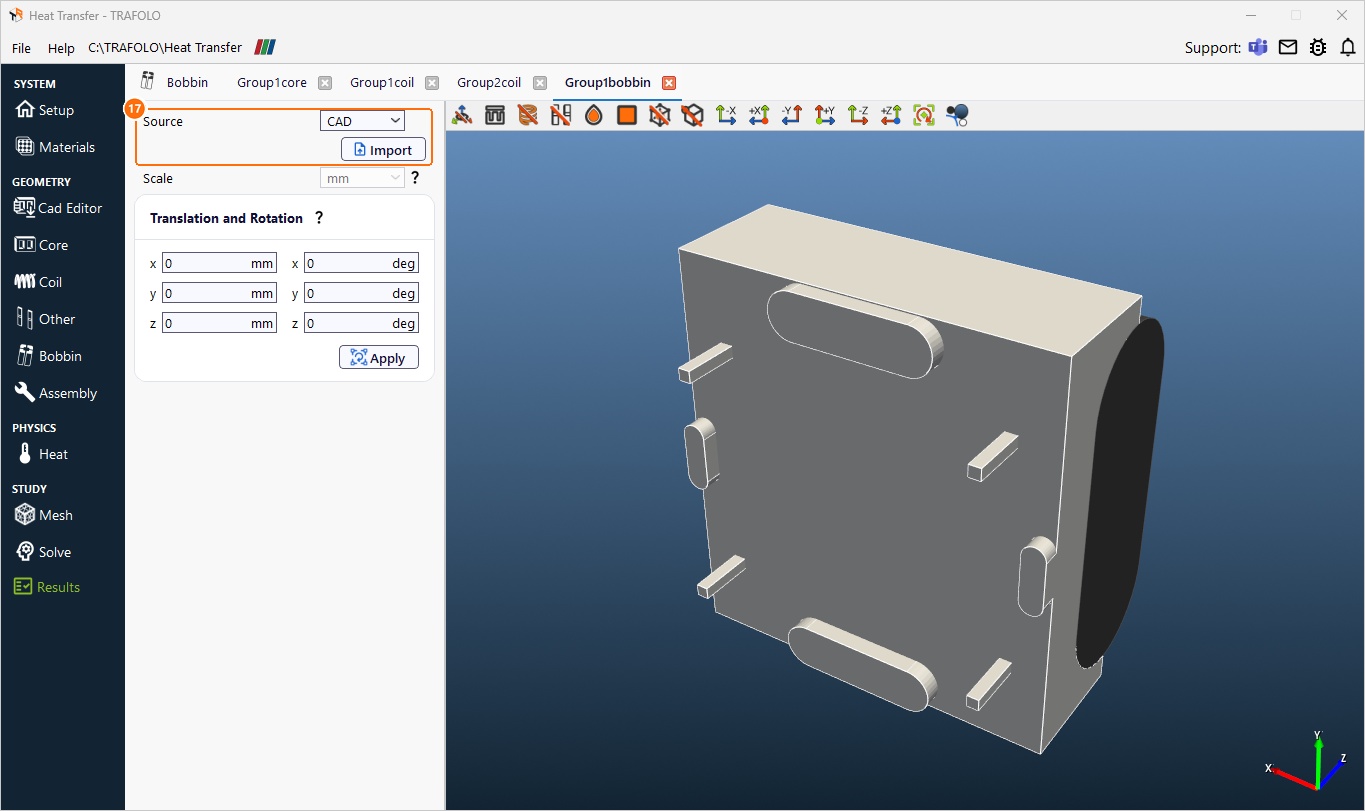
Group1bobbin: Source CAD and Import (17); the PVC enclosure in an angled view.
Assembly
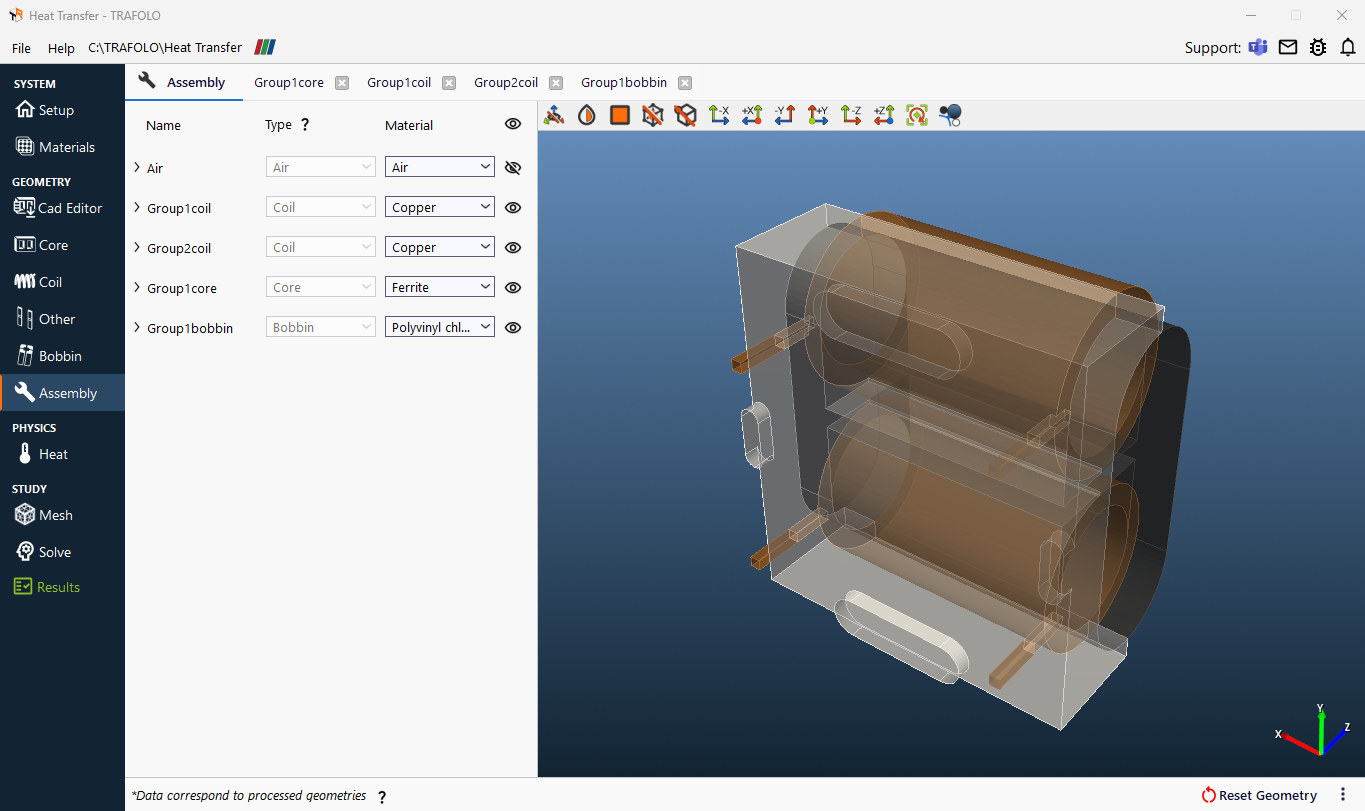
- On Assembly, click Assemble Geometry.
Heat
- Under GLOBAL SETTINGS, set Initial Temperature to 25 °C.
-
In Timesteps [s], enter 1.0 5.0 20.0 50.0 100.0 150.0 200.0 250.0 300.0: short steps first, while the temperature rises fastest.
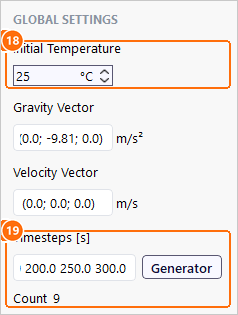
GLOBAL SETTINGS: Initial Temperature 25 °C (18) and Timesteps [s] (19), 9 steps. -
Under FACES, select Geometry: settings made there apply to every face.
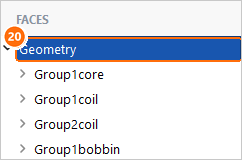
FACES: Geometry (20) applies the surface settings to every face. Under SURFACE SETTINGS, keep Type Convection, set External temperature to 20 °C and Heat transfer coefficient to 10 W/(m²·K), with Auto off.
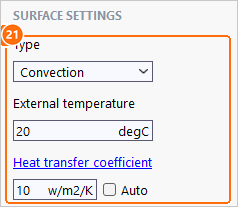
SURFACE SETTINGS (21): Convection, 20 °C, Heat transfer coefficient 10 W/(m²·K), Auto off. -
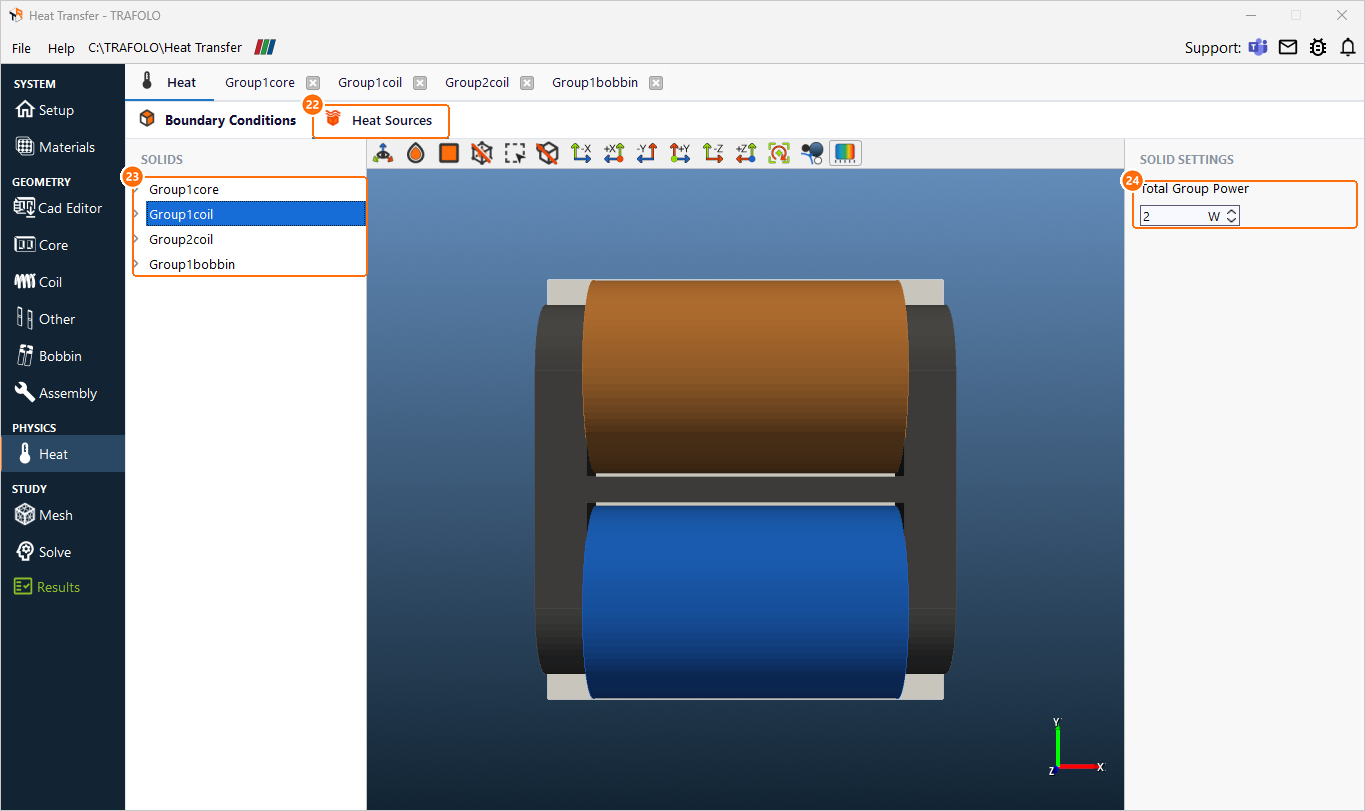
On Heat Sources, select each solid under SOLIDS and set its Total Group Power:
| Group1core | Group1coil | Group2coil | Group1bobbin |
|---|---|---|---|
| 1.5 W | 2.0 W | 2.0 W | 0 W |
Mesh
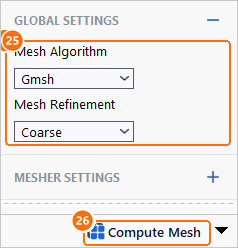
- Under GLOBAL SETTINGS, set Mesh Algorithm to Gmsh and Mesh Refinement to Coarse.
-
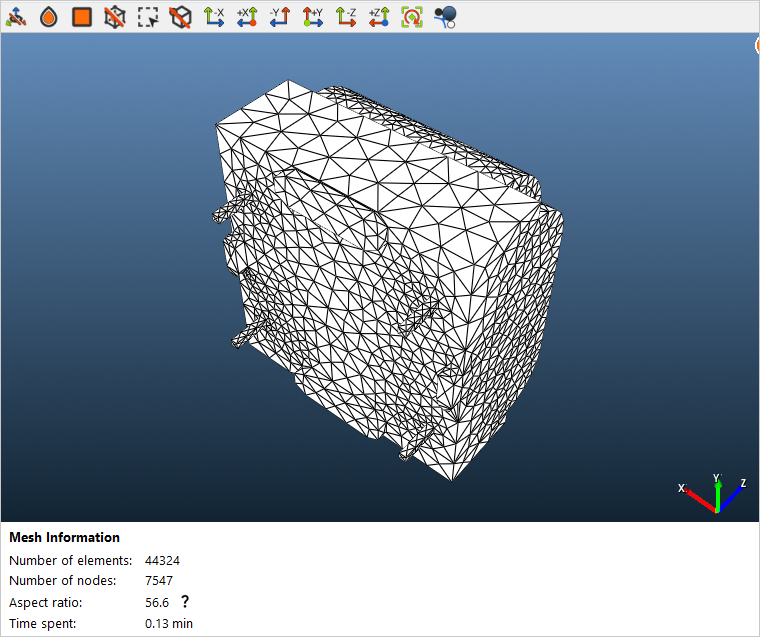
Click Compute Mesh. The mesh has about 44,000 elements.
Solve
-
Click Simulation Setup, then Run Simulation.

Simulation Setup and Run Simulation (27).
Results
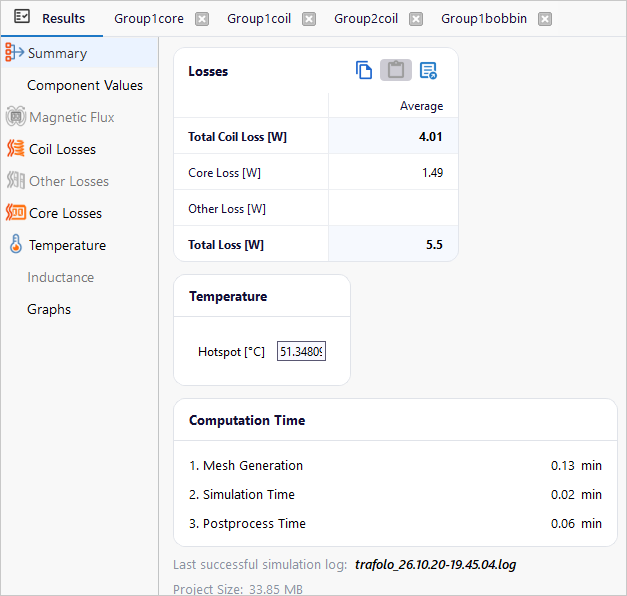
The Summary shows the heat sources as set, within 1 %: 1.49 W in the core and 4.01 W in the windings, 5.5 W in total. The hotspot, in the windings, rises as follows:
| Time (s) | 1 | 5 | 20 | 50 | 100 | 150 | 200 | 250 | 300 |
| Hotspot (°C) | 25.2 | 25.7 | 27.4 | 30.4 | 35.0 | 39.4 | 43.5 | 47.5 | 51.3 |
How far the heating goes
At 300 s the hotspot is 51.3 °C and still rises about 4 K every 50 s. The same model solved with Steady-state on Setup, nothing else changed, reaches 138.5 °C: after 300 s the inductor has covered only a quarter of its final temperature rise. The late part of the curve slows with a time constant of about 20 minutes, so the hotspot comes within 5 % of its final value after about an hour.
The hotspot-to-ambient thermal resistance is (138.5 − 20) K / 5.5 W = 21.5 K/W, to the 20 °C air with natural convection at 10 W/(m²·K). Use Steady-state for the final temperature, and Transient for warm-up, overloads and duty cycles shorter than about an hour.
Temperature field
The Coil Losses view shows 9.0 × 10⁵ W/m³ in both windings, uniform, as set on Heat Sources.
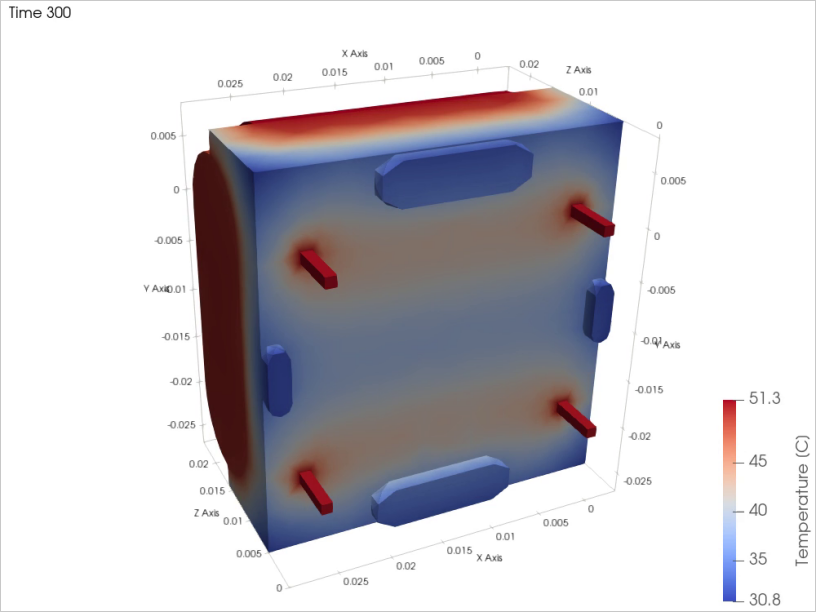
The example ships with these views but without 3D field data: run it before Open in ParaView (ParaView (post-processing).
Further reading
- Heat Transfer modeling (User's Guide)
- Heat (Interface Reference)