Import / CAD Editor
On the Cad Editor tab you import CAD files, prepare the solids (group, cut, fuse, move) and say which solid is a core, coil, bobbin or other part. Apply (7), at the bottom right, hands them to the Core, Coil, Bobbin and Other tabs; until you click it, those tabs do not get the solids.
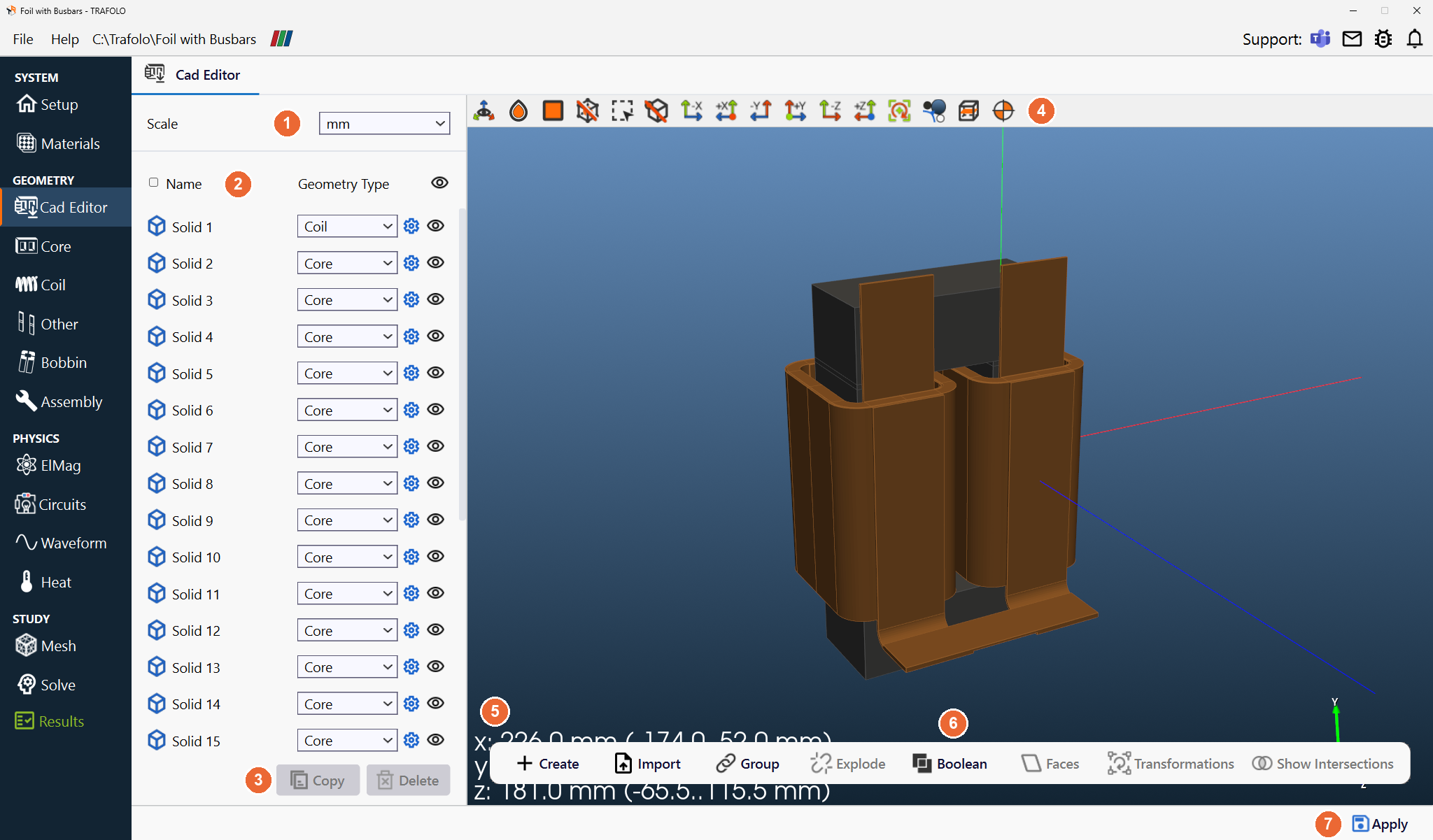
| # | Area | Described in |
|---|---|---|
| 1 | Scale | Solids list |
| 2 | Solids list: Name, Geometry Type, gear button, eye | Solids list |
| 3 | Copy, Delete | Solids list |
| 4 | 3D view toolbar | 3D View |
| 5 | Dimension readout: size of the shown solids along x, y and z | 3D View; check the Scale with it |
| 6 | Create, Import, Group, Explode, Boolean, Faces, Transformations, Show Intersections | Toolbar |
| 7 | Apply | Toolbar |
Solids list
| Setting | Values | What it does |
|---|---|---|
| Scale (1) | µm, mm (default), cm, m, in, ft | The length unit of the next imported STEP, IGES or BREP file. Set it before each import: a file exported in another unit comes in at the wrong size. DXF is always read in mm; GDSII and OASIS use the unit stored in the file. |
| Name, Geometry Type (2) | Core, Coil, Bobbin, Other, None | One row per solid. The Geometry Type decides which tab the solid goes to on Apply; solids left at None are not used. The checkbox in the header selects all rows. |
| Gear button | – | Active once a Geometry Type is set: processing options for that type, for example a planar cut for a core. |
| Eye | – | Shows or hides the solid in the 3D view. |
| Copy, Delete (3) | – | Copy or delete the selected solids. |
Scale first. A wrong Scale gives a model 1000 times too large or too small, and wrong results without any error. Check the size after each import: the dimension readout at the bottom left of the 3D view (5) gives the size of the bounding box of the shown solids along x, y and z; Enable Bounding Box in the 3D view toolbar (4) draws the box. Compare it with the size of the real part.
Toolbar
| Button | What it does |
|---|---|
| Create | Builds a solid from a script: Primitives (basic shapes) or Toroid (a toroid core with a multi-turn winding). |
| Import | Loads STEP, IGES, DXF, GDSII and OASIS files, several at once. GDSII and OASIS are chip and PCB layout formats, for example from KLayout (note below). DXF, GDSII and OASIS open a layer dialog: one row per layer, each with a vertical offset and a thickness in mm along +y, and stack-up presets for PCBs. The drawing plane becomes the xz plane; a thickness of 0 imports flat faces. This builds stacked planar windings from PCB layers. |
| Group | Joins the selected solids into one group, for example the turns of one winding or the pieces of a split core, so they get the same settings on the next tabs. |
| Explode | Splits groups and compounds into their parts, and solids into their faces. |
| Boolean | Fuse merges the selected solids into one, Common keeps their overlap, Cut removes one solid from another. |
| Faces | Operations on selected faces (split a solid with Explode first), such as Extrude: a solid from a face, for example to extend a terminal to the air domain boundary. |
| Transformations | Transform moves the selected items: translation in mm first, then rotation about the global x, y and z axes through the origin. |
| Show Intersections | Shows where solids intersect themselves; Remove intersections repairs them. |
| Apply (7) | Hands the typed items to the Core, Coil, Bobbin and Other tabs; each item becomes its own group there, and the items stay in the editor. It asks how: Add to the groups already there, or Overwrite, which first deletes every group on all four tabs. This cannot be undone. |
Layouts from KLayout. GDSII and OASIS are the layout formats of chip and PCB design tools and of KLayout, a free layout editor. The free macro KLayout-to-TRAFOLO adds TRAFOLO › Export for TRAFOLO… to KLayout 0.30 or newer: you give each layer a role, a vertical offset and a thickness (or pick a PCB preset), and it writes the layout with a stack file (.trafolo.json). On Import, TRAFOLO reads the stack file and fills in the layer dialog. The repository also holds seven example layouts that import without KLayout, for example a planar transformer. Step by step: Importing GDSII and OASIS Layouts from KLayout.
The toolbar above the 3D view (4) and the dimension readout (5) are the same as on the other geometry tabs: see 3D View.
Three-phase windings
In a 3-phase model (Setup › Phases 3), put the windings of all three phases in one coil group: each coil group needs at least 3 bodies, one per phase.
Related
- Importing CAD Geometries: preparing CAD files and terminals for TRAFOLO
- Core: the Import CAD dialog for a single group
- Fixing CAD geometries for FEM (LinkedIn)
- Thin-film spiral inductor from KLayout to TRAFOLO (video)