Bobbin
On the Bobbin tab you add the non-magnetic, non-conductive parts: bobbins, spacers, insulation and potting. They carry no current, but they conduct heat, set the permittivity for capacitance and give regions where you can refine the mesh. You give each group its material on the Assembly tab.
| Use a bobbin body for | Why |
|---|---|
| Heat transfer | Heat flows from the windings and the core through the bobbin. Fill air pockets between windings and core with a bobbin body of material Air: without a body there, the pocket faces become external boundaries of the heat model. See Heat. |
| Capacitance | The permittivity of the bobbin material enters the winding capacitance. See Setup and Materials. |
| Mesh refinement | A bobbin body between windings is a region you can refine on the Mesh tab, for more accurate leakage inductance and interwinding capacitance. |
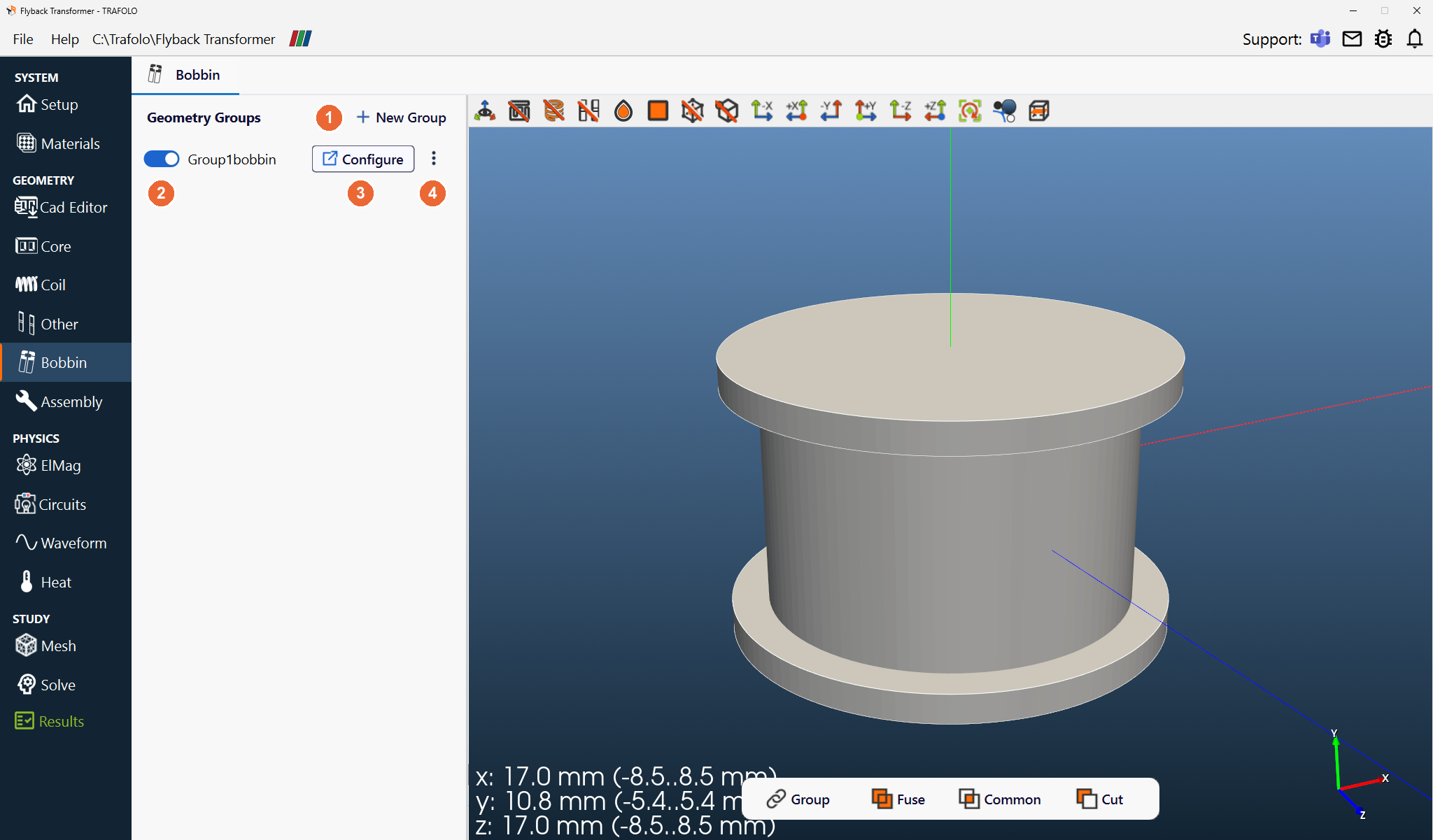
Geometry Groups
+ New Group (1) adds a group. Each row is one group: the switch (2) turns it on or off, Configure (3) opens its settings in a new tab, and ⋮ (4) copies or deletes it (as on the Coil tab). A Default bobbin is built again around the core and the coil whenever they change. A bobbin from CAD that overlaps them needs Cut by Other Objects on import (see below).
Group settings
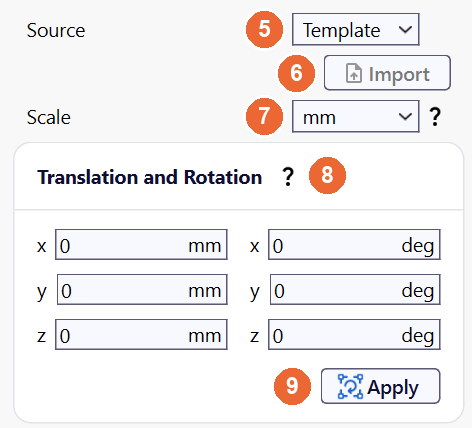
| Setting | Values | What it does |
|---|---|---|
| Source (5) | Template (default), CAD | Template: build the bobbin with the Geometry Builder. CAD: import it with Import (6); the dialog and its options are described on Core (Importing from CAD). |
| Scale (7) | µm, mm (default), cm, m, in, ft | Length unit of the geometry and of the builder dimensions. Set it before you build or import. |
| Translation and Rotation (8) | mm and deg | Moves the group: translation first, then rotation about the x-, y- and z-axes, with absolute values (see Coil). Enter the values and click Apply (9). |
Geometry Builder
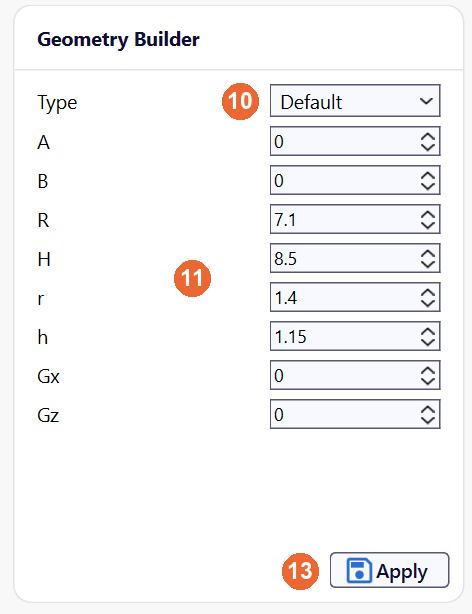
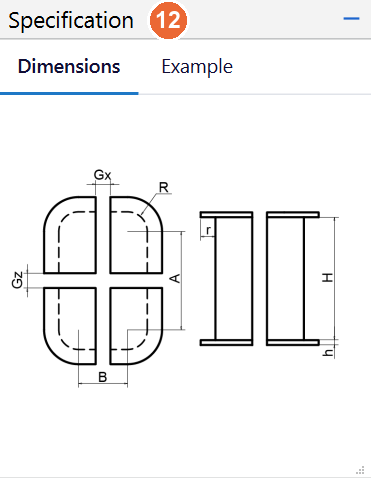
Choose a Type (10), enter the dimensions (11) in the Scale unit (the letters match the sketch in the Specification panel (12)) and click Apply (13).
| Type | Builds |
|---|---|
| Default | A bobbin between the core and the winding, round or rectangular, with flanges |
| Box, Cylinder | Basic shapes, for example spacers, insulation sheets and potting blocks |
Importing from CAD
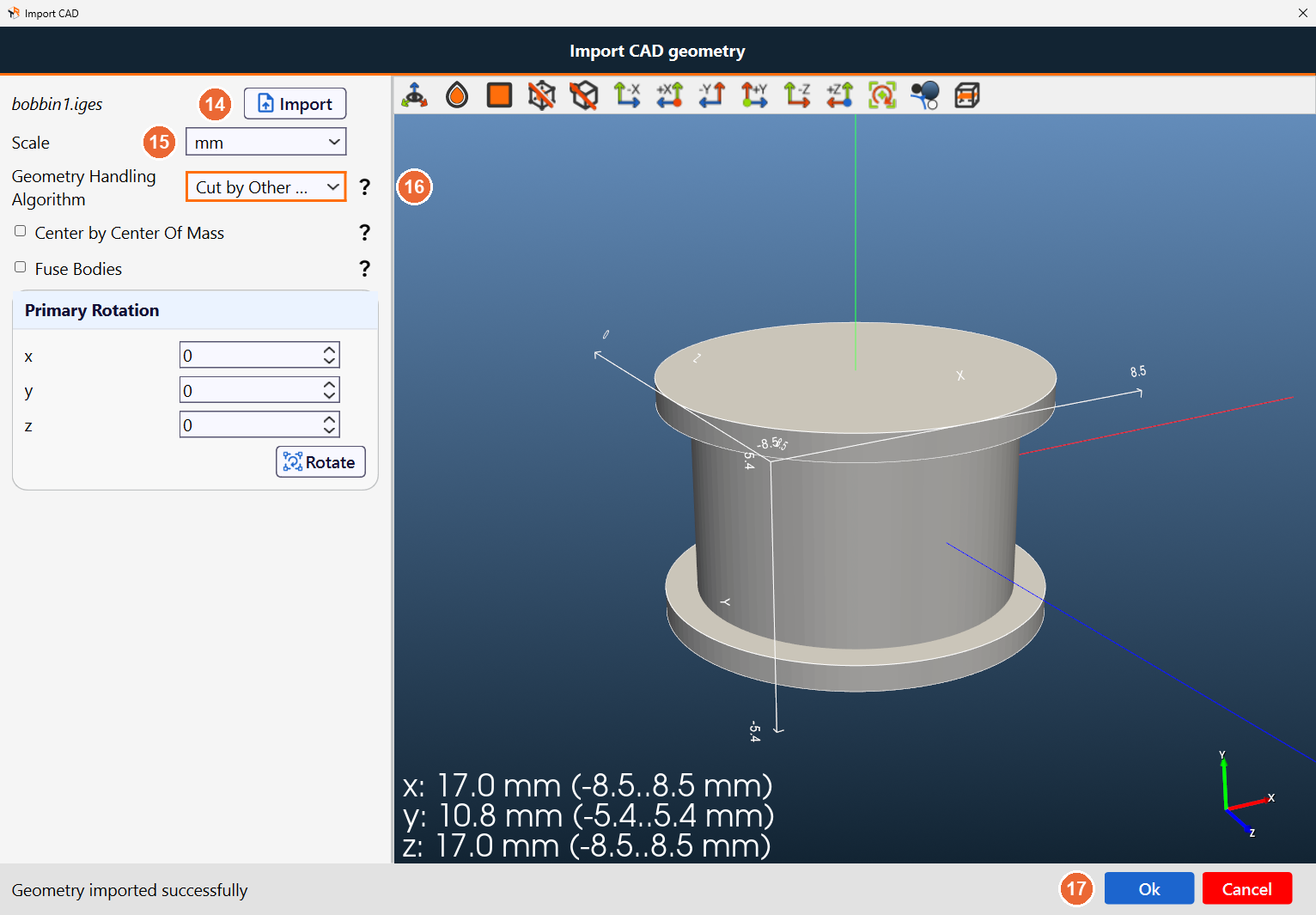
One file per group, in STEP or IGES format. The Import CAD dialog works as on the Core tab: click Import (14) and choose the file, check Scale (15), choose the Geometry Handling Algorithm (16) and click Ok (17). A bobbin drawn in CAD often overlaps the coil or the core: import it with Cut by Other Objects, so the overlapping parts are cut away from the bobbin.
Related
- 3D View: toolbar and controls of the 3D view on this tab
- Importing CAD Geometries
- Fixing CAD geometries for FEM (LinkedIn)