Core
On the Core tab you define the magnetic core as core groups. For each group you build the geometry from a parametric shape or import it from CAD, and choose how its gaps are modelled. You give each group its material on the Assembly tab.
Geometry Groups
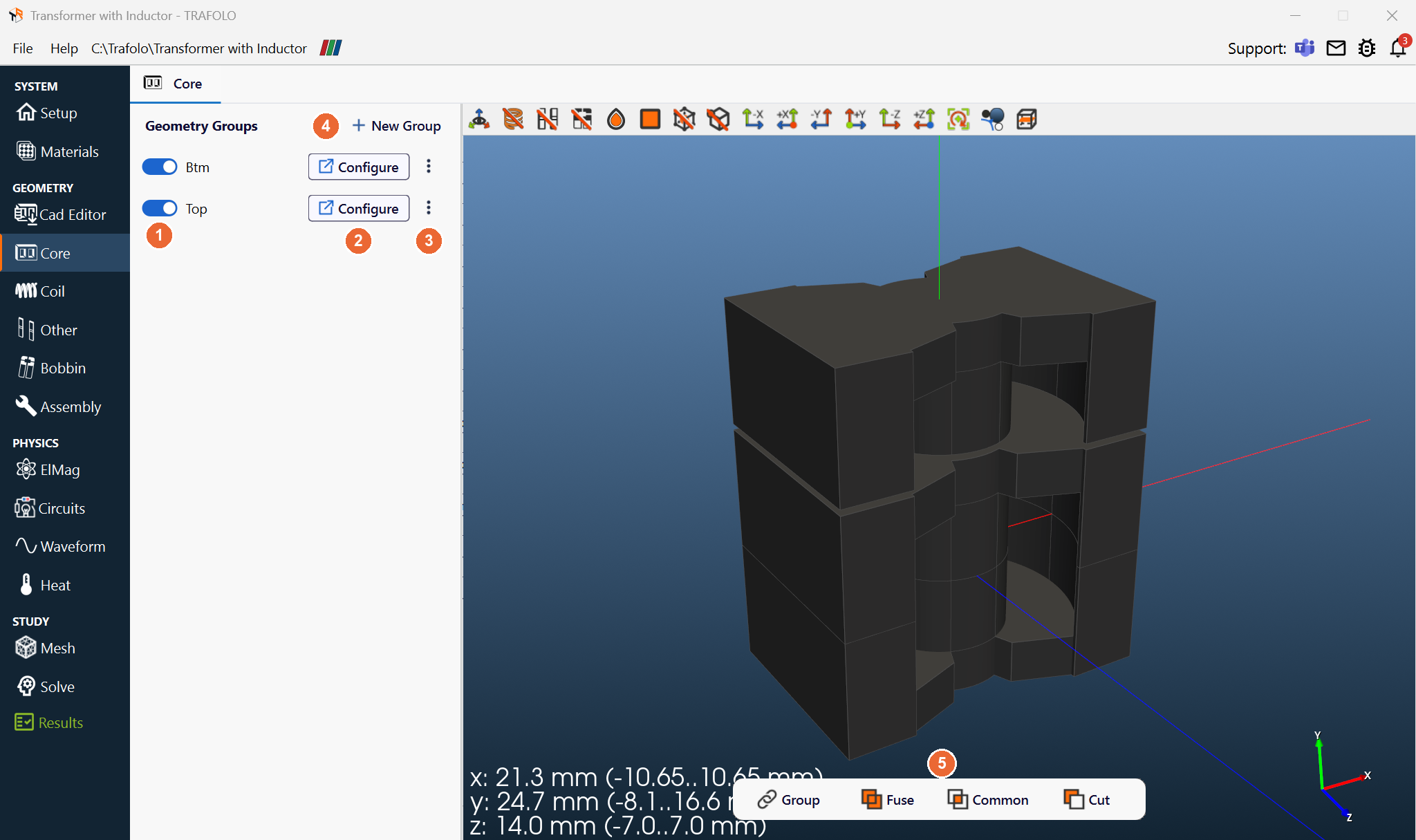
Each row of the list is one core group: the switch (1) turns it on or off, Configure (2) opens its settings in a new tab, ⋮ (3) copies or deletes it, and + New Group (4) adds one. The list works as on the Coil tab. Group, Fuse, Common and Cut (5) at the bottom of the 3D view combine groups: see 3D View. A core made of several pieces (for example two E halves) can be one group or several; settings such as Gap Type and Translation and Rotation apply to the whole group.
After you add a group or change its geometry, click Assemble Geometry on the Assembly tab again.
Core group settings
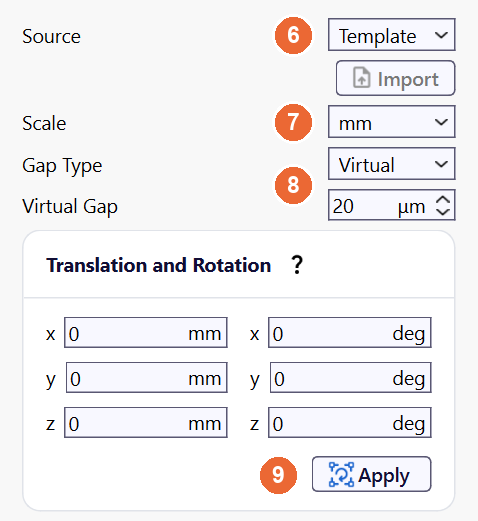
| Setting | Values | What it does |
|---|---|---|
| Source (6) | Template (default), CAD | Template: build the core with the Geometry Builder. CAD: import it with Import (see Importing from CAD). |
| Scale (7) | µm, mm (default), cm, m, in, ft | Length unit of the geometry and of the builder dimensions. Set it before you build or import; changing it afterwards does nothing until you build or import again. |
| Gap Type (8) | None, Physical, Virtual | How the gaps of this group are modelled. See Gaps. |
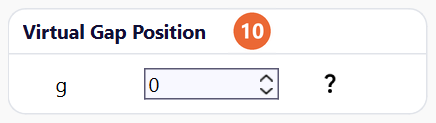
| Virtual Gap (8), Virtual Gap Position (10) | Gap Type Virtual only | Virtual Gap: the gap thickness, in µm. Virtual Gap Position: the y position of the cut plane, relative to the centre of the core. |
| Direction of Magnetization | Vector x; y; z | For a permanent-magnet core: the direction of the magnetization. Its size comes from Coercivity (Magnetization) [A/m] of the material (Materials). Shown when Magnets is ticked on the Setup tab. |
| Translation and Rotation (9) | mm and deg | Moves the group when you click its Apply (9): translation first, then rotation about the x-, y- and z-axes, with absolute values. Details and an example: Coil. |
Gaps
| Gap Type | Model | Use for |
|---|---|---|
| None | No gap: the core is one continuous piece. | Only a core in one piece without any cut, for example a toroid. Every cut is a gap: where two core halves meet, or where Make cut with a plane cut the core, use Virtual or Physical. |
| Physical | The gap is cut out of the core as a separate body with its own material. The mesh resolves the field in the gap and the fringing flux around it. | Large gaps and gaps that set the inductance, and windings close to a gap, where the fringing field drives the winding loss. The field energy in the gap is included. |
| Virtual | A reluctance boundary condition with the permeability of free space and the given thickness replaces the gap volume. It applies to every face where two core pieces meet: each cut counts as a gap, whether it is in the CAD file, made by Virtual Gap Position, or made with Make cut with a plane. Nothing is meshed inside the gap. | Parasitic gaps where core pieces meet (typically 10–30 µm between two ferrite halves), where meshing the gap volume is impractical |
The reluctance of a virtual gap is part of the field solution, so Circuit Inductance includes it. Use a physical gap when the gap sets the inductance: the mesh then also resolves the field in the gap and the fringing flux around it.
Gap table (template cores, physical gaps)

Click New Gap for each gap and fill in the row; the remove icon deletes a row.
| Column | What it sets |
|---|---|
| gMin | y coordinate of the gap bottom, in the Scale unit |
| gMax | y coordinate of the gap top |
| Limb | The limb that gets the gap. The choices depend on the core type, for example All limbs, Central limb and Side limbs for an RM core. |
In an imported core, a physical gap must be a separate solid in the CAD file; a virtual gap needs separate core pieces that share a face, or the cut made with Make cut with a plane on import.
Geometry Builder
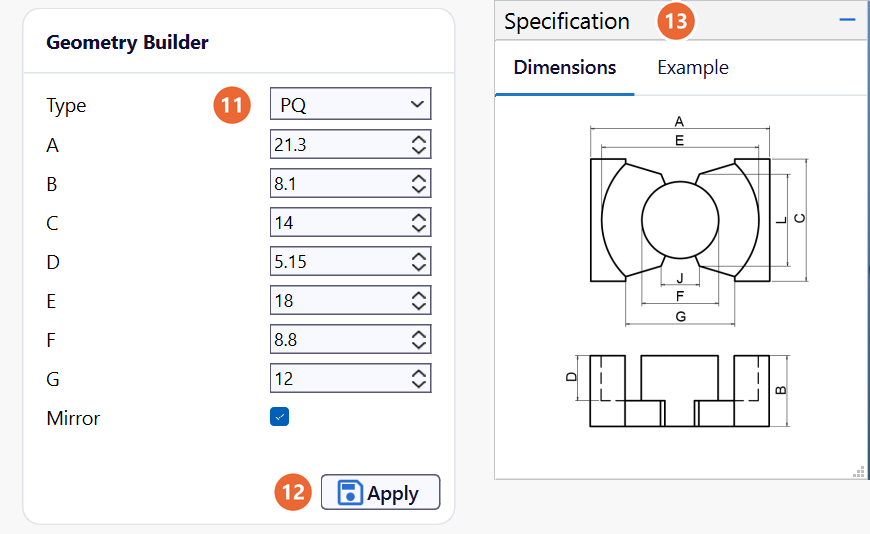
Choose a Type (11), enter the dimensions in the Scale unit (the letters match the sketch in the Specification panel (13) of the 3D view) and click Apply (12).
| Type | Typical use |
|---|---|
| Two Limb, Three Limb, Four Limb, Five Limb | Laminated electrical-steel cores of chokes and transformers |
| C, E, EC, EFD, EL, EP, EPX, EQ, ER, ETD, LP, P, PM, PQ, RM, T, U, UR | Standard ferrite shapes; subtype picks the size, for example RM 3. T is the toroid. |
| Box | Block cores, for example soft magnetic composite |
| Plate | Ferrite plates of wireless chargers and EMI shields |
| Cylinder | Rod and drum cores |
Drawings of the core types
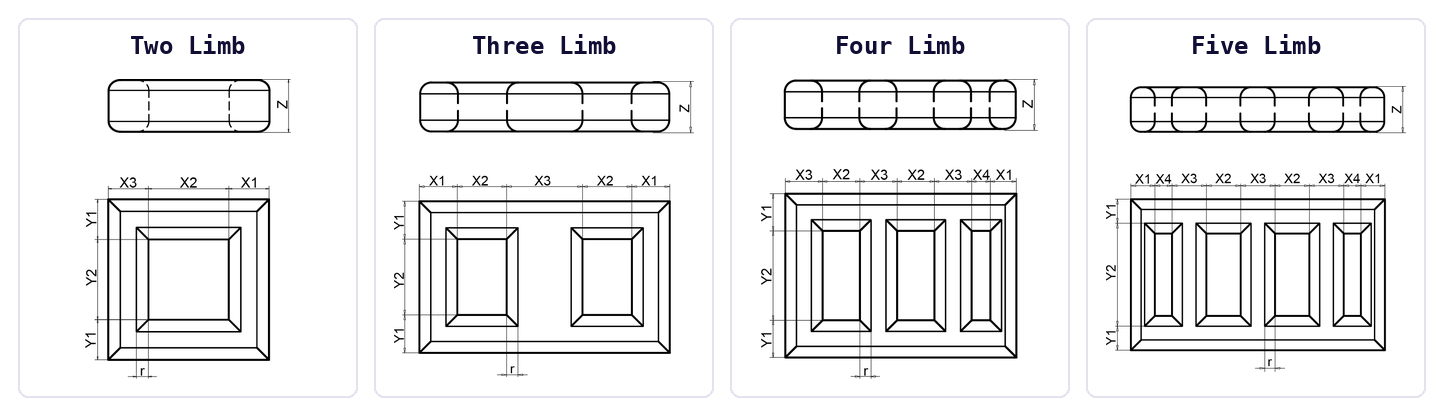
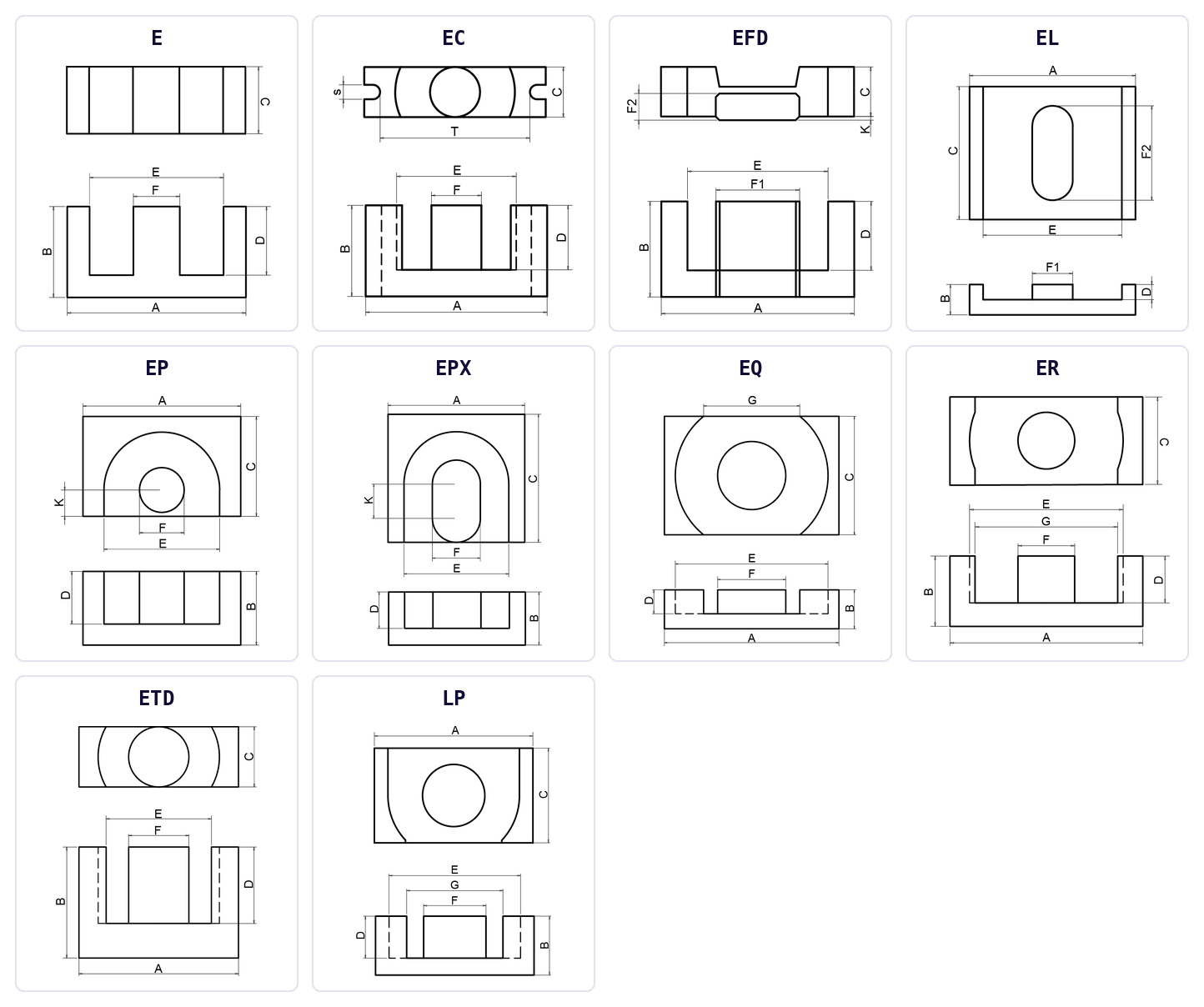
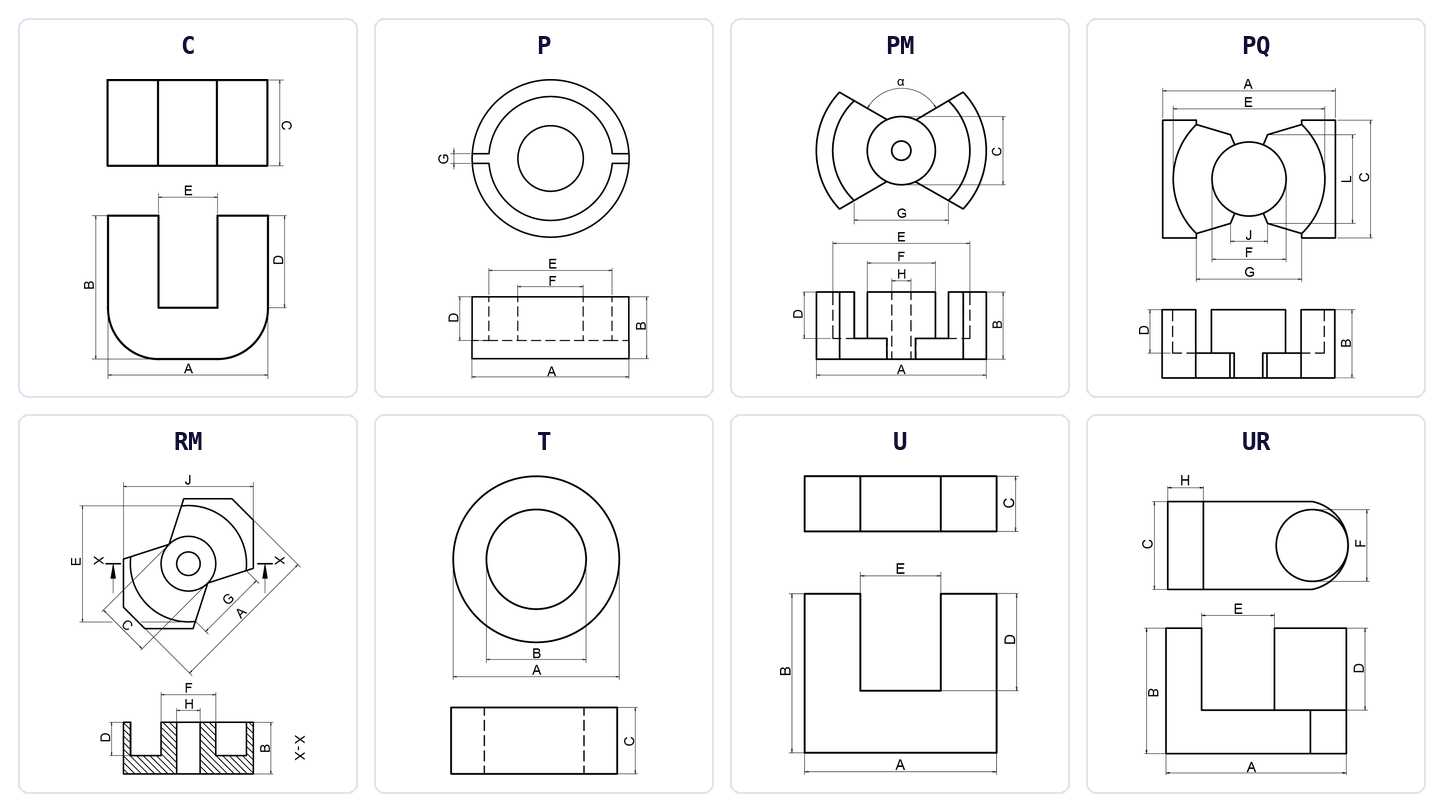
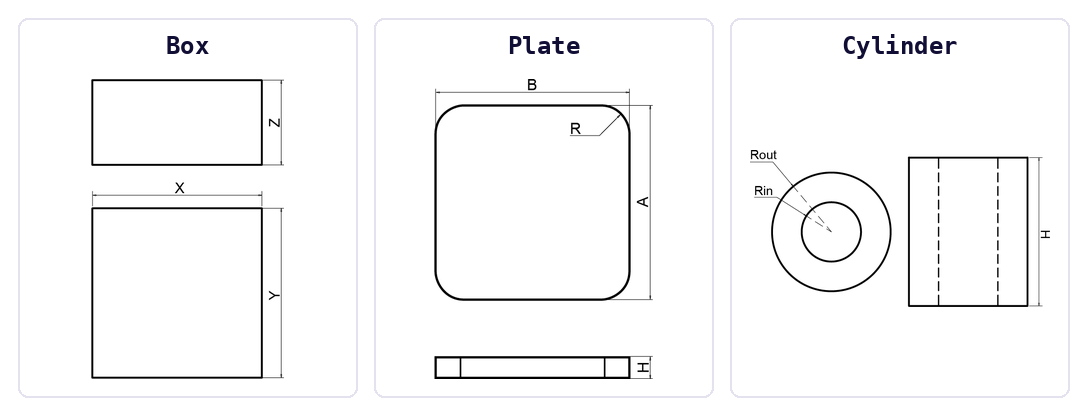
TRAFOLO builds the ferrite types (C to UR) with the core scripts of OpenMagnetics.
Shape not in the list? Compare your core with the drawings of the types above: many cores can be built from a similar type with your own dimensions, for example an EER core as ER, or an EI core as an E group plus a Box group for the I. Other shapes are a standard type with changes: join groups with Fuse, or remove material with Cut, with a Box or Cylinder group as the tool (see 3D View). Import the core from CAD when neither works.
Importing from CAD
Set Source to CAD and click Import. In the Import CAD dialog, click Import (14) and choose the file, check Scale (15), the options (16 to 20) and the geometry in the 3D view, then click Ok (21). Cancel leaves the group unchanged. One file per group, in STEP (.step, .stp) or IGES (.iges, .igs) format; it can hold any number of core pieces and gap solids. The Cad Editor tab imports more formats. How to prepare CAD for FEM: Importing CAD Geometries.
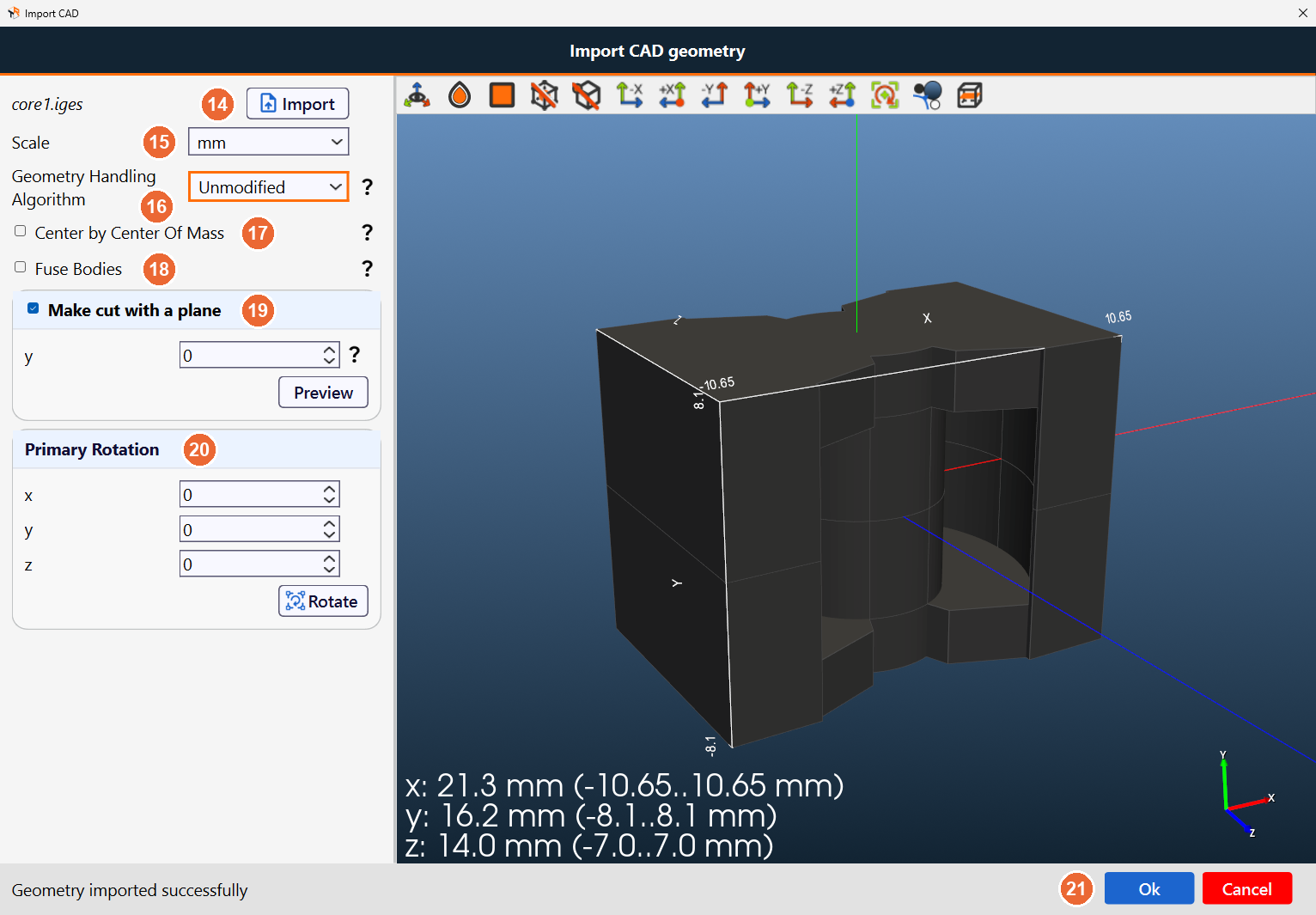
The solids must not overlap. After import, check the size in the dimension readout of the 3D view: with a wrong Scale it is off by a factor of 10, 25.4, 304.8 or 1000.
The same dialog imports geometry on the Other and Bobbin tabs.
|
Import option |
What it does |
|---|---|
|
Scale (15) |
Length unit of the file: µm, mm, cm, m, in or ft. |
|
Geometry Handling Algorithm (16) |
How the imported geometry enters the assembly:
|
|
Center by Center Of Mass (17) |
Moves the geometry to its centre of mass. You can translate it by coordinates afterwards. |
|
Fuse Bodies (18) |
Fuses the imported bodies into one. This can fix some geometry problems before assembly. |
|
Make cut with a plane, Preview (19) |
Cuts the imported core with the xz plane at the given y coordinate, for a virtual gap. |
|
Primary Rotation, Rotate (20) |
Angles in degrees about x, y and z. Rotate turns the imported geometry before you click Ok. |
Related
- 3D View: toolbar, dimension readout and Group/Fuse/Common/Cut of the 3D view on this tab
- Core Properties and Models: core materials, losses and gap modelling
- Fixing CAD geometries for FEM (LinkedIn)