Waveform
On the Waveform tab (page title Waveform Generator) you set the excitation of the windings: frequency, amplitude, phase and waveform. What the tab shows follows the simulation type on the Setup tab: Harmonic, Transient or Inductance.
Labels with rms (Primary Urms [V], Irms [A]) hold RMS values; values without it are amplitudes.
Harmonic
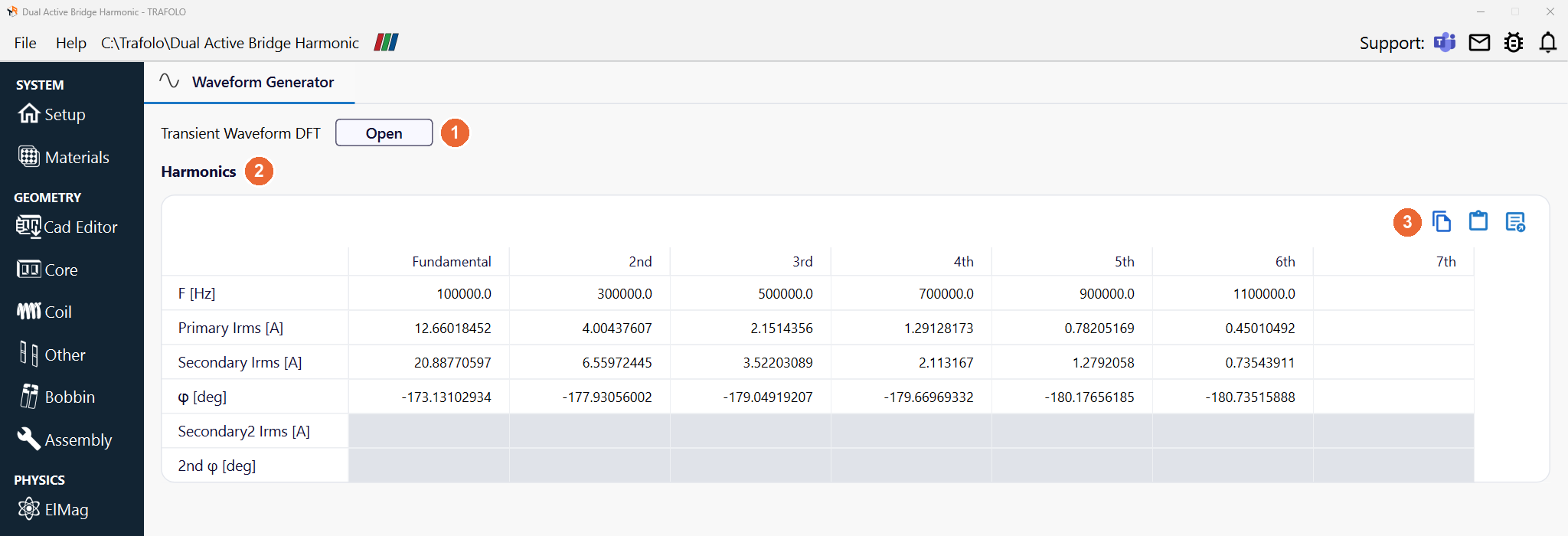
In the picture: Transient Waveform DFT › Open (1), the Harmonics table (2) and its toolbar (3). The table has one column per frequency, starting with Fundamental; each column is a separate electromagnetic simulation. The toolbar copies or pastes the table, for example from a spreadsheet, and adds a column (New Column).
| Row | What it sets |
|---|---|
| F [Hz] | The frequency of the column. |
| Primary Irms [A] or Primary Urms [V] | The primary excitation, as chosen on the ElMag tab. |
| Secondary …, Secondary2 … | The excitation of the secondaries. The row is disabled when the winding is off or driven through Circuits. |
| φ [deg], 2nd φ [deg] | The phase of the secondary and of the 2nd secondary relative to the primary, whose phase is 0. |
- With a B-H curve, TRAFOLO takes the permeability at the fundamental and keeps it for the other harmonics.
- Fields, currents and losses are summed over the harmonics. For non-sinusoidal waveforms, run a transient simulation: TRAFOLO then computes the core loss at every time step with GSE (default) or iGSE, the Core Loss Model of the core material (Core Properties and Models).
- Leave out harmonics that produce negligible losses: each one adds a simulation.
The phases are relative to the primary, not absolute, so the time waveform cannot be rebuilt from them. They do not follow the terminals: swapping a winding's terminals shifts its phase by 180°.
Transient Waveform DFT › Open (1) turns a waveform from a data file into harmonics for this table (see Discrete Fourier Transform).
Transient
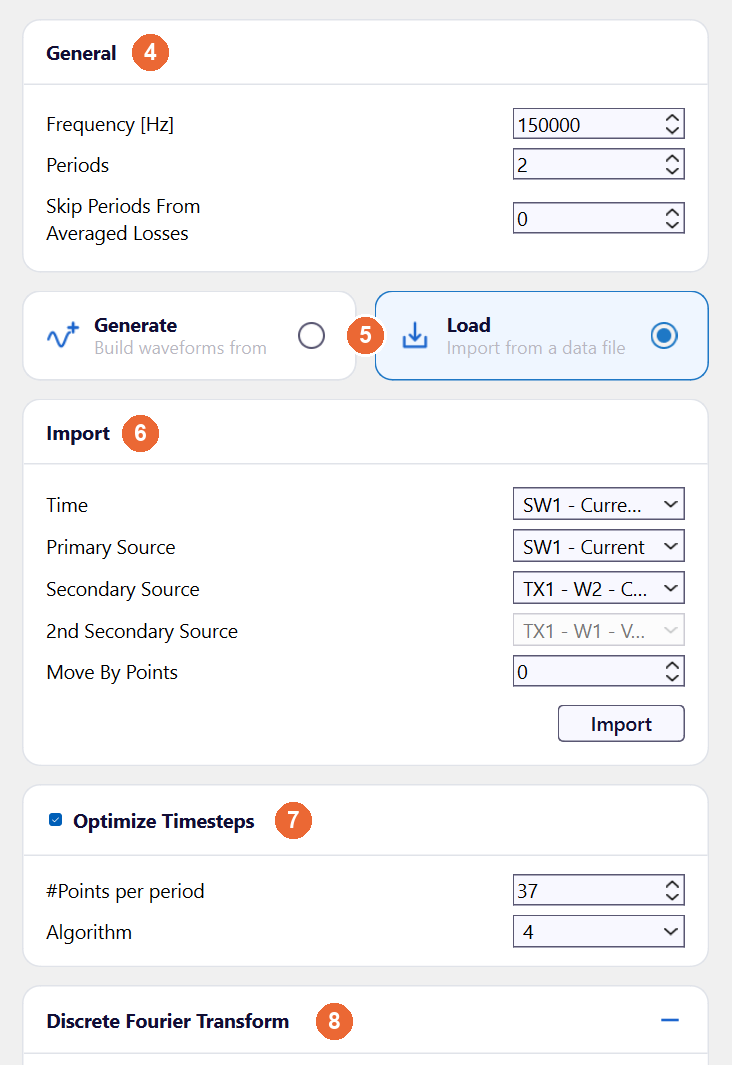
In the picture: General (4) with the settings in the table below, Generate or Load (5), Import (6) for a loaded waveform, Optimize Timesteps (7) and Discrete Fourier Transform (8) at the bottom of the panel.
| Setting | What it does |
|---|---|
| Frequency [Hz] (4) | Sets the length of one period; usually the fundamental or switching frequency. |
| Periods (4) | Number of periods simulated. |
| Skip Periods From Averaged Losses (4) | Periods left out of the averaged losses. The first period often carries errors from inrush and from mismatched phases of voltage, current and flux. |
| Generate or Load (5) | Generate: build the waveforms from parameters. Load: import them from a data file. |
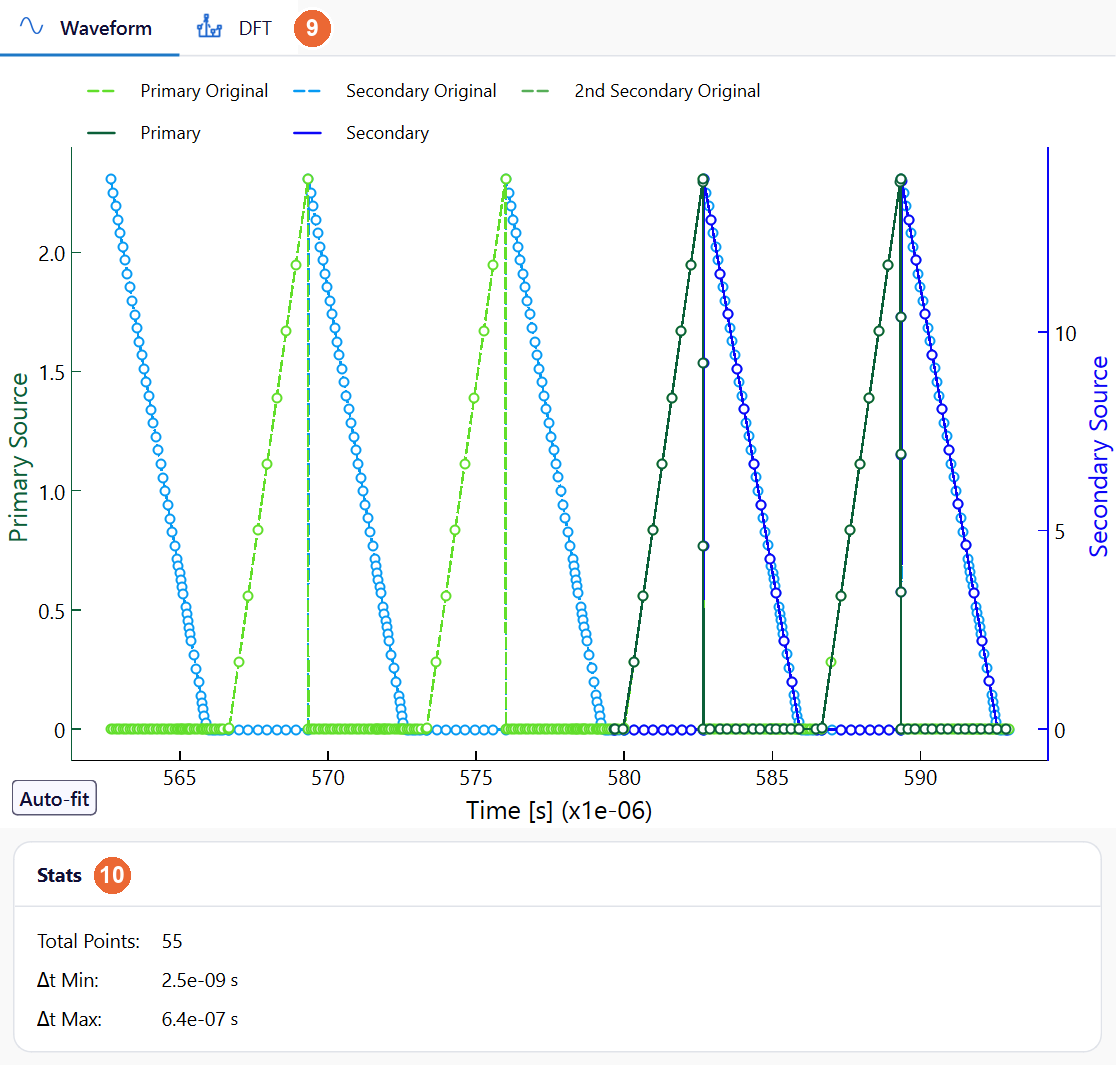
In the picture: the plot tabs Waveform and DFT (9), and Stats (10) with the number and the size of the time steps.
Generate
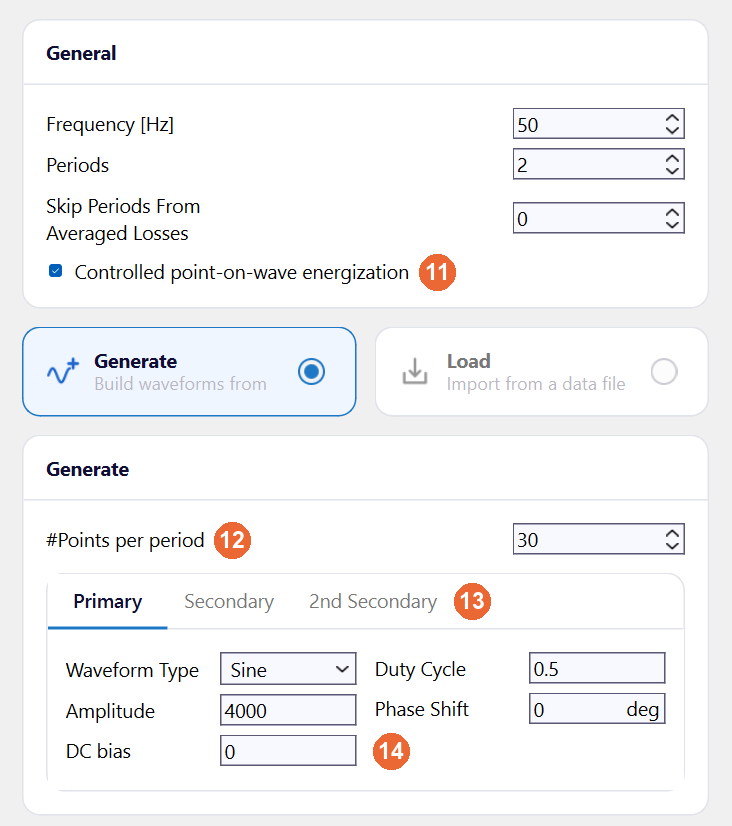
In 3-phase models one waveform is shown and the other two phases follow with 120° shifts; Controlled point-on-wave energization (11), under General (4), energizes each phase at the right moment to limit the inrush current (lessons from modelling 3-phase transformers, LinkedIn). #Points per period (12) sets the resolution of the generated waveform and so the time steps of the run. Set the waveform of each winding on its own tab: Primary, Secondary and 2nd Secondary (13), each with Waveform Type (Sine, Square, Triangular), Amplitude, DC bias, Phase Shift and Duty Cycle (14).
Load
- In Import (6), click Import and choose the file: CSV, TXT or Excel, with the column names in the first row.
- Choose the columns for Time, Primary Source, Secondary Source and 2nd Secondary Source.
- If needed, shift the start with Move By Points: results are often more accurate when the waveform starts at zero or at its maximum, which also limits inrush (inrush currents and voltages, LinkedIn).
If the import fails, check that all rows have the same number of columns and that the decimal and column separators do not clash.
Optimize Timesteps
Circuit simulators write very small timesteps. Optimize Timesteps (7) places fewer points where the waveform changes slowly and interpolates the values. #Points per period is the target number of points; Algorithm 1 spaces them evenly, 2 to 4 follow the slopes, and 4 usually balances steep edges in primary and secondary best. Stats (10) shows Total Points, Δt Min and Δt Max.
Time steps
The run simulates Periods periods of Frequency [Hz] (both under General, 4), so the lowest frequency in the waveform sets how long the run is, and the highest frequency sets how short the time step must be. With Generate, the run has Periods × #Points per period (12) time steps of equal length; with Load, the time steps are the points of the file, or the points left by Optimize Timesteps (7). Stats (10) shows Total Points (one more than the number of time steps), Δt Min and Δt Max.
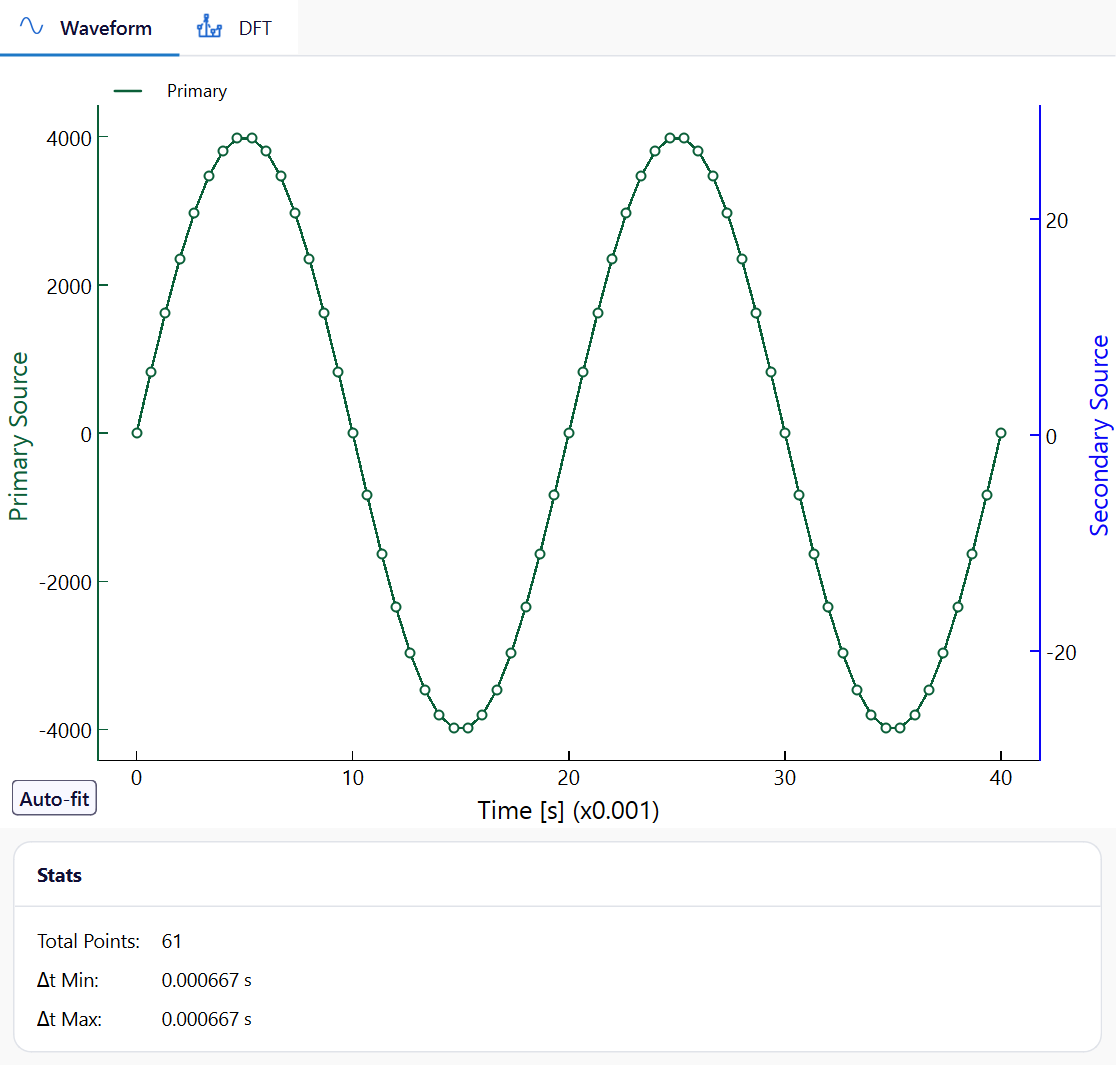
Give the highest frequency at least 20 points per period: a 50 Hz waveform with a 1000 Hz harmonic needs 1000 / 50 × 20 = 400 points per 50 Hz period, that is 800 time steps for 2 periods. When the frequencies are this far apart, consider a harmonic run instead: Harmonize (17) turns the waveform into harmonics. Keep waveforms with a large DC bias, such as flyback currents, transient (see Discrete Fourier Transform).
Discrete Fourier Transform
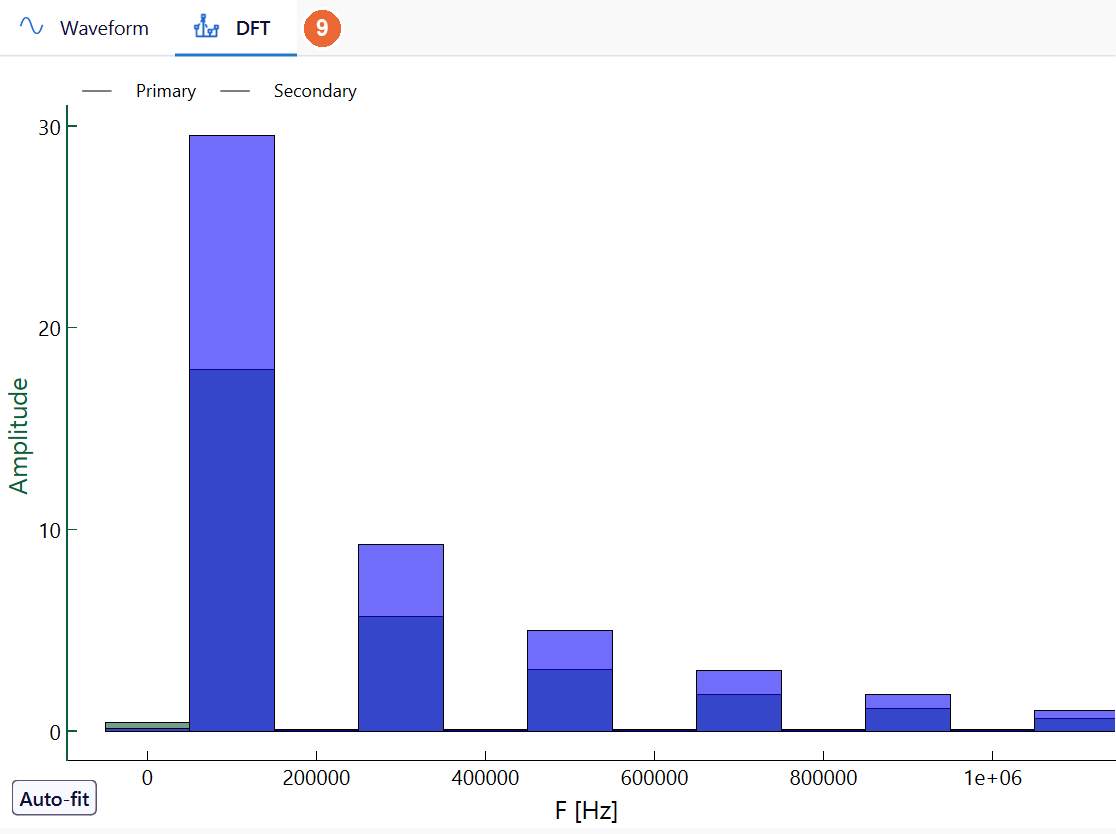
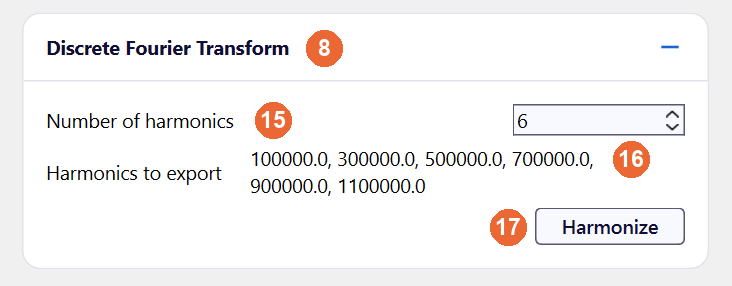
In the pictures: the DFT plot tab (9) with the spectrum of the loaded waveform, and under Discrete Fourier Transform (8) at the bottom of the left panel: Number of harmonics (15), Harmonics to export (16) and Harmonize (17).
| Setting | What it does |
|---|---|
| Number of harmonics (15) | The harmonics with the highest amplitudes. In transient runs, with Dowell's Equation they set the effective Rac/Rdc of the group, weighted by amplitude over the period; with Homogenization they add frequencies to the 2D strand model; Rac/Rdc coefficient does not use them. |
| Harmonics to export (16), Harmonize (17) | Harmonize switches the model to a harmonic simulation with these frequencies, amplitudes and phases; the app asks to confirm first. Use it for steady-state results without inrush, when a few harmonics describe a waveform without a large DC component, such as the currents of a dual active bridge. Do not harmonize waveforms with a high DC bias, such as flyback currents: keep them transient. |
| Effective secondary waveforms | With a 2nd secondary winding, for example a centre-tapped secondary whose halves conduct in turn, TRAFOLO computes an effective waveform for both secondary windings, so that the magnetizing current is right at every frequency used for core losses. |
Inductance
With Inductance on the Setup tab, the tab shows Inductance Sweep: Sweep over Urms / Irms computes the inductance over a range of excitations at a fixed frequency (a current–inductance curve), Sweep over frequency over a range of frequencies. How to set up both: Inductance (frequency and excitation sweeps).
Related
- Transient Waveforms & Simulations
- ElMag: which winding takes current, voltage or a circuit