Assembly
On the Assembly tab TRAFOLO joins all active groups of the Geometry tabs into one model, cuts it with the air domain (and with the symmetry plane when the model is symmetric), and lists every body with its type and material. You set the air domain before you assemble and the materials after. The Physics and Study tabs (ElMag to Results) stay disabled until the geometry is assembled.
Before you assemble: the air domain
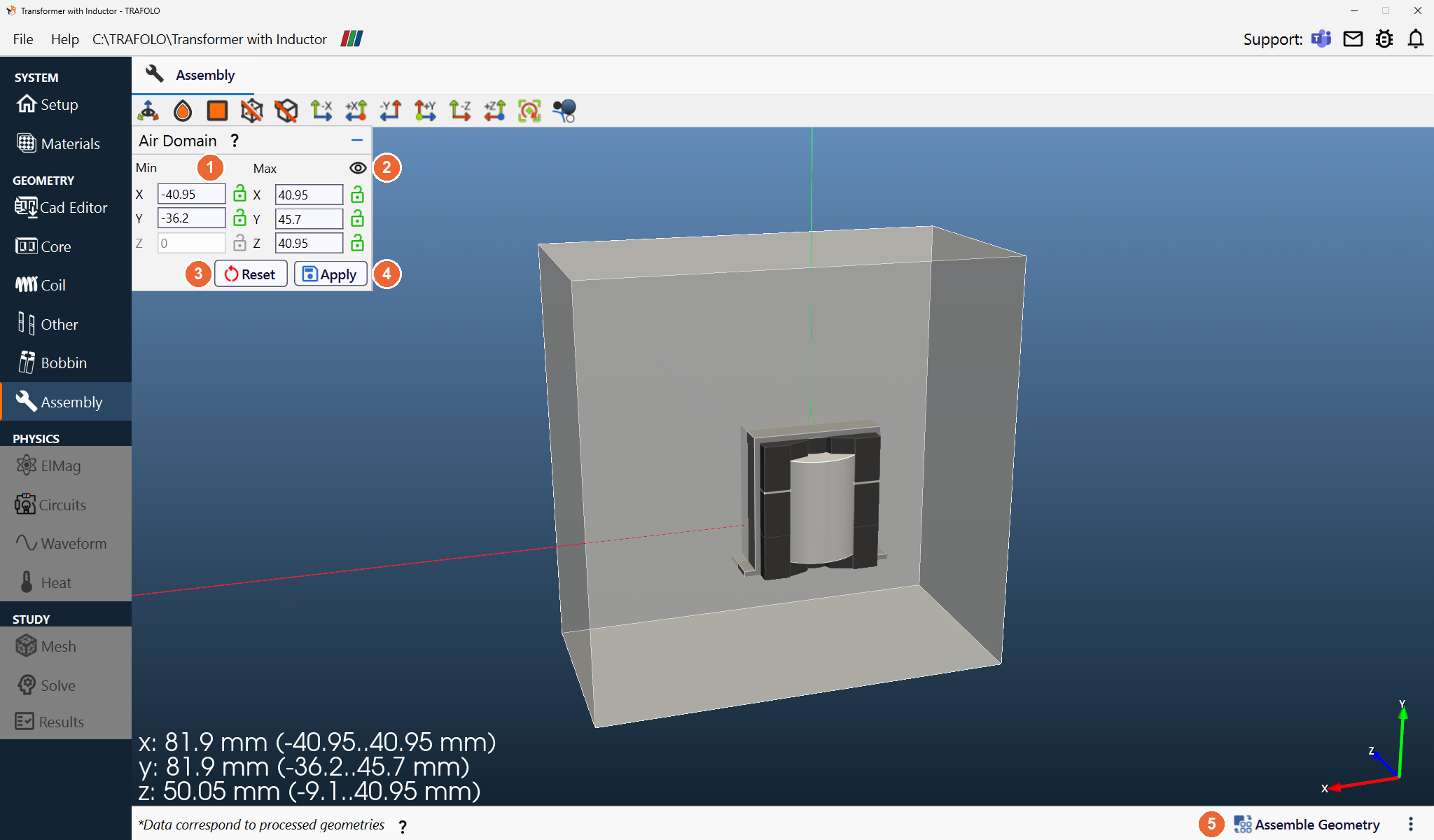
The 3D view shows all active groups and the air box around them. TRAFOLO suggests a size; change it with the Air Domain controls in the 3D view. In a symmetric model (Symmetric on the Setup tab) the box ends at the symmetry plane z = 0, so only half of the model is solved.
| Control | What it does |
|---|---|
| Min, Max of X, Y, Z (1) | The limits of the air box in mm, each with a lock. In a symmetric model the Z minimum is fixed at 0. |
| Eye icon (2) | Shows or hides the air box in the 3D view (Show Air, Hide Air). |
| Reset (3), Apply (4) | Apply builds the air box with the values entered; Reset resets them. |
Leave enough air around the component that the field outside is not squeezed by the boundary. For a component with a core, make the box about 3× the size of the component. For a component without a core, enlarge the box until the results stop changing. Windings that end at the outer boundary get their terminals there (see ElMag).
Then click Assemble Geometry (5) at the bottom right.
After assembly: types and materials
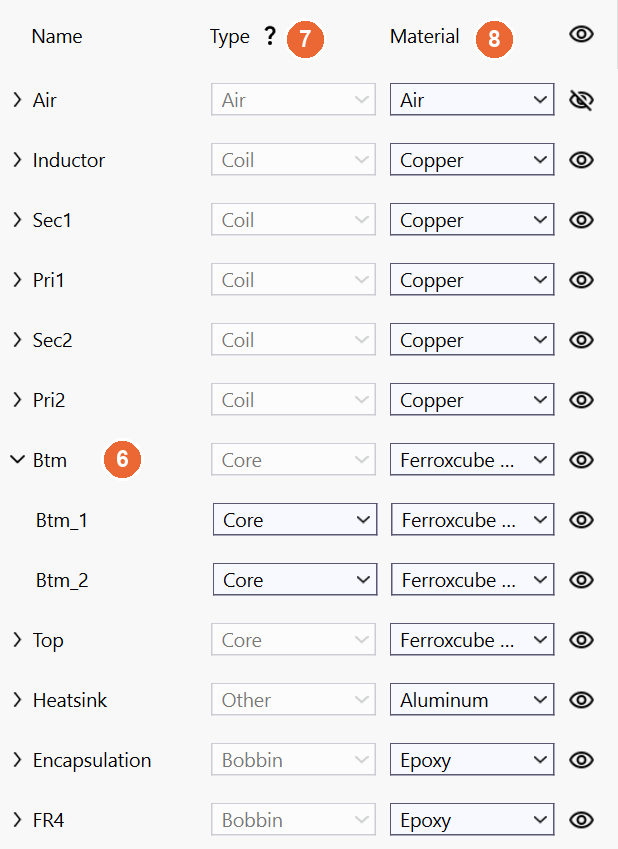
TRAFOLO names every body, assigns its Type and a default Material, and lists the bodies under their groups. Click › left of a group name (6) to show its bodies.
| Column | What to do |
|---|---|
| Name | The body, under its group. |
| Type (7) | The body's role: Core, Gap, Coil, Other, Bobbin or Air. Each type has its own physics and its own materials, so check that every body was recognised correctly; gaps of imported cores are the usual problem. Change the type on the body row; the group row shows Mixed when its bodies differ. |
| Material (8) | Choose the material on the group row (all its bodies) or on a body row. The list holds the project's materials that fit the type. A body without a material stops the run with “These solids have no material: … Choose one in the Material column of the Assembly tab table.” Materials are defined on the Materials tab. |
| Eye icon | Shows or hides a body, or all bodies, in the 3D view. |
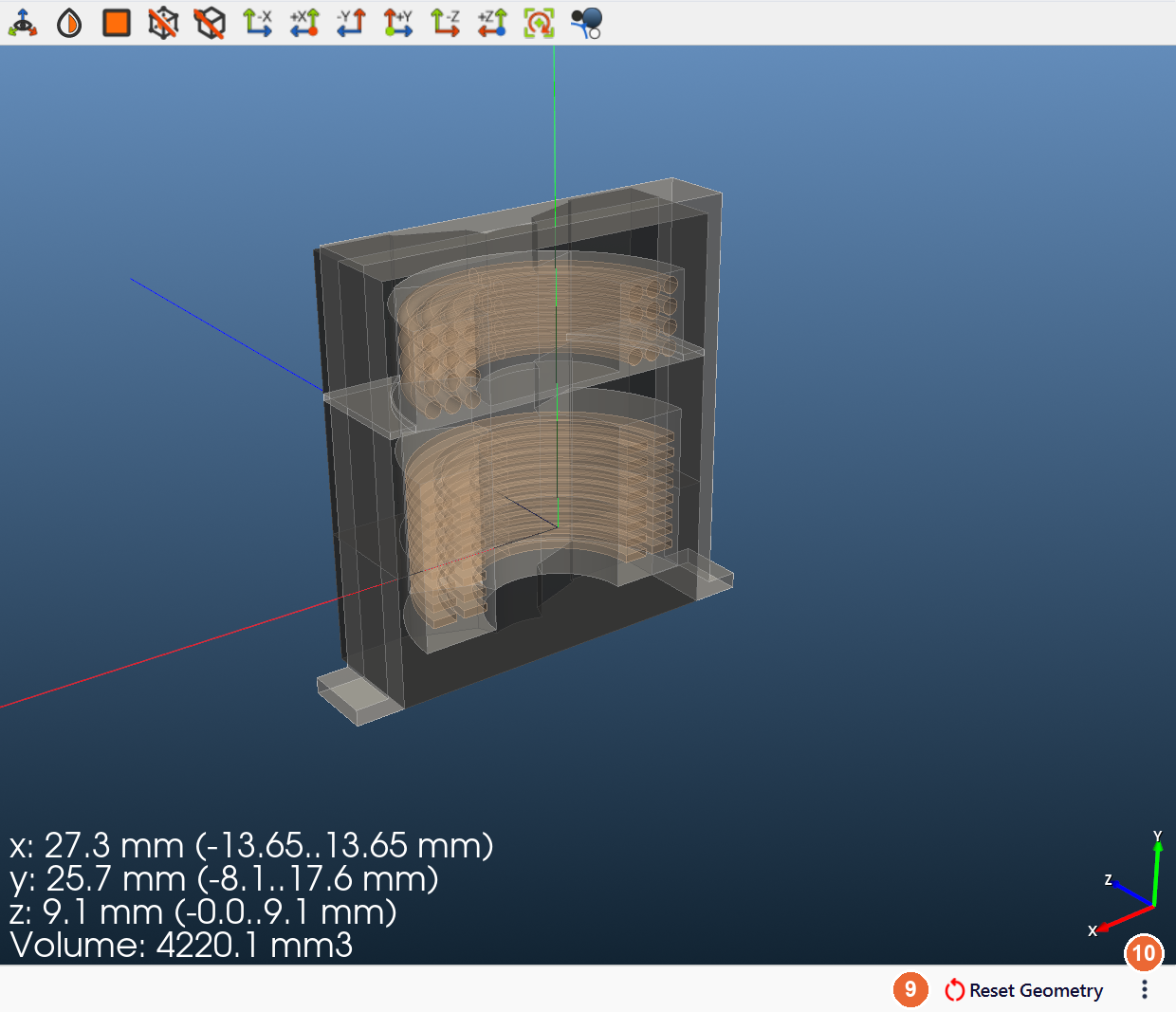
The bounding box and volume in the 3D view (*Data correspond to processed geometries) refer to the bodies shown. In a symmetric model, multiply the volume by 2 for the full component. ⋮ (10) next to Reset Geometry (9) › Export partition exports the assembled geometry.
Assemble again after a change
To assemble again after a change, click Reset Geometry, then Assemble Geometry. Heat boundary values are kept where the geometry did not change. Results are cleared, so solve again. If a group cannot be matched, TRAFOLO lists the groups whose heat and mesh settings it reset.
When assembly fails
| Message | What to do |
|---|---|
| “Some solids overlap each other, so the geometry can't be assembled.” | The console (>_, bottom left) names the solids. Move or resize them on their tabs, import with Cut by Other Objects (Core, Other, Bobbin), or fix the CAD file. |
| “The air region couldn't be found after partitioning.” | The air box is too tight around the parts. Enlarge it with the Air Domain controls, then assemble. |
| “The air domain is missing.” | Open the Assembly tab so the air domain is created again, then assemble. |
| Assembly without coils | A model needs at least one coil group (Coil). |
More messages and fixes: Troubleshooting.