Flyback Transformer
A flyback transformer on an RM8 core at 150 kHz, simulated in the time domain with the converter's current waveforms: losses, temperature and interwinding capacitance.
- Component: RM8/I core, Ferroxcube 3C97, 0.3 mm centre gap; primary of 24 turns of litz, 45 strands of 0.05 mm; secondary of 4 turns of litz, 120 strands of 0.1 mm.
- Simulation: Transient over 2 switching periods of imported currents, with Steady-state heat transfer and Capacitance; half model (Symmetric).
- Winding model: Homogenization.
- You get: average core and winding losses, the hotspot temperature, the interwinding capacitance, and flux and loss density at each time step.
- Files: the converter currents, flyback-transformer-waveforms-150kHz.csv (CSV, 42 kB). The same file is waveform_dump.csv in the cached folder of the example project.
- In TRAFOLO: Welcome screen › Examples › Flyback Transformer is this model with its results.
- Run time: about 1.5 min on 8 CPU cores.
Model description
The windings carry the currents of a flyback converter switching at 150 kHz: the primary current ramps up to 2.3 A while the switch is on, then the secondary takes over at 13.8 A and ramps down to zero before the next period.
| Core | Core material | Air gap | Gap material |
|---|---|---|---|
| RM8/I | Ferroxcube 3C97 | 0.3 mm, centre limb | FR4 |
| Winding | Wire | Turns | Layers | Strands | Strand diameter | Wire diameter |
|---|---|---|---|---|---|---|
| Primary | Litz | 24 | 2 | 45 | 0.05 mm | 0.555 mm |
| Secondary | Litz | 4 | 1 | 120 | 0.1 mm | 2.0 mm |
Modelling instructions
Setup
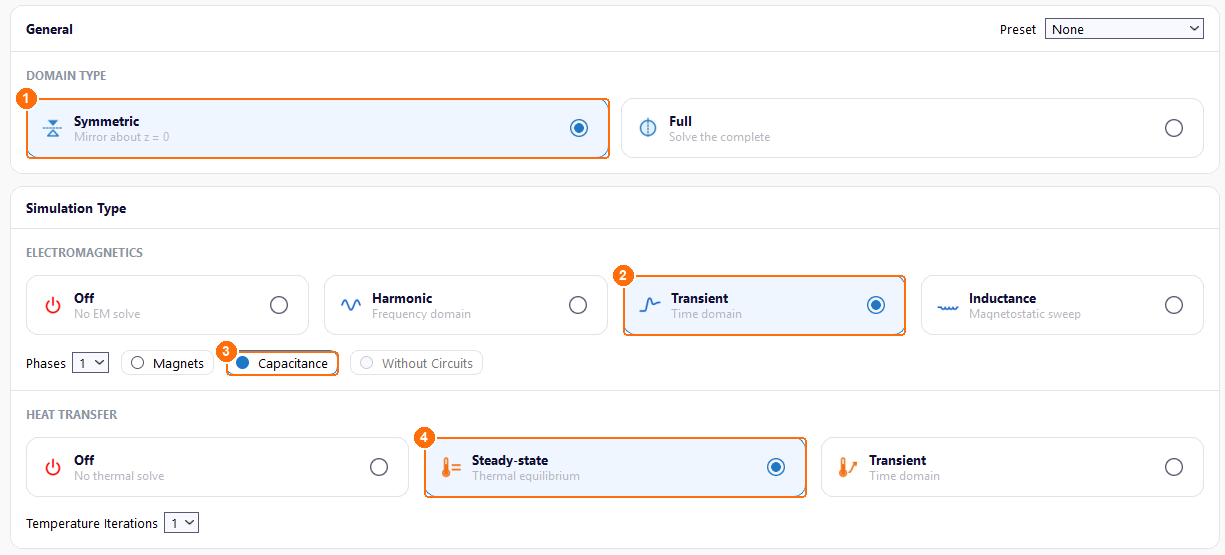
- Under DOMAIN TYPE, select Symmetric (1). TRAFOLO models the half above z = 0 and scales the results to the whole transformer.
- Under ELECTROMAGNETICS, select Transient (2), because the currents are not sinusoidal, and tick Capacitance (3).
- Under HEAT TRANSFER, select Steady-state (4).
Materials
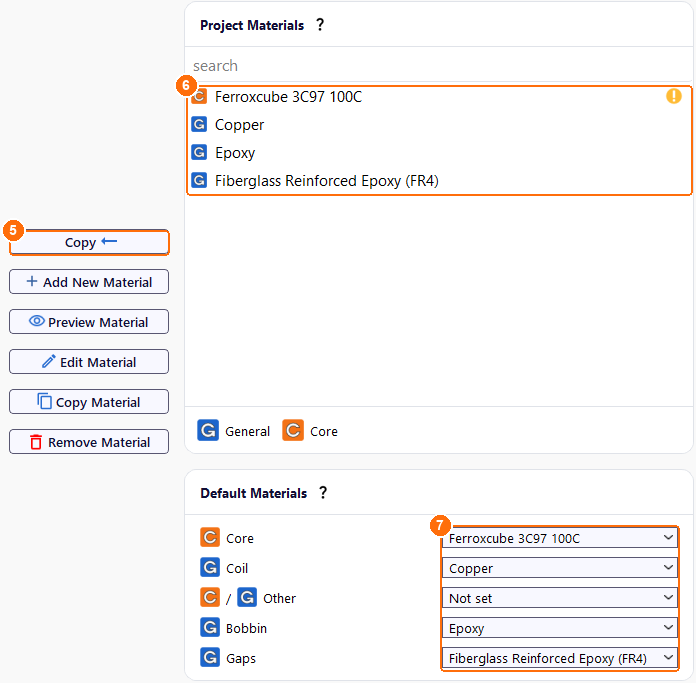
- Under Global Materials, select Ferroxcube 3C97 100C and click Copy (5).
- Copy Copper, Epoxy and Fiberglass Reinforced Epoxy (FR4) the same way. All four appear under Project Materials (6).
- Under Project Materials, select Ferroxcube 3C97 100C and click Edit Material.
-
On General, select Relative Permeability, keep its value, 3.65e3, and set Core Loss Model to iGSE. Click Save.
The library copy comes with Complex Permeability, and a Transient run does not start with it. The example uses a constant permeability and iGSE.
-
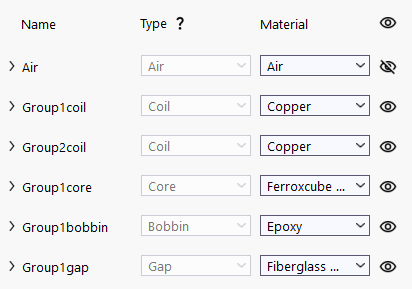
Under Default Materials (7), set the material of each component:
| Core | Coil | Other | Bobbin | Gaps |
|---|---|---|---|---|
| Ferroxcube 3C97 100C | Copper | Not set | Epoxy | Fiberglass Reinforced Epoxy (FR4) |
Core
- On Core, click New Group. Group1core appears.
- Click Configure next to Group1core.
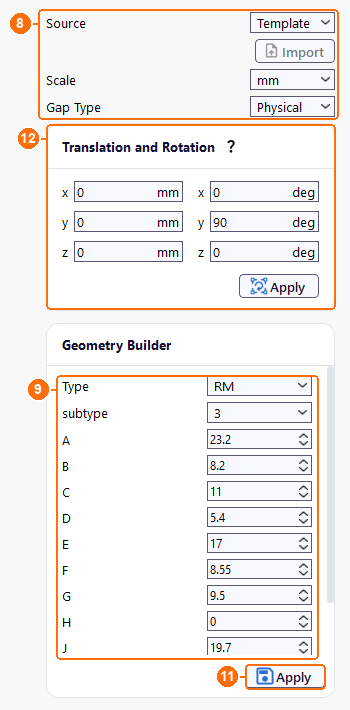
- Set Source to Template, Scale to mm and Gap Type to Physical (8).
-
In Geometry Builder, set Type to RM and subtype to 3, enter the dimensions in mm (9) and keep Mirror ticked:
A B C D E F G H J R 23.2 8.2 11 5.4 17 8.55 9.5 0 19.7 0 -
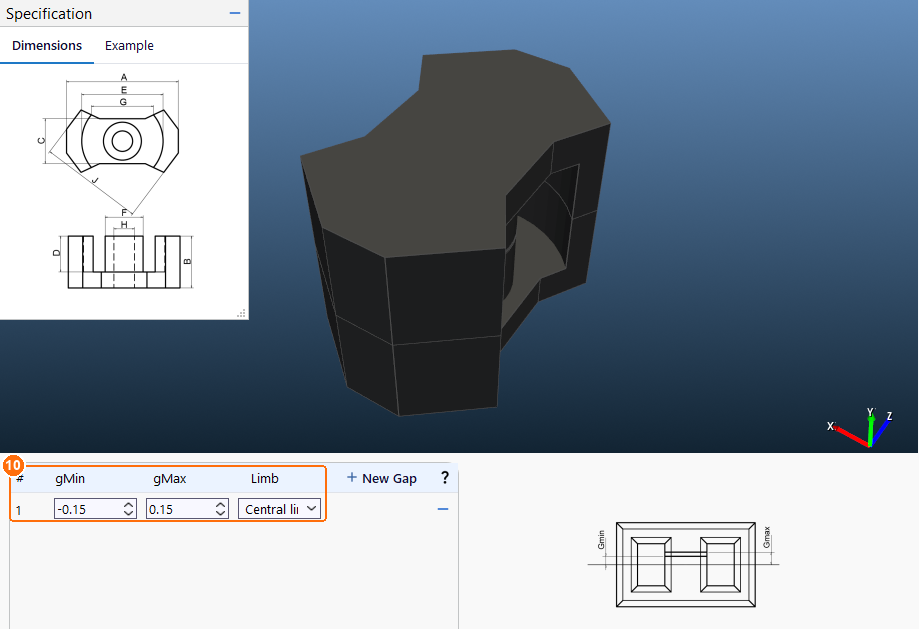
Click New Gap, enter gMin −0.15 and gMax 0.15 (a 0.3 mm gap), and set Limb to Central limb (10).
- Click Apply (11).
- Under Translation and Rotation, set the y rotation to 90 deg and click Apply (12).
Coil
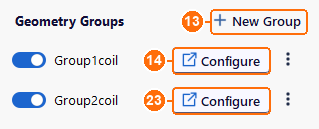
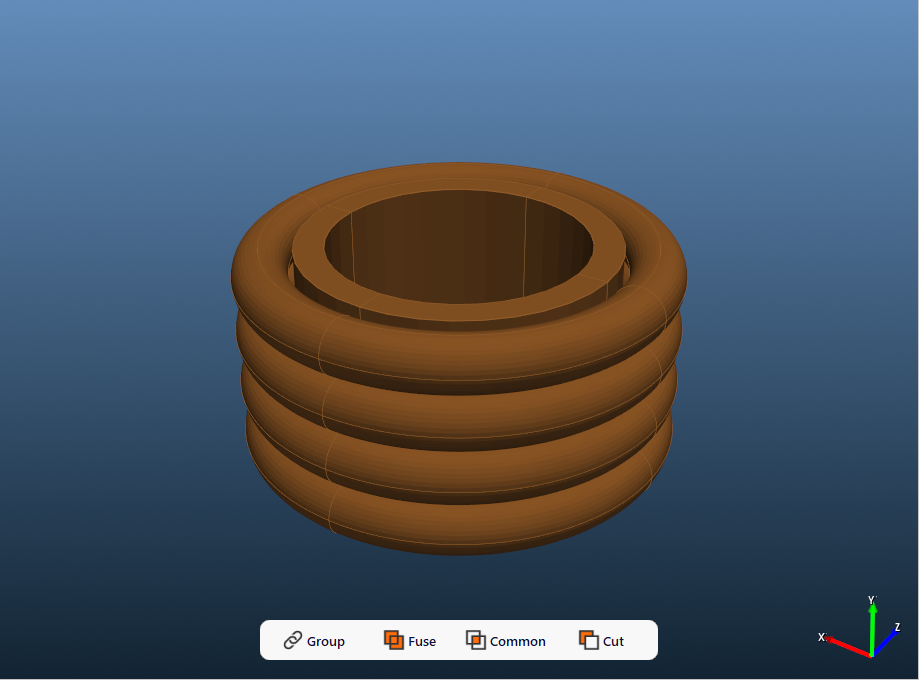
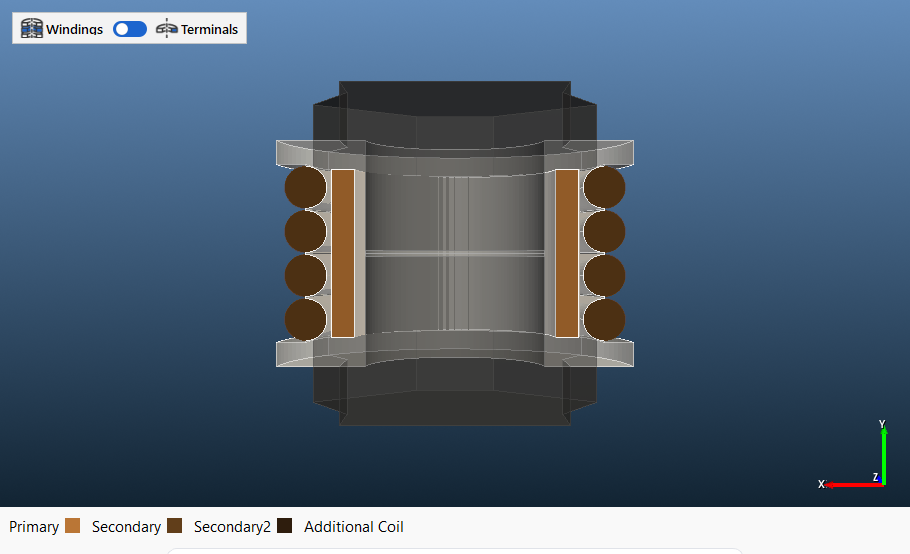
- On Coil, click New Group (13). Group1coil, the primary, appears.
-
Click Configure (14) next to Group1coil.
-
Set Source to Template, Scale to mm, Wire Type to Stranded & Litz and Turns per solid to 24 (15): one solid body carries all 24 turns.
-
In Geometry Builder, set Type to Filled, enter the dimensions in mm and click Apply (16):
A B C R H 0 0 1.1 4.8 8 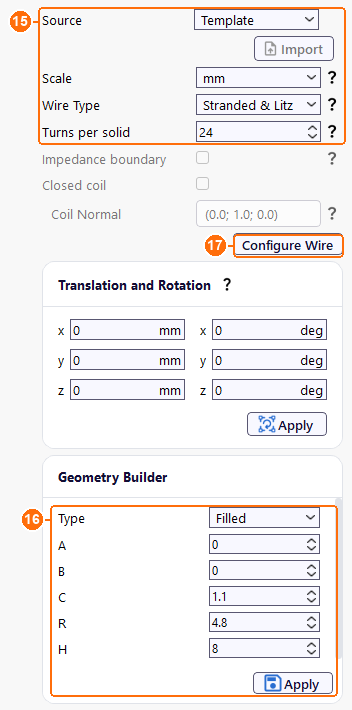
Group1coil: wire settings (15), Filled dimensions and Apply (16), Configure Wire (17). 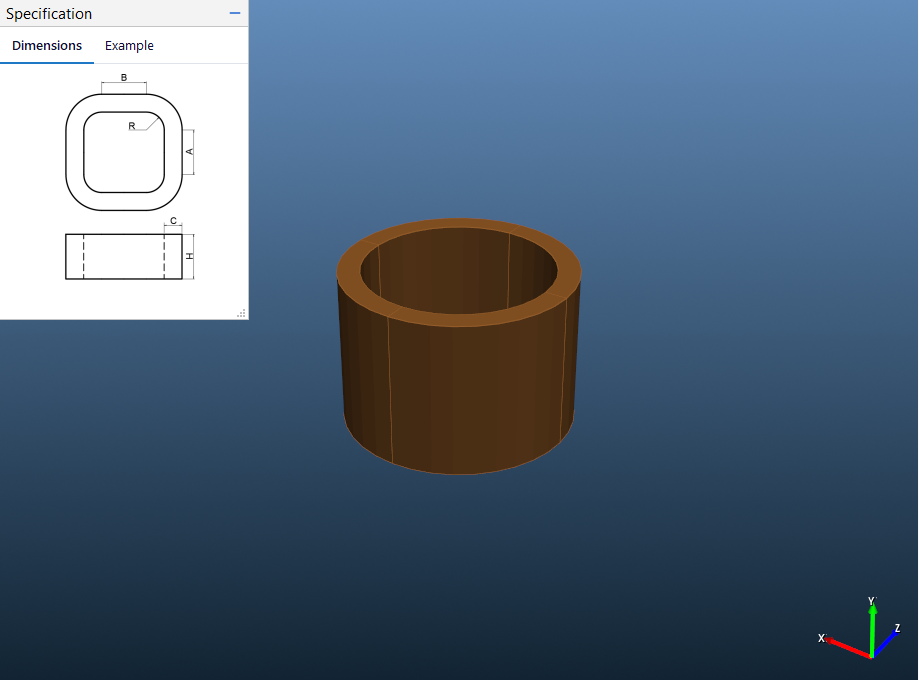
The primary: one Filled body carries all 24 turns. -
Click Configure Wire (17). In the Group1coil_2D tab, select Homogenization and set Packing to Hexagonal, Strand Thickness to 0.05 mm and Max Frequency to ≤ 1MHz (18).
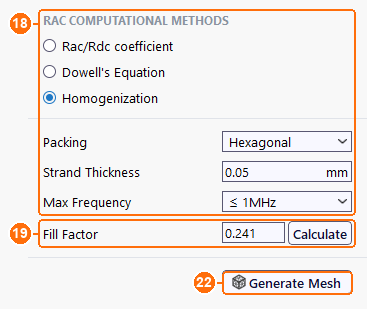
Group1coil_2D: Homogenization settings (18), Fill Factor and Calculate (19), Generate Mesh (22). -
Next to Fill Factor, click Calculate (19), keep Strand Type Round and Strand thickness 0.05, set N strands to 45 (20) and click Accept (21). Fill Factor becomes 0.241. Then click Generate Mesh (22): TRAFOLO builds the 2D model of the strand bundle; without it the run stops.
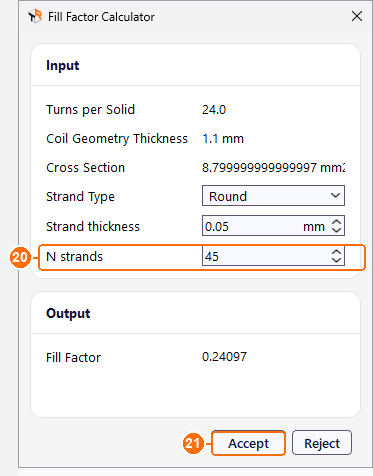
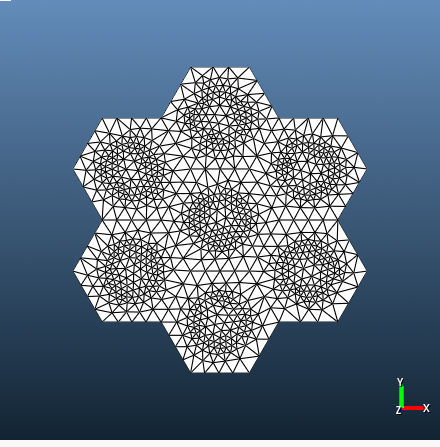
-
Back on Coil, click New Group again, then Configure (23) next to Group2coil, the secondary. Set Source, Scale and Wire Type as for the primary and Turns per solid to 1 (24).
-
In Geometry Builder, set Type to Massive, which builds the 4 round turns, enter the dimensions in mm and click Apply (25):
A B C D R H N r 0 0 2 2 6.1 8.3 4 1 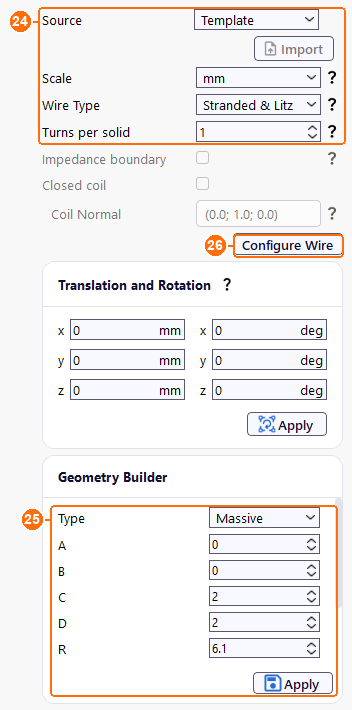
Group2coil: wire settings (24), Massive dimensions and Apply (25), Configure Wire (26). 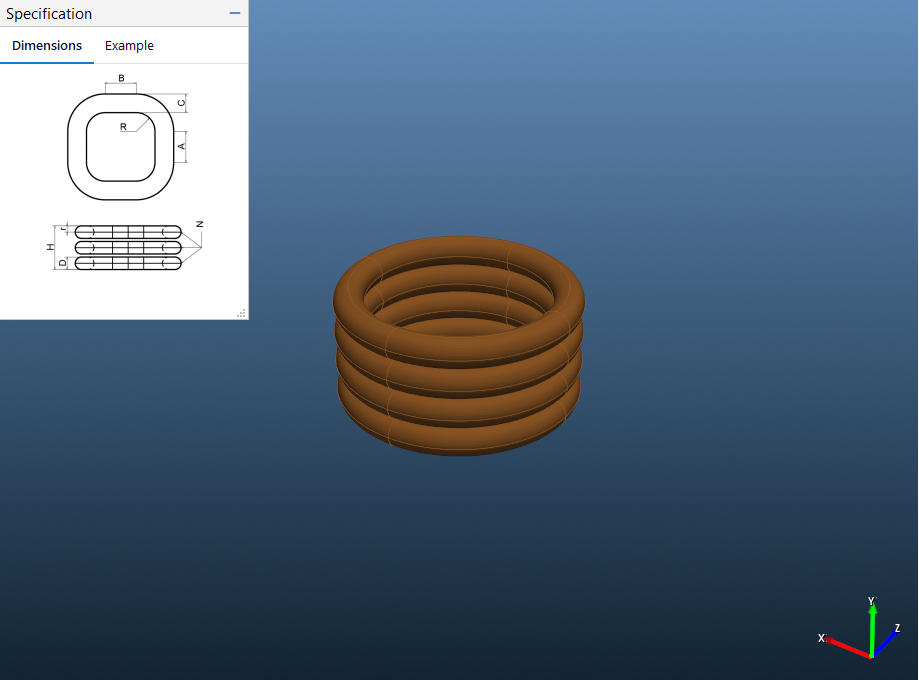
The secondary: 4 Massive turns. -
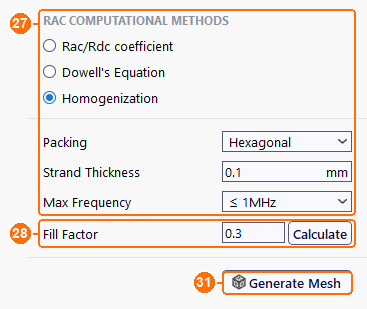
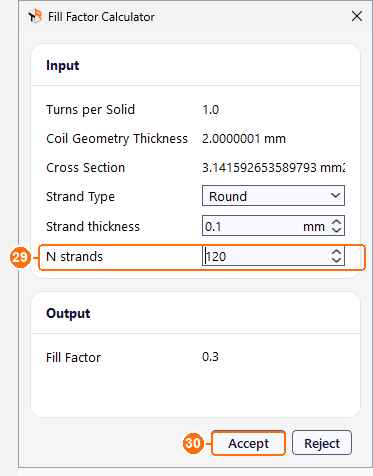
Click Configure Wire (26) and set Group2coil_2D like the primary, with Strand Thickness 0.1 mm (27). In Calculate (28), set N strands to 120 (29) and click Accept (30). Fill Factor becomes 0.3. Click Generate Mesh (31).
Bobbin
- On Bobbin, click New Group. Group1bobbin appears.
- Click Configure next to Group1bobbin.
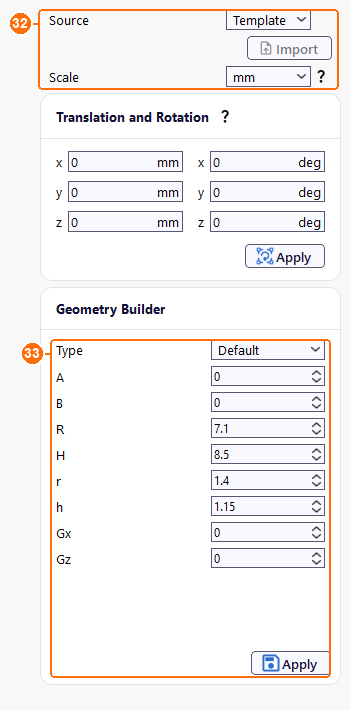
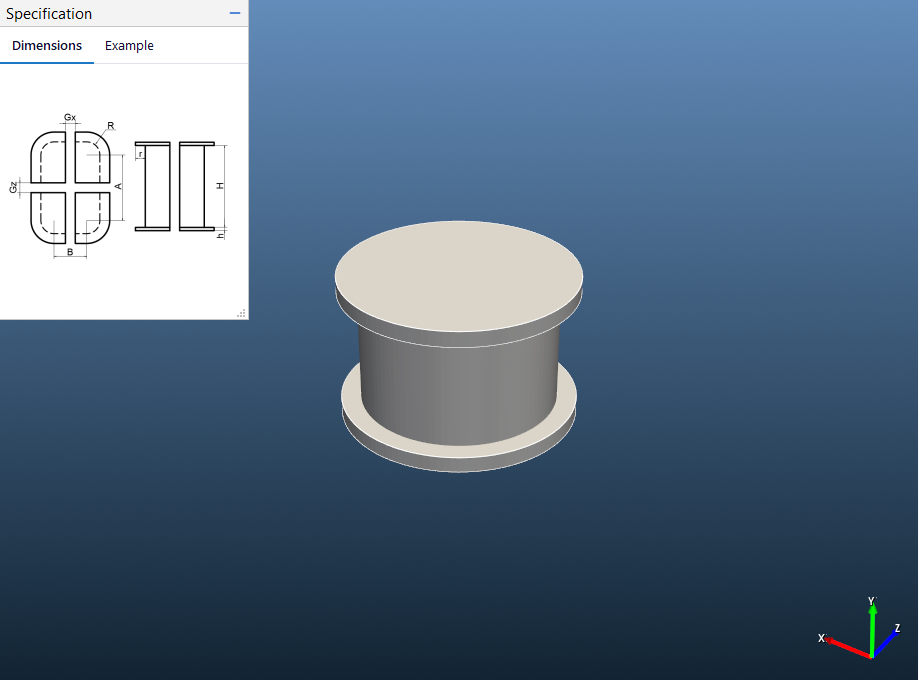
- Set Source to Template and Scale to mm (32).
- In Geometry Builder, set Type to Default, enter the dimensions in mm and click Apply (33):
| A | B | R | H | r | h | Gx | Gz |
|---|---|---|---|---|---|---|---|
| 0 | 0 | 7.1 | 8.5 | 1.4 | 1.15 | 0 | 0 |
Assembly
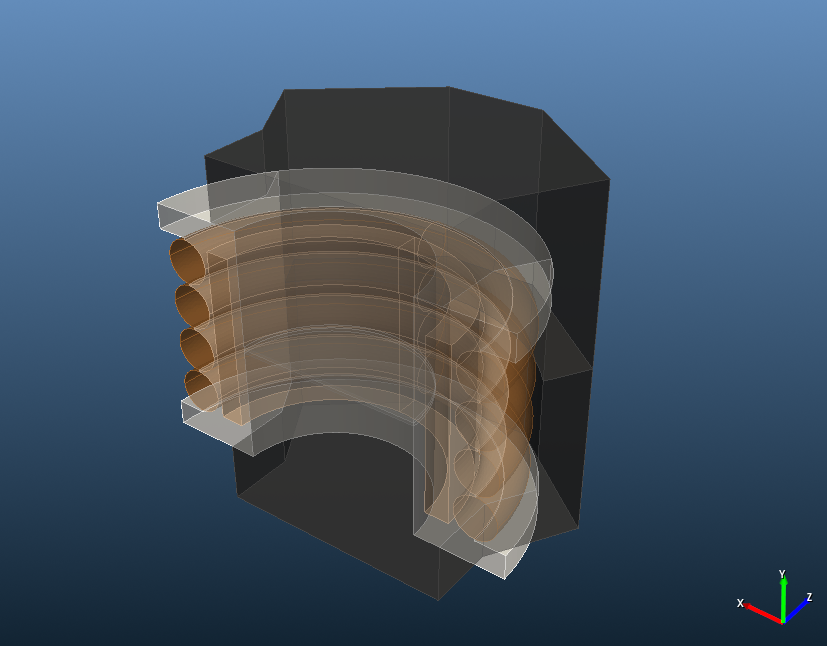
- On Assembly, click Assemble Geometry.
ElMag
- Under Primary Winding, set Excitation to Irms [A] and Coil group connection type to Series (34).
-
Tick Secondary Winding and set the same (35).
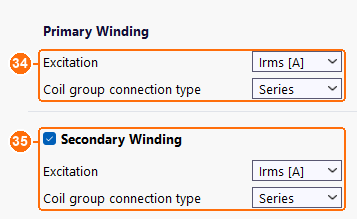
Primary Winding (34) and Secondary Winding (35): Irms [A] and Series. -
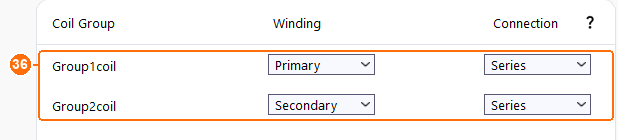
In the coil group table (36), set both groups:
| Coil Group | Winding | Connection |
|---|---|---|
| Group1coil | Primary | Series |
| Group2coil | Secondary | Series |
Circuits
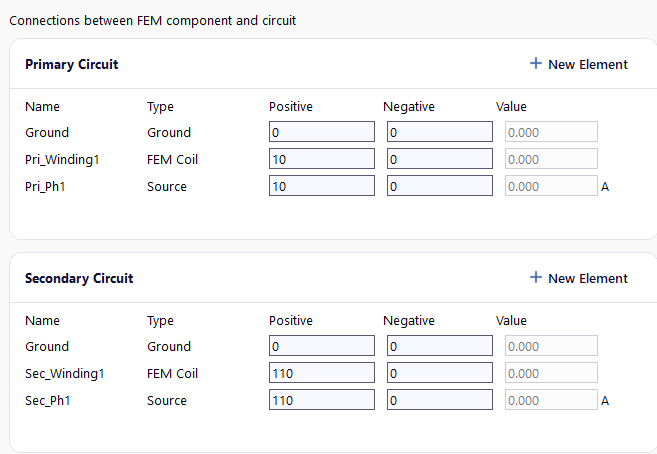
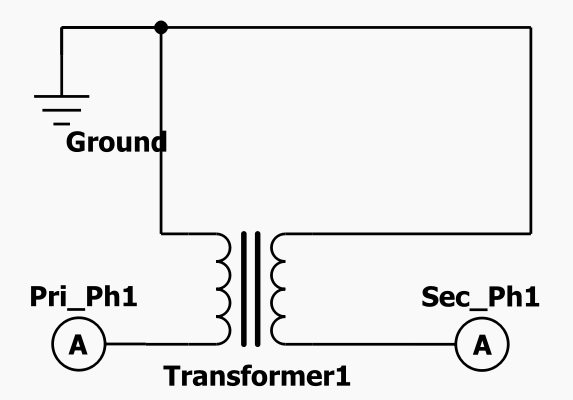
Nothing to change: TRAFOLO builds the primary and secondary circuits from the ElMag settings.
Waveform
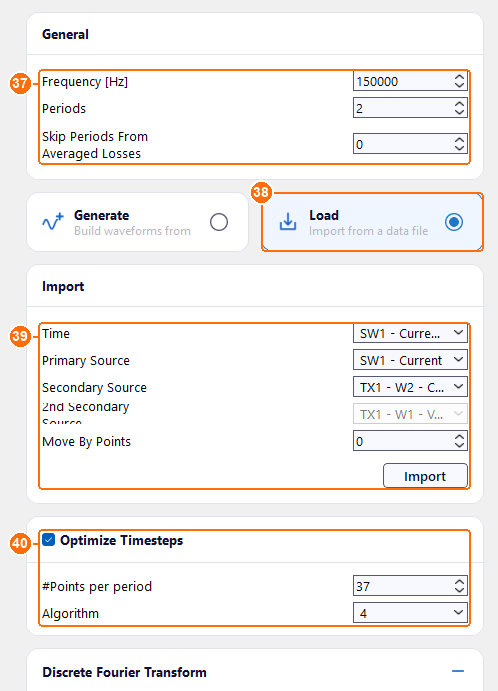
- Under General, set Frequency [Hz] to 150000 and Periods to 2 (37).
- Select Load (38).
- Under Import, click Import and open flyback-transformer-waveforms-150kHz.csv, downloaded under Files above, or waveform_dump.csv from the cached folder of the Flyback Transformer example. Set Time to SW1 - Current - Time [s], Primary Source to SW1 - Current and Secondary Source to TX1 - W2 - Current (39). TRAFOLO uses the last 2 periods of the file.
-
Tick Optimize Timesteps, set #Points per period to 37 and Algorithm to 4 (40). Algorithm 4 places short time steps at the switching edges: 55 steps from 2.5 ns to 0.64 µs.
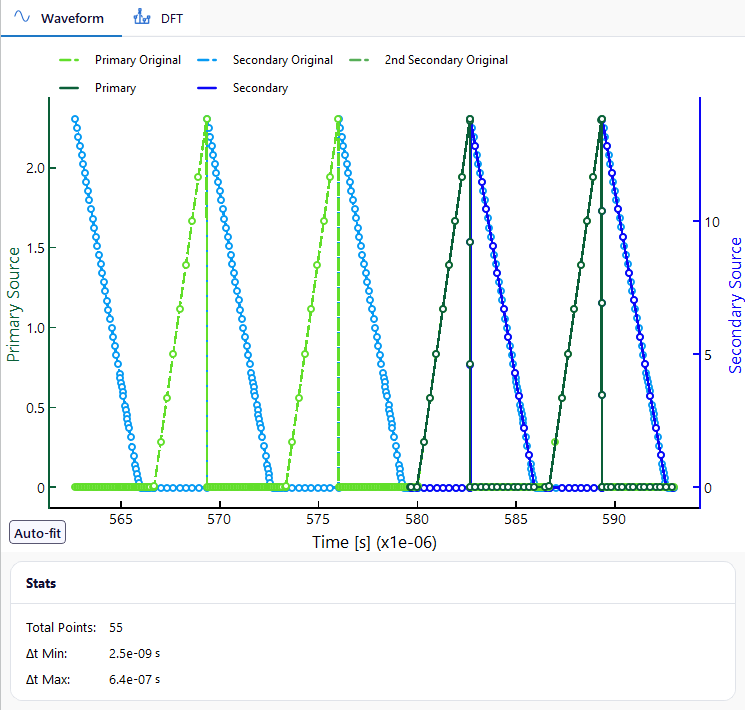
-
Under Discrete Fourier Transform, set Number of harmonics to 7.
Heat
-
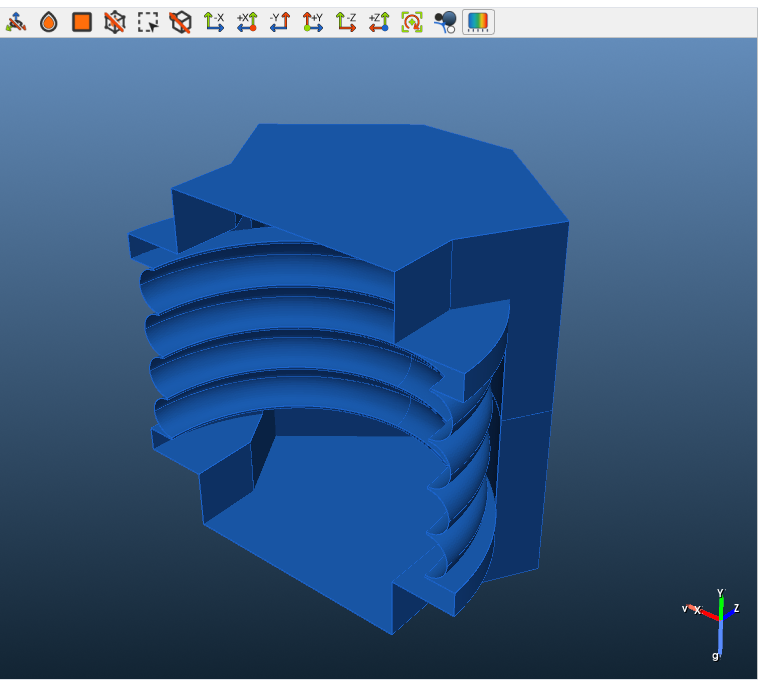
Under GLOBAL SETTINGS, set Predicted Steady-State Temperature to 80 °C and Velocity Vector to (2.0; 0.0; 0.0) m/s (41): forced air at 2 m/s along x.
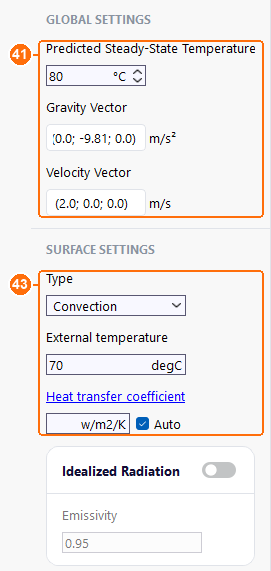
GLOBAL SETTINGS (41); SURFACE SETTINGS (43): Convection, 70 °C, Auto. -
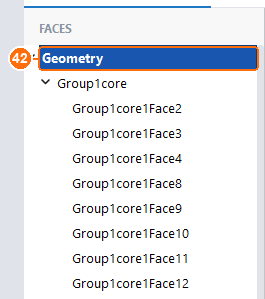
Under FACES, select Geometry (42): settings made there apply to every face. Under SURFACE SETTINGS, keep Type Convection, set External temperature to 70 °C and tick Auto next to Heat transfer coefficient (43). TRAFOLO then estimates the coefficient of each face from the air velocity.
Mesh
-
Under GLOBAL SETTINGS, set Mesh Algorithm to Netgen and Mesh Refinement to Normal (44).
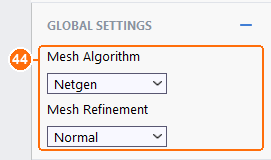
Mesh Algorithm Netgen and Mesh Refinement Normal (44). -
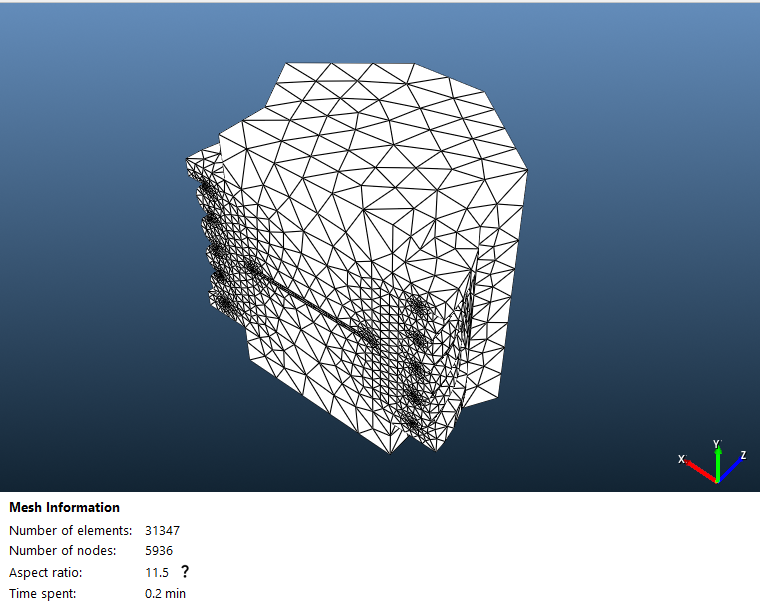
Click Compute Mesh (45). The mesh has about 31,000 elements.

Solve
-
Set Parallel cores (46) to the number of performance cores of your CPU and keep Solver Preset Fast (47).
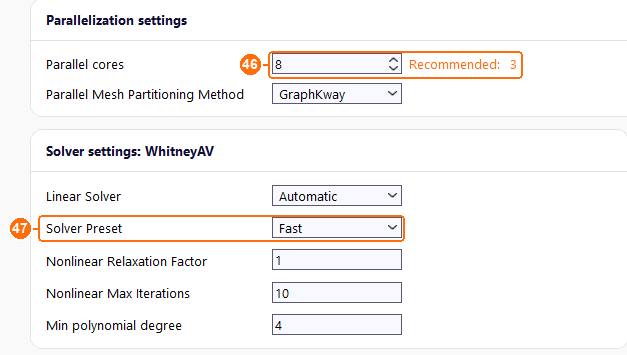
Parallel cores (46) and Solver Preset Fast (47). -
Click Simulation Setup, then Run Simulation (48).

Simulation Setup, then Run Simulation (48).
Results
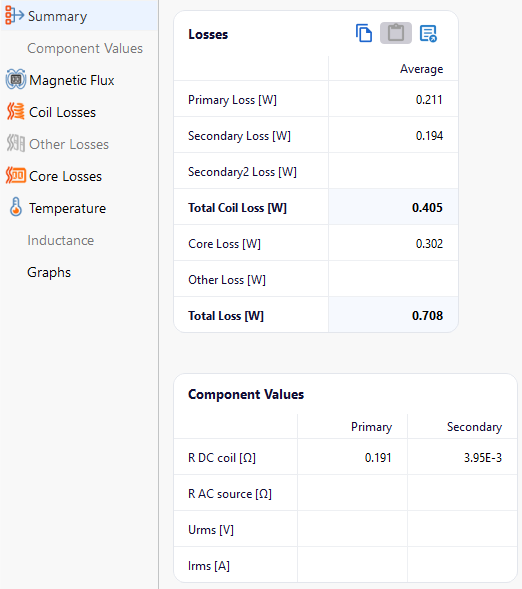
Averages over the 2 simulated periods, with the copper resistance at the predicted 80 °C (Results › Summary):
| Primary winding | Secondary winding | Windings | Core | Total |
|---|---|---|---|---|
| 0.211 W | 0.194 W | 0.405 W | 0.302 W | 0.708 W |
Winding losses: AC against DC
The RMS currents of the imported waveforms and the DC resistances from Summary give the loss each winding would have with a DC current of the same RMS value:
| Winding | IRMS | Ipeak | Rdc at 80 °C | IRMS²·Rdc | Simulated loss | AC/DC |
|---|---|---|---|---|---|---|
| Primary | 0.85 A | 2.3 A | 0.191 Ω | 0.139 W | 0.211 W | 1.52 |
| Secondary | 5.63 A | 13.8 A | 3.95 mΩ | 0.125 W | 0.194 W | 1.55 |
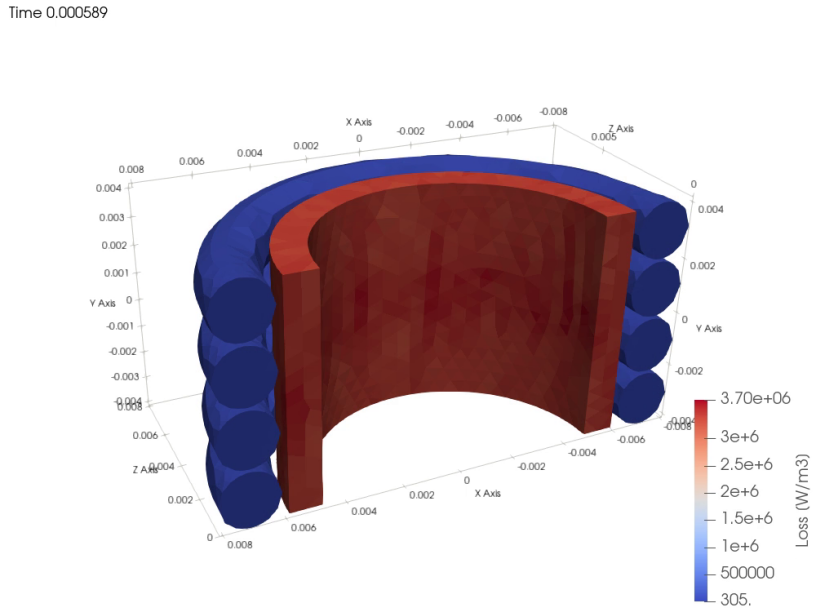
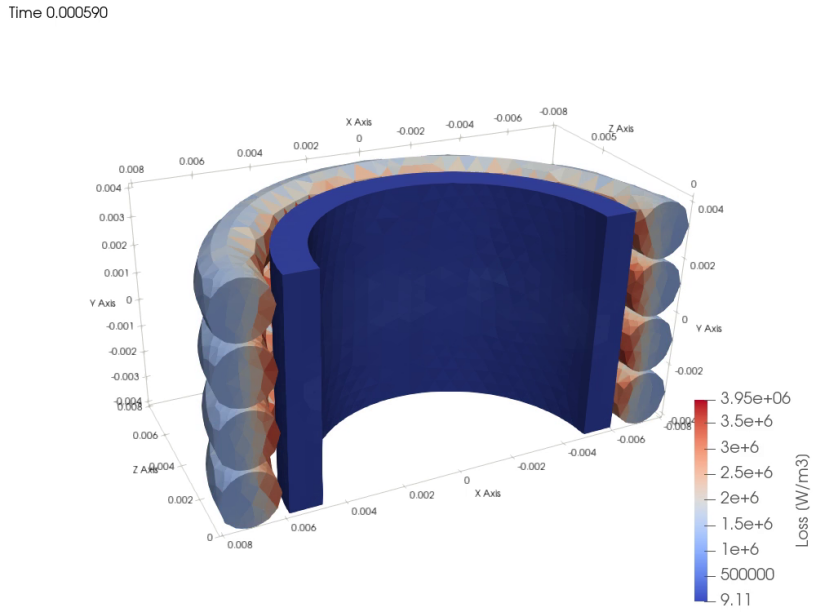
A third of the winding loss comes from skin and proximity effects: the triangular currents carry harmonics into the MHz range, and each harmonic induces eddy currents in the strands. Homogenization computes this per harmonic; an estimate from the RMS current and Rdc alone would miss it.
Core loss and flux density
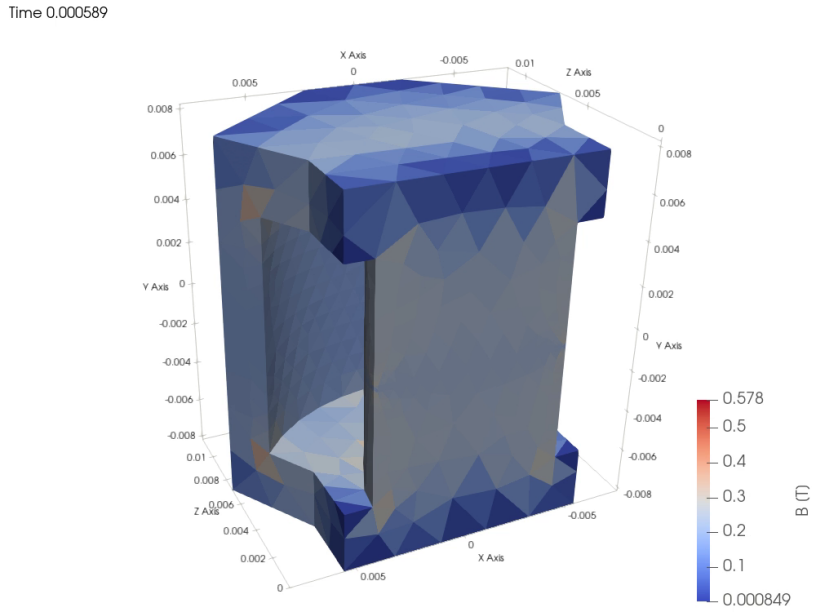
The core loses 0.30 W, 43 % of the total. The flux rises while the switch is on (2.5 µs) and falls back while the secondary conducts. Faraday's law gives the swing in the 8.55 mm centre pole: ΔB = V·ton/(N·A) = 130 V × 2.5 µs/(24 × 57 mm²) ≈ 0.24 T, and the field view shows 0.25 to 0.3 T there at the end of the on-time. More primary turns lower the swing, and the core loss with it, at the cost of more copper loss.
The field views step through the 2 periods; in the loss views, frame 1 is the period average.
Temperature
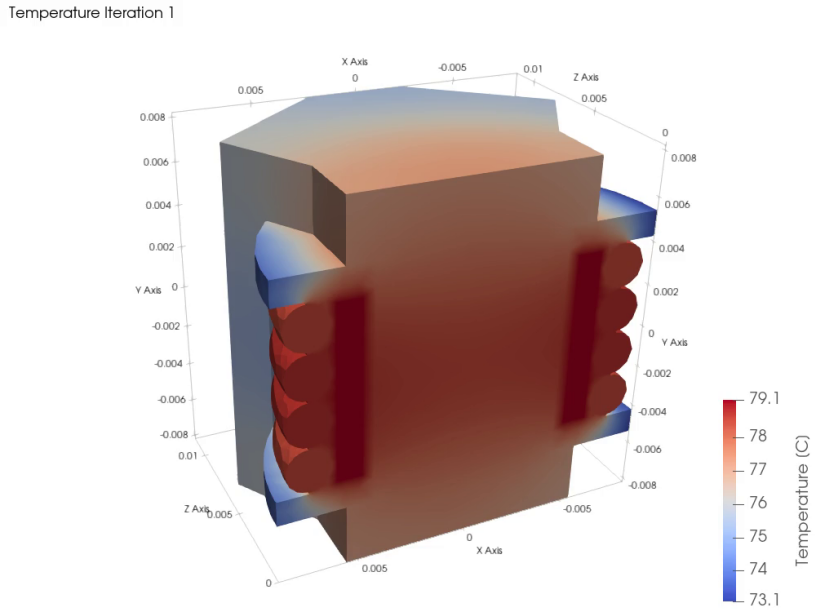
The hotspot is 79.1 °C, in the primary: the inner winding, whose heat has to pass the secondary, the bobbin or the core to reach the air. The transformer runs 3 to 9 K above the 70 °C air for 0.71 W of loss, about 13 K/W with 2 m/s forced air.
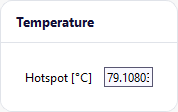
TRAFOLO evaluated the copper resistance at the predicted 80 °C, within 1 K of the computed hotspot, so one temperature iteration is enough. When the two differ by more than a few kelvin, set Predicted Steady-State Temperature to the computed hotspot and run again, or raise Temperature Iterations on Setup. Ferroxcube 3C97 100C has no Thermal Coefficients, so its core loss comes from the 100 °C data whatever this temperature is.
Interwinding capacitance
37.3 pF between primary and secondary (Capacitance Matrix on Summary). It carries common-mode current from the primary's switching edges into the secondary, i = C·dv/dt: a 10 V/ns edge drives 0.37 A. More distance between the windings, or a grounded screen between them, lowers it.
The example ships with these views but without 3D field data: run it before Open in ParaView (ParaView (post-processing).
Background
Why homogenization in a transient run
The flyback currents contain many harmonics, and each one adds proximity loss in the litz strands. Homogenization replaces each winding with an equivalent material that TRAFOLO computes from a 2D model of the strand bundle at harmonics of the switching frequency (DC to 1.95 MHz here), so the 3D mesh treats each winding as a solid and needs no strand-level elements. Max Frequency ≤ 1MHz sizes the strand mesh for the skin depth at 1 MHz; the harmonics above it carry 6 % of the primary current's I² and 5 % of the secondary's, so the coarser mesh there changes the winding loss little.
Method details: Homogenization of Litz and Stranded Windings; transient set-up: Transient Waveforms & Simulations; capacitance: Parasitic Extraction.
Further reading
- HOMOGENIZATION. Hands-on modeling of litz in 3D FEM #9 (TRAFOLO on LinkedIn)