Coil
On the Coil tab you define the coil geometry of the model as coil groups. For each group you build or import the geometry, choose the wire model and set how TRAFOLO computes AC resistance. You assign the groups to windings later, on the ElMag tab, and give each group its own material on the Assembly tab.
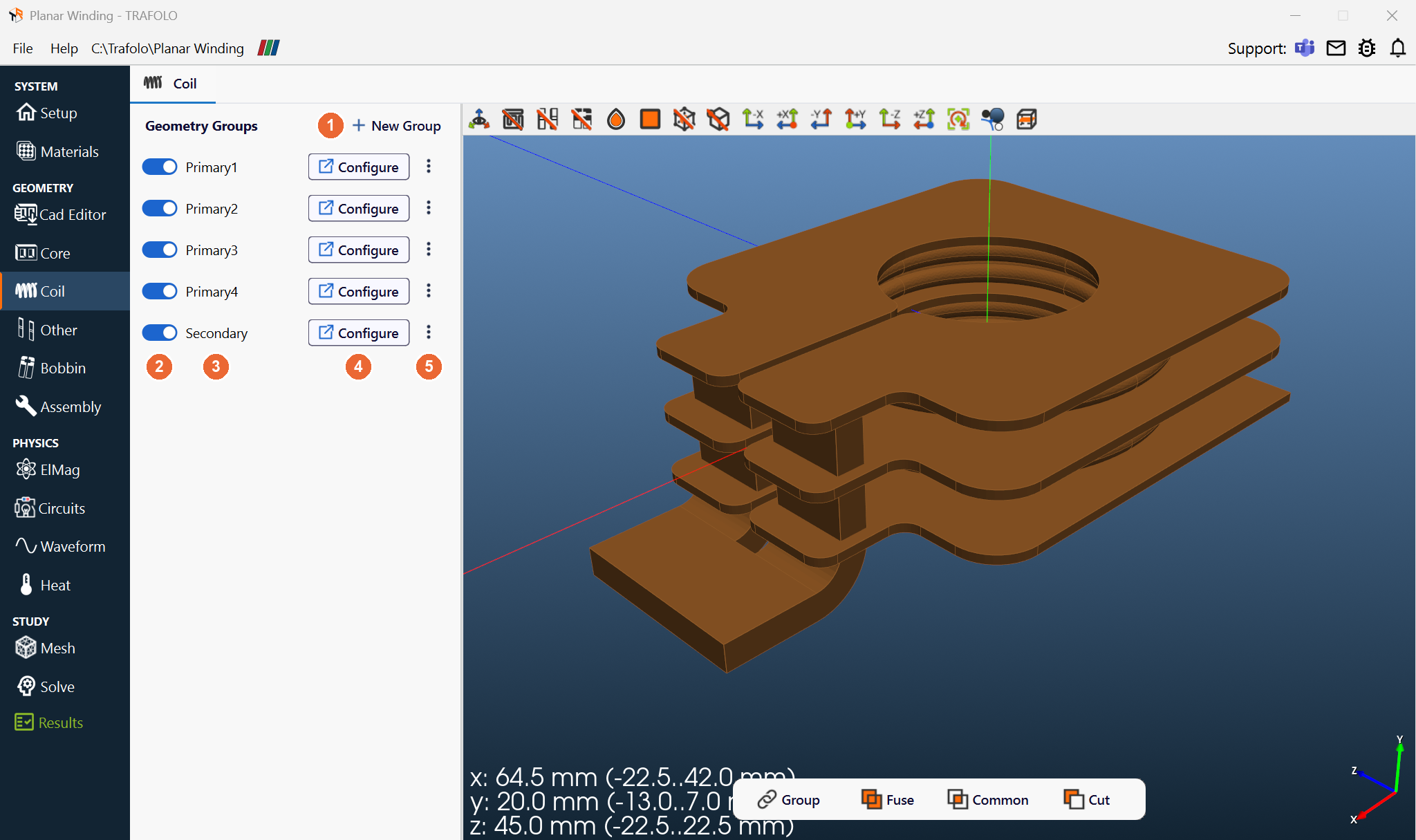
Geometry Groups
Each row of the list is one coil group.
| Control | What it does |
|---|---|
| + New Group (1) | Adds a group named GroupNcoil and opens it. A new group has no geometry yet: Source Template, Scale mm, Wire Type Stranded & Litz, Turns per solid 1, no Geometry Builder type. |
| Switch (2) | Turns the group on or off. Only groups that are on can be assigned to windings in ElMag. |
| Group name (3) | The name under which the ElMag and Assembly tabs list the group. |
| Configure (4) | Opens the settings of the group in a new tab next to Coil. |
| ⋮ (5) | Copy duplicates the group. Delete removes it after a confirmation; this cannot be undone. |
After you add a group or change the geometry of a group, click Assemble Geometry on the Assembly tab again. Until then, the Physics and Study tabs (ElMag to Results) stay disabled.
Coil group settings
| # | Setting | Values | What it does |
|---|---|---|---|
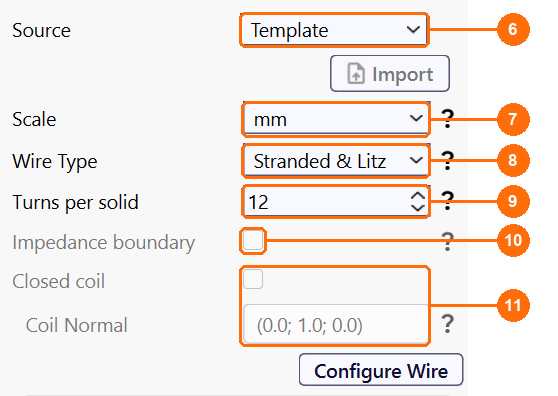
| 6 | Source | Template (default), CAD | Template: build the geometry with the Geometry Builder. CAD: import it with Import (see Importing from CAD). |
| 7 | Scale | µm, mm (default), cm, m, in, ft | Length unit of the geometry and of the Geometry Builder dimensions; a change has no effect until you build the geometry again. For CAD, choose the unit in the Import CAD dialog; on an imported group this field is disabled. Check the size in the dimension readout of the 3D view. |
| 8 | Wire Type | Stranded & Litz (default), Foil, Massive (solid), Flat wire | Numerical model of the current in the conductor. See Wire types. |
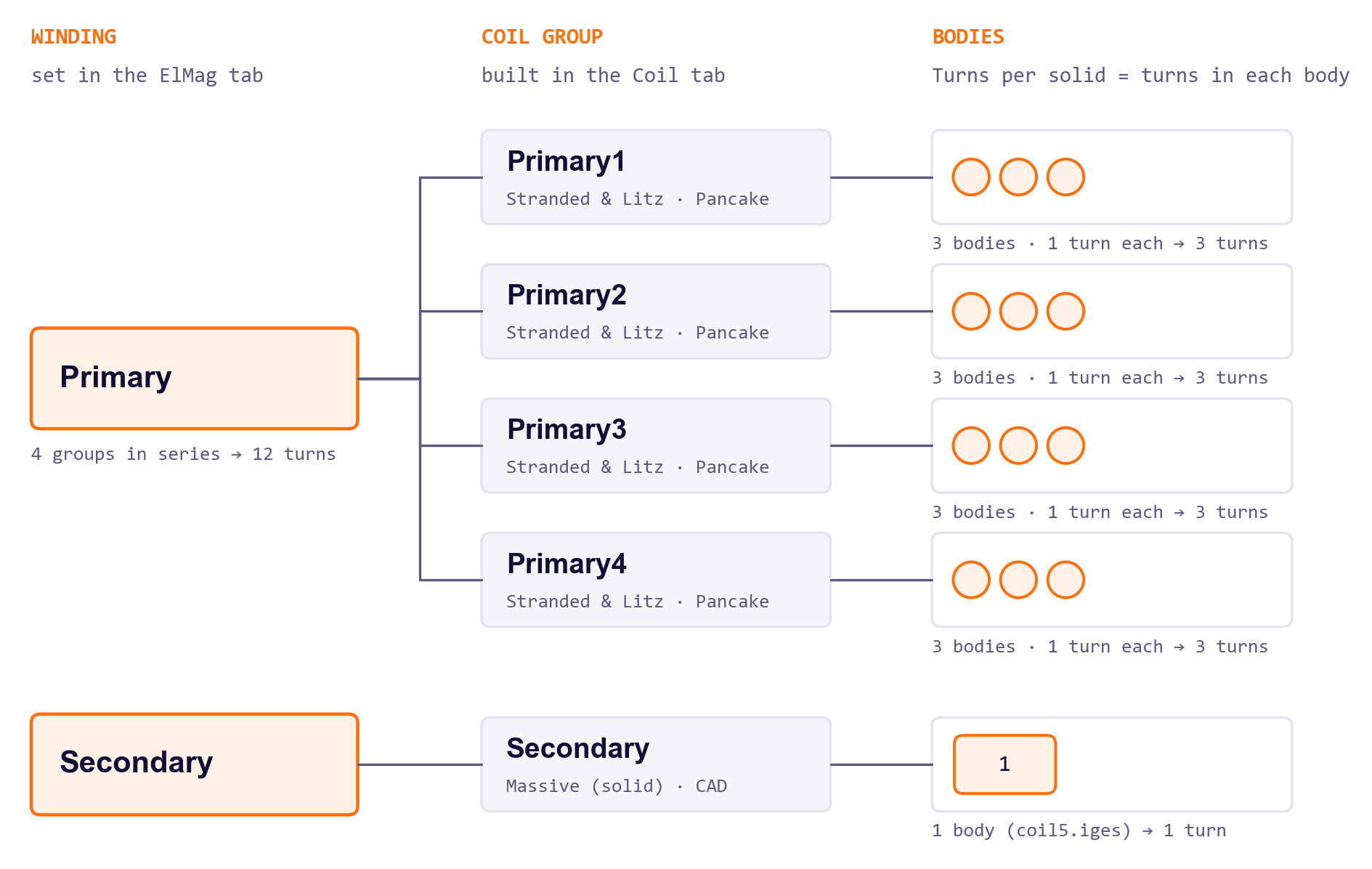
| 9 | Turns per solid | Integer, 1 (default) | Turns inside each separate body. A block drawn for 50 turns: 50. Five turns drawn as five bodies: 1. Parallel Litz bundles count as strands, not as turns. Disabled for Massive (solid). |
| 10 | Impedance boundary | Off (default) | Massive (solid) in Inductance runs only; greyed out in Harmonic and Transient runs. Models the skin layer on the conductor surface, so the conductor needs no boundary-layer mesh. Winding losses are not computed. See Impedance boundary. |
| 11 | Closed coil, Coil Normal | Off (default); Coil Normal as x; y; z | For a coil that is a closed loop without terminals; Stranded & Litz only. Coil Normal is the loop axis, for example (0.0; 1.0; 0.0) for a loop around the y-axis. See Closed coil. |
Configure Wire opens the AC-resistance settings of the group (see Configure Wire).
Wire types
| Wire Type | Current in the conductor | Use for |
|---|---|---|
| Stranded & Litz | Uniform over the cross-section of each body. Skin and proximity loss come from the method chosen in Configure Wire. | Litz and stranded wire; many turns drawn as one block |
| Foil | Each foil is solved as a sheet. The current can change along the foil height (parallel to the coil axis), not across the foil thickness. | Foil and sheet windings drawn as one block |
| Massive (solid) | Fully resolved, including skin and proximity effects. Each body is one conductor. Resolve the skin depth with boundary layers on the Mesh tab, or use Impedance boundary. | Solid wire, busbars, planar and PCB turns |
| Flat wire | Solved with the same sheet model as Foil, one sheet per turn. | Rectangular (flat) wire |
Impedance boundary
INDUCTANCE ONLY
Impedance boundary treats the skin layer of a Massive (solid) conductor analytically on its surface, so the conductor needs no boundary-layer mesh and the model solves faster. High Frequency Mode on the Setup tab applies it to every coil and disables circuits.
Impedance boundary does not compute winding losses. It is valid only while the skin depth is much smaller than the smallest cross-section dimension of the conductor. For copper at 20 °C the skin depth is 0.21 mm at 100 kHz and 0.065 mm at 1 MHz.
Closed coil
Turn on Closed coil for a coil whose geometry is a closed loop without terminals. TRAFOLO then drives the current around the loop. Set Coil Normal to the loop axis as a vector (x; y; z). The current direction follows the right-hand rule: with the thumb along the normal, the fingers point along the current.
Closed coil works for Stranded & Litz windings only. A Foil, Massive (solid) or Flat wire coil needs terminals at the outer boundary. Transient homogenization does not support closed coils.
With a closed Litz coil and transient homogenization, the simulation stops with:
A homogenized Litz coil is closed, and transient homogenization doesn't support closed coils. Use an open coil, or pick another RAC method for it in Configure Wire.
Translation and Rotation
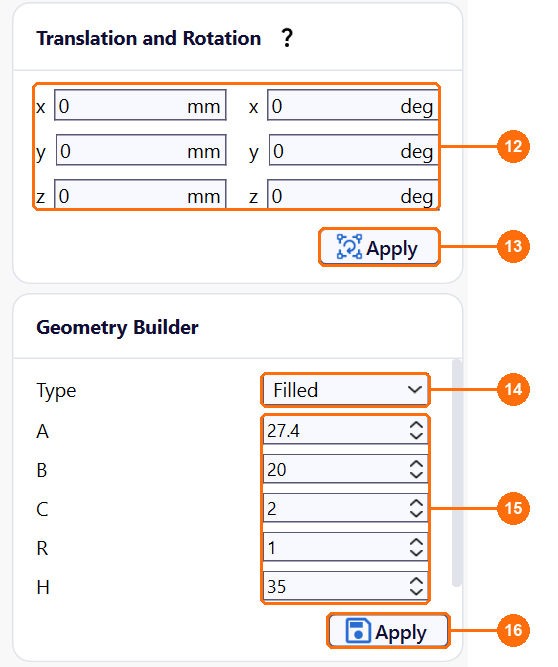
- x, y, z: translation along each axis (left column) and rotation about each axis in degrees (right column).
-
Apply moves the group.
TRAFOLO first translates the geometry, then rotates it about the x-, y- and z-axes through the origin, in this order. Positive angles follow the right-hand rule: z = 90 deg turns the +x direction into +y. The values are absolute and always apply to the geometry as built or imported: set them to 0 and click Apply to undo a transformation. Check the result in the dimension readout of the 3D view.
Example, Group1coil of the Dual Active Bridge template (x −13.0…13.0 mm, y −17.5…17.5 mm): x = 10 mm and z = 90 deg move it to x −17.5…17.5 mm, y −3.0…23.0 mm.
Geometry Builder
Builds the geometry of the group from a parametric shape.
-
Type: the shape (table below).
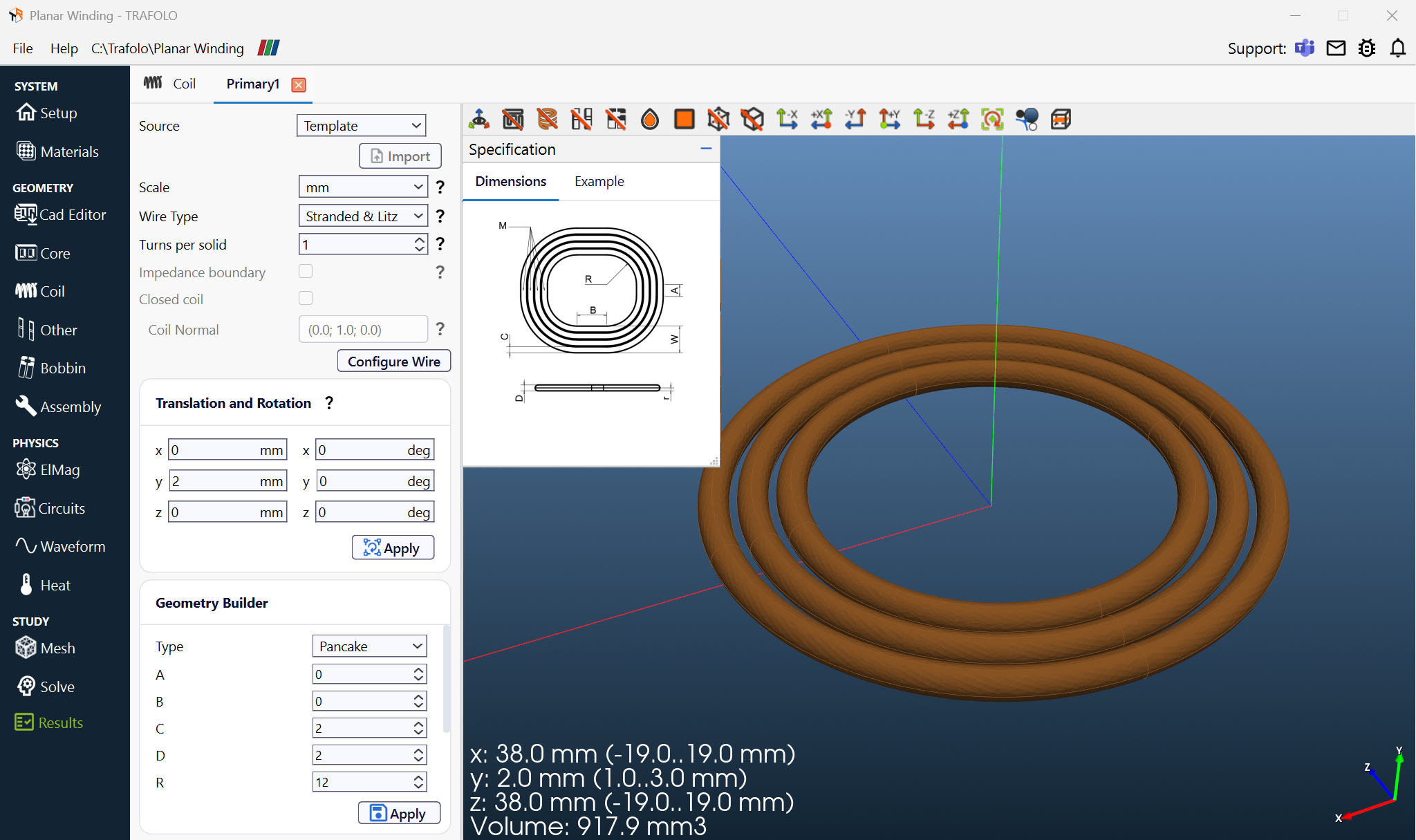
- Dimension fields, in the Scale unit: the letters match the sketch in the Specification panel, which opens in the 3D view when you choose a type (Dimensions tab; the Example tab shows an example).
- Apply builds the geometry.
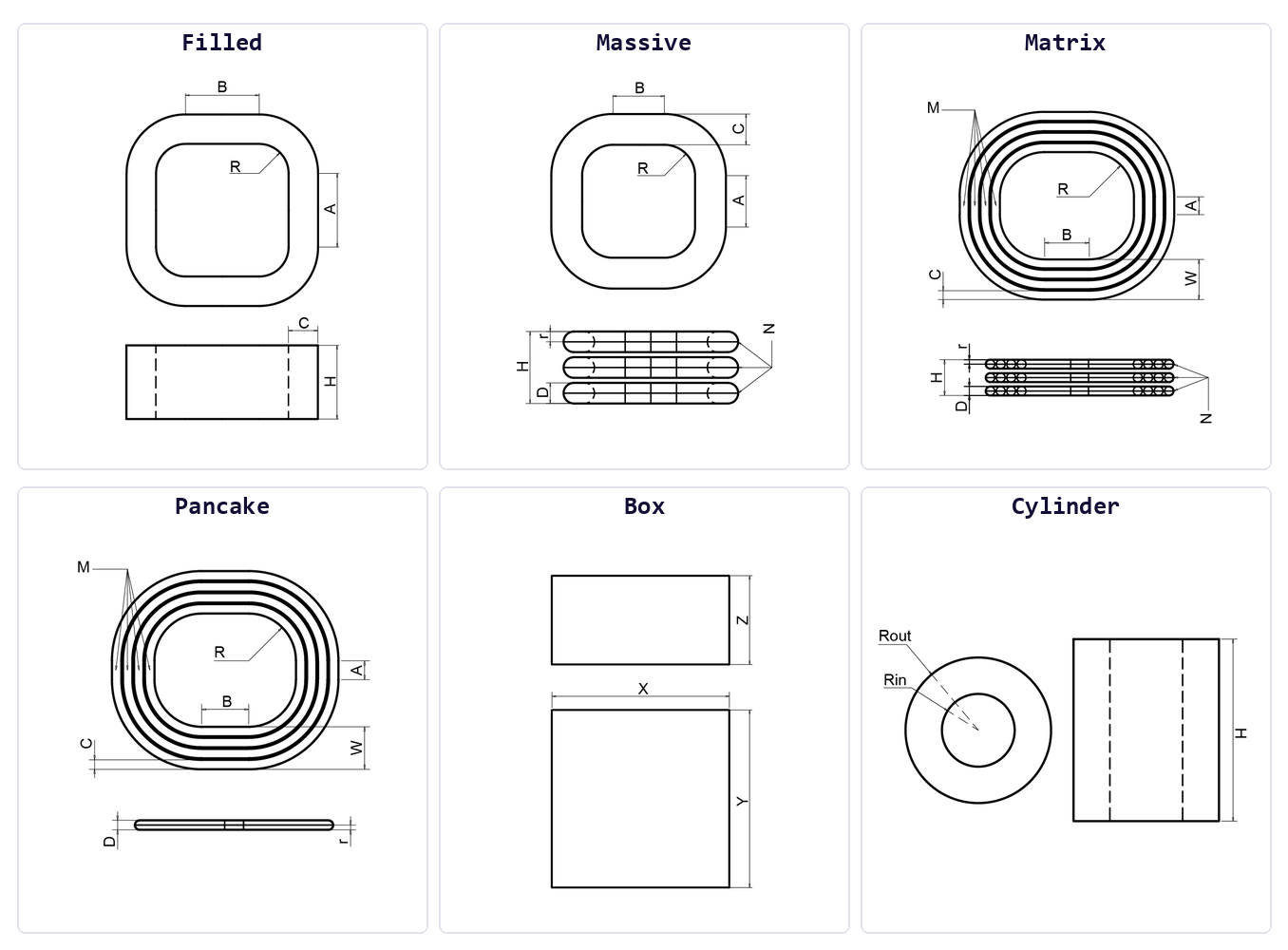
| Type | Fields | Builds | Typical use |
|---|---|---|---|
| Filled | A, B, C, R, H | One body with a rectangular cross-section around the core limb | Stranded, Litz and foil windings with many turns |
| Massive | A, B, C, D, R, H, N, r | N turns stacked along the coil axis, one body each | Solid or Litz wire with few turns |
| Matrix | A, B, C, D, R, H, N, r, M, W | M turns per layer in N layers, one body each | Multi-layer windings with every turn resolved |
| Pancake | A, B, C, D, R, W, M, r | M concentric turns in one flat layer | Planar and PCB windings |
| Box | X, Y, Z | A rectangular block | Busbars and straight conductors |
| Cylinder | H, Rin, Rout | A tube of height H, inner radius Rin, outer radius Rout | Round conductors and rings |
Configure Wire
Configure Wire opens the AC-resistance settings of the group in a tab named after the group with _2D (for example Group1coil_2D). It is disabled for Massive (solid), which resolves skin and proximity effects in the field solution. Under RAC COMPUTATIONAL METHODS, choose one method per group:
HARMONIC TRANSIENT
One constant Rac/Rdc for all frequencies; TRAFOLO scales the conductivity of the group with it.
- Proximity Factor: the Rac/Rdc value. 1 means DC resistance.
- Fill Factor: see Fill Factor.
HARMONIC TRANSIENT
Kept for existing models. For new models, use Homogenization: Dowell's equation is one-dimensional and does not see fringing fields near gaps.
- Strand Type: Round, Square, Foil or Litz.
- Strand Thickness (mm): see Strand Thickness.
- Number of Layers: foil: the number of foils. Solid wire: the layers around the core limb. Litz: the layers around the core limb × √(number of strands), Nlayers,Litz = Nlayers · √Nstrands.
- Fill Factor: see Fill Factor.
HARMONIC TRANSIENT
Skin and proximity loss of the strands from six parameters (complex magnetic reluctance and impedance) that TRAFOLO computes from a 2D model of the strand bundle at every simulation frequency, so the 3D mesh does not resolve the strands. Accurate near gaps, where the field is not uniform.
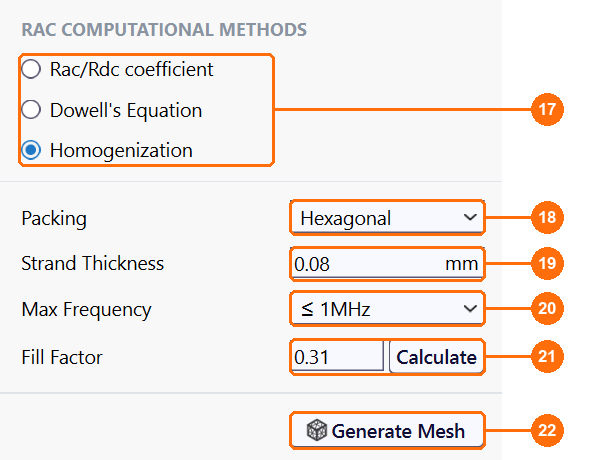
- The method: Homogenization.
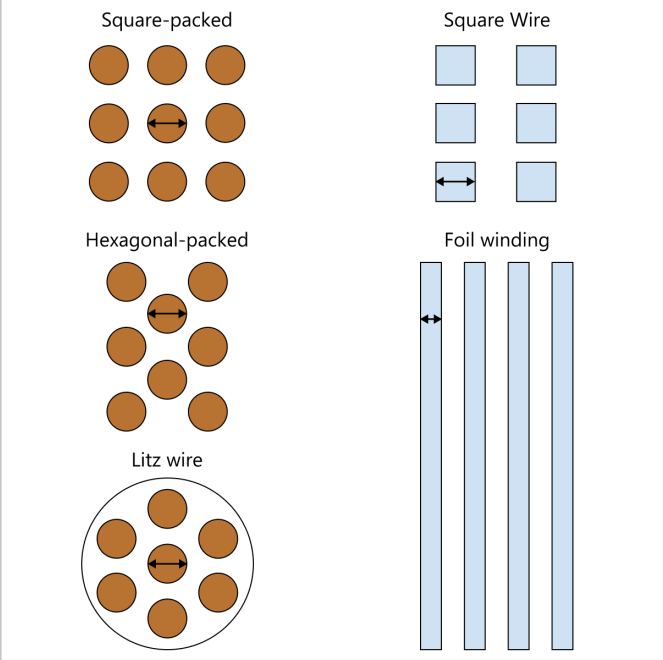
- Packing: arrangement of the strands in the bundle, Hexagonal or Rectangular.
- Strand Thickness (mm): see Strand Thickness.
- Max Frequency: the frequency for which TRAFOLO sizes the mesh of the 2D strand model, with elements of about 1/8 of the skin depth: ≤ 100Hz (default), ≤ 1kHz, ≤ 10kHz, ≤ 100kHz, ≤ 1MHz or ≤ 10MHz. It does not limit the simulation frequencies.
- Fill Factor and Calculate: see Fill Factor.
- Generate Mesh: generates the mesh of the 2D strand model that Homogenization needs, with the element size set by Max Frequency.
Set Max Frequency around the highest frequency that carries significant current: the top of a sweep, or the highest significant harmonic of a transient waveform. TRAFOLO solves the 2D strand model at every simulation frequency, also above Max Frequency; in transient runs these are the odd harmonics 1 to 13 of the fundamental and the waveform harmonics set by Number of harmonics. Above Max Frequency the strand mesh is coarser relative to the skin depth, a small error for strands much thinner than the skin depth. The Modelling Litz Wire using Homogenization template keeps ≤ 100kHz for its sweep to 120 kHz. After you change Max Frequency, click Generate Mesh again.
Without a generated wire mesh, the simulation stops with (here for Group1coil):
Litz coil Group1coil uses Homogenization, but its wire mesh hasn't been generated. In the Coil tab, open Group1coil > Configure Wire and click Generate Mesh.
Strand Thickness
Diameter of a round strand, side of a square wire, thickness of a foil.
Fill Factor
Fraction of the winding cross-section that is conductor. It sets resistance and loss. Calculate opens the Fill Factor Calculator, which computes it from the strand type and thickness, the number of strands, Turns per Solid and the coil cross-section. Example: the Litz winding of the Dual Active Bridge template uses 0.31.
Fill factor reference values
Upper limits for bare conductors; insulation and Litz serving lower them.
| Winding | Fill factor |
|---|---|
| Square wire or foil stacked in layers | < 1 |
| Round wire, orthocyclic (hexagonal) stacking | ≤ 0.91 |
| Round wire, layer (square) stacking | ≤ 0.79 |
| Round wire, random stacking | ≤ 0.75 |
Importing from CAD
Set Source to CAD and click Import. In the Import CAD dialog, click Import and choose the file, check Scale, the options and the geometry in the 3D view, then click Ok. Cancel leaves the group unchanged. One file per coil group, in STEP (.step, .stp) or IGES (.iges, .igs) format; the file can hold any number of turns. The Cad Editor tab imports more formats. How to prepare CAD for FEM: Importing CAD Geometries.
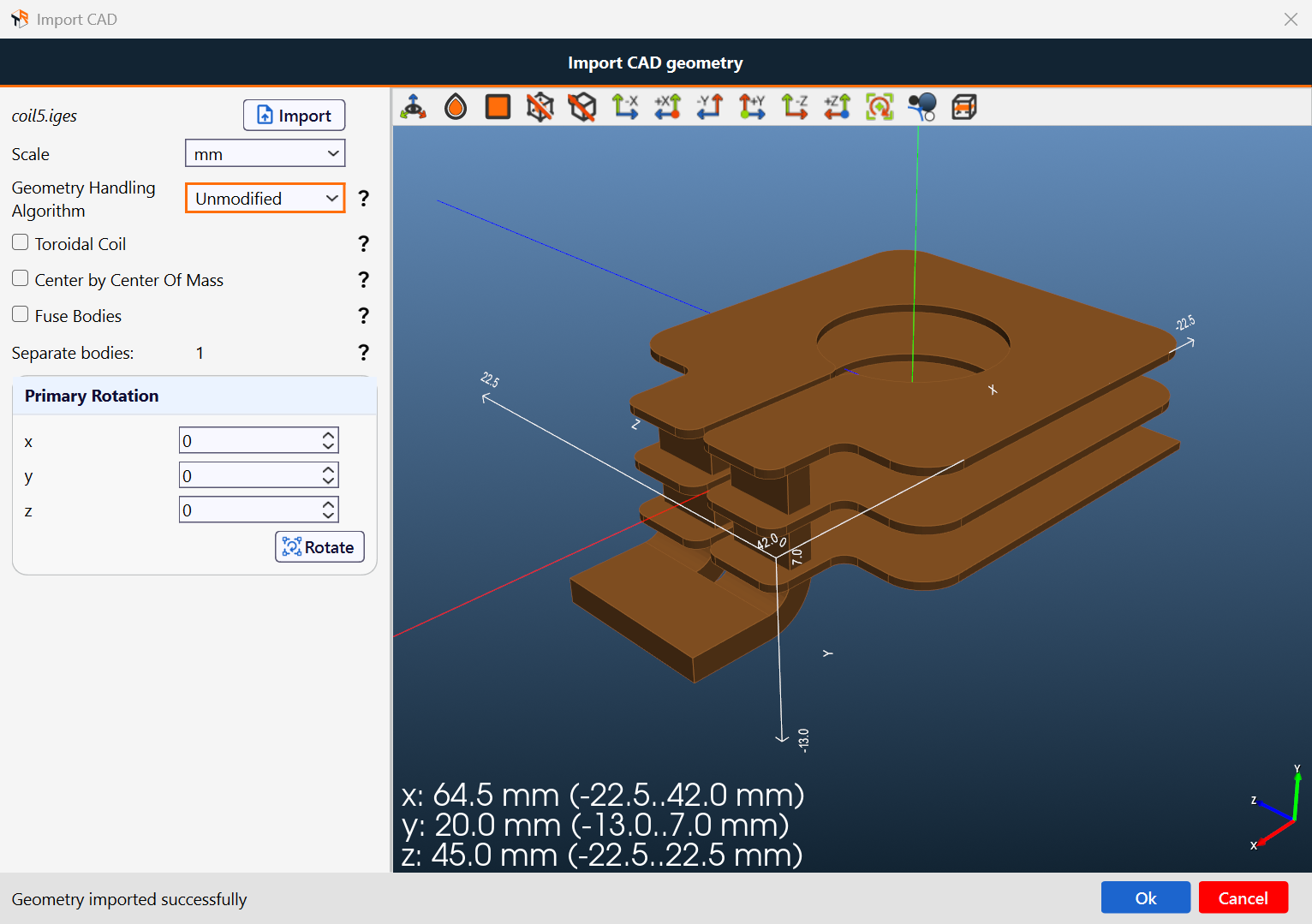
- Each turn must be one continuous solid. Fuse a turn made of several pieces before import, or use Fuse Bodies.
- The solids must not overlap.
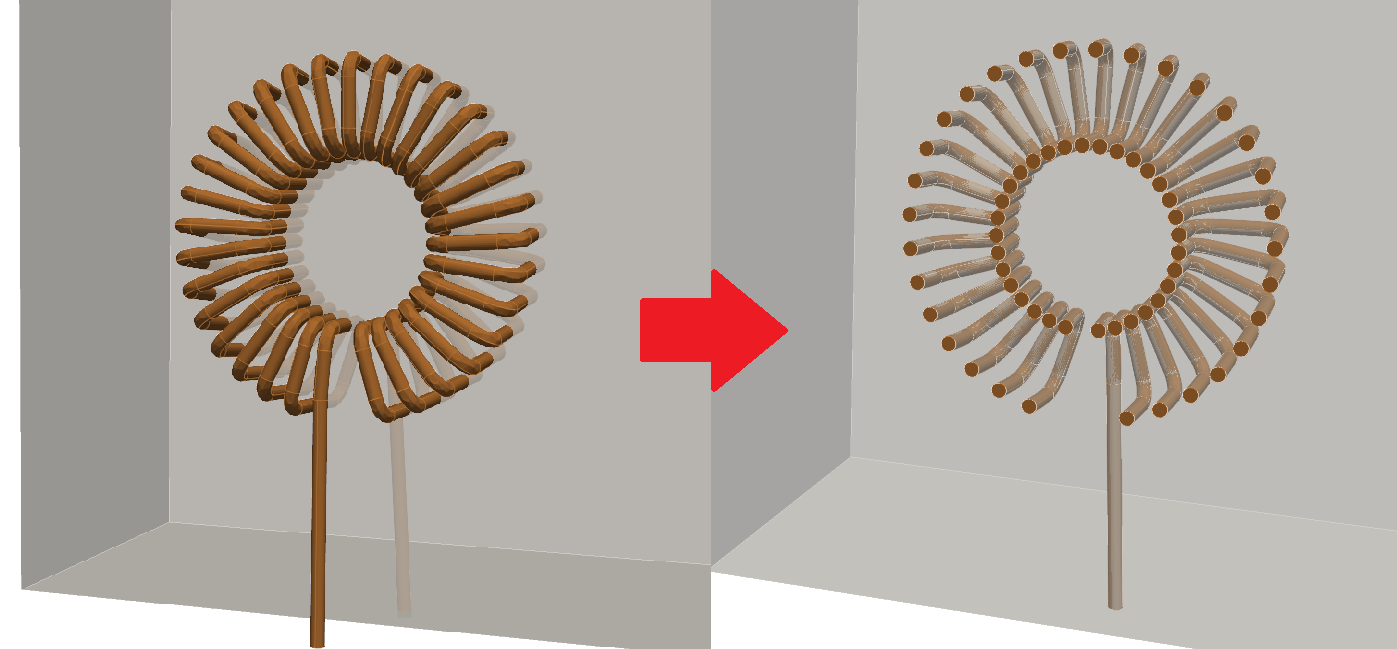
- After assembly, every turn needs at least two terminals: faces that reach the outer boundary of the computation domain. Only a Stranded & Litz coil can instead be a Closed coil.
|
Import option |
What it does |
|---|---|
|
Scale |
Length unit of the file: µm, mm, cm, m, in or ft. |
|
Geometry Handling Algorithm |
How the imported coil enters the assembly:
|
|
Toroidal Coil |
For toroidal windings: after the symmetry cut, the terminals at the core centre and those on the outside form two groups, which become the positive and negative terminals. |
|
Center by Center Of Mass |
Moves the geometry to its centre of mass. You can translate it by coordinates afterwards. |
|
Fuse Bodies |
Fuses the imported bodies into one. Use it when one turn consists of several bodies. |
|
Separate bodies |
Read-only: the number of bodies that enter the simulation after import and processing. |
|
Primary Rotation |
Angles in degrees about x, y and z. Rotate turns the imported geometry before you click Ok. Example: x = 90 turns the plates of coil5.iges upright; the y and z ranges in the readout swap. |
Further reading
- Dowell equation and homogenization (LinkedIn)
- Homogenization: hands-on modelling of Litz wire in 3D FEM (LinkedIn)
- Fixing CAD geometries for FEM (LinkedIn)
- 3D View: toolbar and controls of the 3D view on this tab