Mesh
On the Mesh tab (page title Meshing) you set how the model is meshed and compute the mesh. The number of elements sets the simulation time and the memory. Start coarse, refine where the field changes fast (windings at high frequency, gaps), and stop when the results no longer change between two refinements.
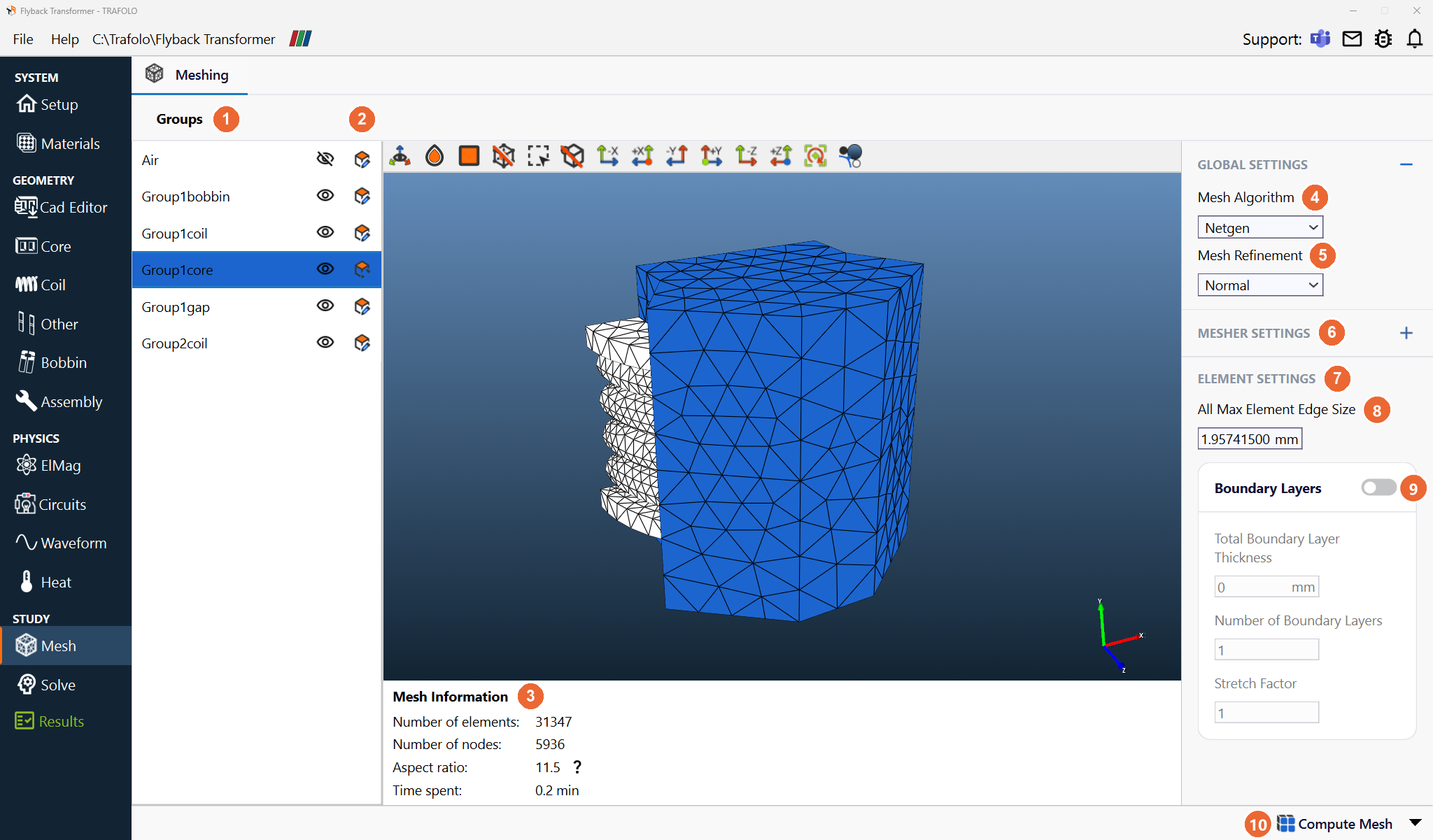
Global and mesher settings
| Setting | Values | What it does |
|---|---|---|
| Mesh Algorithm (4) | Netgen, Gmsh | The mesher; MESHER SETTINGS (6) show its options. Gmsh is an optional third-party download (Installation). |
| Mesh Refinement (5) | Very Coarse, Coarse, Normal, Fine | Refines the whole mesh, which can raise the element count and the run time a lot. Start coarse and refine locally where accuracy matters. |
| Min Size (11; Netgen) | 0 = no limit | The smallest element size; other settings can still give larger elements. |
| Element Size Weight (12; Netgen; the app shows "Elemen Size Weight") | 0.4 in the Netgen settings picture | How much Netgen weighs element size against element shape when it optimizes the mesh. |
| Elements per Radius (13; Netgen), Elements per Edge (14; Netgen) | 1.6 and 1 in the Netgen settings picture | Elements per curvature radius on curved edges and faces, and along each edge. Higher values refine curved and short features. |
| Growth Rate (15; Netgen) | 0.3 in the Netgen settings picture | The allowed size change between neighbouring elements: 0.3 means 30 %. |
| Adaptive (Gmsh) | On or off | Checks the mesh quality after each pass and meshes again until the quality criteria or the iteration limit are reached. |
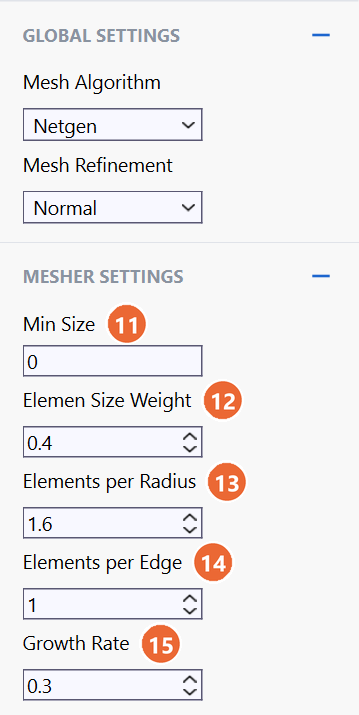
Groups and element settings
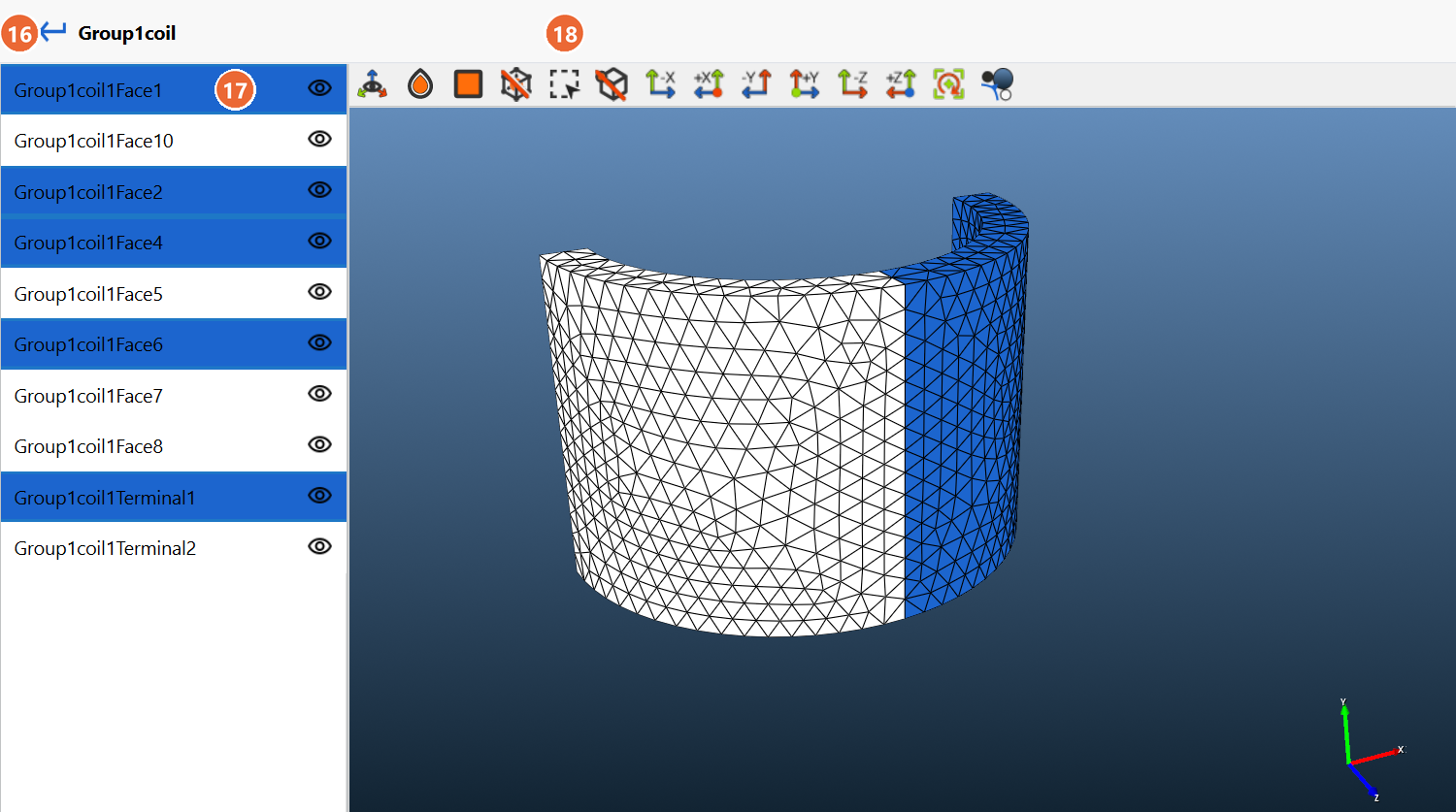
The Groups list (1) has one row per group; Air is hidden by default. The eye shows or hides a group in the 3D view. The second button, Modify Surface Mesh (2), opens the faces and terminals of the group (17); the arrow before its name (16) goes back to the list.
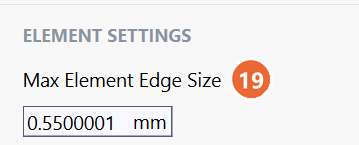
To refine the mesh locally, select a body in the 3D view, or, after Modify Surface Mesh, faces of it. A click selects one and replaces the selection. The rectangle tool (18) on the 3D toolbar selects, with one drag, everything that lies completely inside the rectangle; after that, clicks select again. ELEMENT SETTINGS (7) then appear below the mesher settings. Set a smaller element size there and click Compute Mesh (10).
| Setting | What it does |
|---|---|
| Max Element Edge Size [mm] (19; selected faces), All Max Element Edge Size [mm] (8; selected body) | The largest element edge on the selected faces, or in the whole selected body. A smaller value refines the mesh there. |
| Boundary Layers (9; selected body) | A switch for thin elements along the surface that resolve the skin layer without many more elements. At high frequency the current flows near the conductor surface, so these layers add most of the accuracy. |
| Total Boundary Layer Thickness | The thickness of all layers together. TRAFOLO precomputes it from the frequency and the material; 1 to 1.5 times the skin depth is a good value. |
| Number of Boundary Layers, Stretch Factor | How many layers, and how fast their thickness grows from the surface inwards. |
Compute Mesh and Mesh Information
Compute Mesh (10) builds the mesh, or updates it after a change. Its drop-down holds Evaluate, which restores the automatically computed mesh parameters; before the first mesh, Evaluate Mesh computes them. Mesh Information (3), below the 3D view, shows the result.
| Field | What it shows |
|---|---|
| Number of elements, Number of nodes | The size of the mesh, and so of the run. |
| Aspect ratio | A quality measure of the elements: high values slow convergence and reduce accuracy. It is typically below 20 for a tetrahedral mesh and below 100 with boundary or skin layers; a high value is shown in red. A few stretched elements in unimportant regions do little harm. |
| Time spent | The meshing time. |
Related
- Bobbin: an Air bobbin body as a region to refine
- Solve: cores and solver settings
- Troubleshooting