Runtime Configuration & Arguments Reference
Start TRAFOLO with command-line arguments from a shortcut, a command prompt or PowerShell; move its runtime folder; find its files.
Command-line arguments
| Argument | Value | What it does |
|---|---|---|
-d, --debug |
none | Debug mode: writes more detail to the log, for example the ParaView start command. Use it when support asks for a detailed log. |
-c, --channel |
stable, beta or alpha |
Uses this update channel, whatever I want to receive beta updates in File › Settings says. |
--clear_updates |
none | Deletes update files that were downloaded but not installed, then starts TRAFOLO. Use it when an update keeps failing. |
-wt, --width -ht, --height |
pixels | Fixed window size at 100 % Windows scaling; at 150 %, --width 1365 gives 2048 screen pixels. Give both: one alone is ignored. The window can then not be resized. |
--serverless |
none | Starts without TRAFOLO's backend server, which must then be started separately. For development only. |
Separate arguments with spaces, for example --debug --width 1365 --height 810. TRAFOLO ignores arguments it does not know, so a misspelt argument has no effect.
Start TRAFOLO with arguments
TRAFOLO must start in its installation folder, %LOCALAPPDATA%\Programs\Trafolo. The shortcuts made by the installer do this; set it yourself in your own shortcuts and commands.
Shortcut
- Right-click the desktop and choose New › Shortcut.
- Enter the program path, a space and the arguments, for example
"%LOCALAPPDATA%\Programs\Trafolo\TRAFOLO.exe" --debug. Click Next, name the shortcut and click Finish. - Right-click the new shortcut and choose Properties. Check Target (1) and set Start in (2) to
%LOCALAPPDATA%\Programs\Trafolo. Click OK.
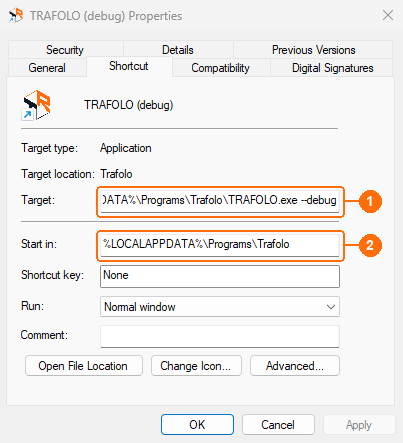
To change the arguments later, edit the end of Target. A copy of the installer's TRAFOLO shortcut works too: its Start in is already set.
Command prompt
cd /d "%LOCALAPPDATA%\Programs\Trafolo"
TRAFOLO.exe --debug --width 1365 --height 810
PowerShell
$dir = "$env:LOCALAPPDATA\Programs\Trafolo"
Start-Process "$dir\TRAFOLO.exe" -WorkingDirectory $dir -ArgumentList "--debug", "--width", "1365", "--height", "810"
Runtime folder
At every start, TRAFOLO and its backend each unpack 20 to 55 MB into a new _MEI… subfolder of %TEMP%\TrafoloRuntime. Move this folder when your IT department blocks programs in %TEMP% or when the system drive is short of space. Set both variables to a folder you own, then restart TRAFOLO:
| Variable | Program |
|---|---|
TRAFOLO_RUNTIME_DIR |
TRAFOLO.exe (user interface) |
TRAFOLOBACKEND_RUNTIME_DIR |
TrafoloBackend.exe (backend) |
setx TRAFOLO_RUNTIME_DIR "D:\TrafoloRuntime"
setx TRAFOLOBACKEND_RUNTIME_DIR "D:\TrafoloRuntime"
Or set them in Edit environment variables for your account (Windows search). Subfolders left from earlier sessions can be deleted while TRAFOLO is closed.
File locations
| What | Where |
|---|---|
| TRAFOLO, templates and the bundled ElmerFEM | %LOCALAPPDATA%\Programs\Trafolo (ElmerFEM in third_party\ElmerFEM) |
| ParaView and Gmsh downloaded by TRAFOLO | %LOCALAPPDATA%\Trafolo_third_party; the paths in use are in File › Select Third Party Software |
| Settings | %APPDATA%\Trafolo\global_settings.cfg |
| Log files | %APPDATA%\Trafolo\logs (Help › Open Log Directory) |
| Licence file of an offline activation | %APPDATA%\Trafolo |
| Runtime folder | %TEMP%\TrafoloRuntime, or the folder set above |