LLC Coupled Transformer (with Inductor)
An LLC transformer and its series resonant inductor on one stack of PQ cores, simulated at 150 kHz with 120 V on the primary and a 10 Ω load, with steady-state heat transfer: losses per winding, core and heatsink, and the hotspot temperature.
- Component: a PQ core pair, Btm, in Ferroxcube 3C95 with a 20 µm virtual gap, and a third PQ half, Top, on a 0.4 mm epoxy spacer; primary and secondary of 8 turns each of 1.5 mm × 0.5 mm flat copper, interleaved; inductor of 12 turns of 1 mm litz, 50 strands of 0.1 mm; aluminum heatsink and epoxy encapsulation.
- Simulation: Harmonic at 150 kHz with 120 V RMS on the primary, and Steady-state heat transfer; half model (Symmetric).
- Winding model: Massive (solid) for the transformer; Stranded & Litz with Homogenization for the inductor.
- You get: losses of the primary, secondary, inductor, core and heatsink, the primary current and the hotspot temperature.
- Files: none; every part comes from the Geometry Builder.
- In TRAFOLO: Welcome screen › Examples › Transformer with Inductor is this model with its results.
- Run time: about 2 min on 6 CPU cores, meshing included.
Model Description
The transformer sits in Btm, a PQ core pair. The resonant inductor sits in Top, a third PQ half placed upside down on Btm with a 0.4 mm spacer in between, so the inductor flux closes through the upper plate of Btm. Primary and secondary are interleaved layers of flat solid copper around the centre leg of Btm; the litz inductor is wound around the centre leg of Top. An aluminum heatsink frame and an epoxy encapsulation enclose the parts; the bottom faces of the core and the heatsink are held at 50 °C.
| Core | Shape | Material | Gap |
|---|---|---|---|
| Btm | PQ pair, y −8.1 to 8.1 mm | Ferroxcube 3C95 100C | 20 µm virtual gap at y = 0 |
| Top | PQ half, upside down, y 8.5 to 16.6 mm | Ferroxcube 3C95 100C | 0.4 mm epoxy spacer to Btm |
| Winding | Coil groups | Wire | Turns | Conductor |
|---|---|---|---|---|
| Primary | Group3coil, Group5coil | Massive (solid) | 8 | 1.5 mm × 0.5 mm copper |
| Secondary | Group2coil, Group4coil | Massive (solid) | 8 | 1.5 mm × 0.5 mm copper |
| Inductor (Additional_Coil1) | Group1coil | Stranded & Litz | 12 | 1 mm litz, 50 strands of 0.1 mm |
| Material | Used for | Key properties |
|---|---|---|
| Ferroxcube 3C95 100C | Btm, Top | ferrite, µr 3880, σ 0.2 S/m, k 4.25 W/(m·K) |
| Copper | windings | σ 5.96·10⁷ S/m, k 401 W/(m·K) |
| Aluminum | heatsink | σ 3.77·10⁷ S/m, k 239 W/(m·K) |
| Epoxy | encapsulation, spacer | insulator, k 0.2 W/(m·K) |
Air domain, sized by TRAFOLO: x −40.95 to 40.95 mm, y −36.2 to 45.7 mm, z 0 to 40.95 mm (the half above z = 0).
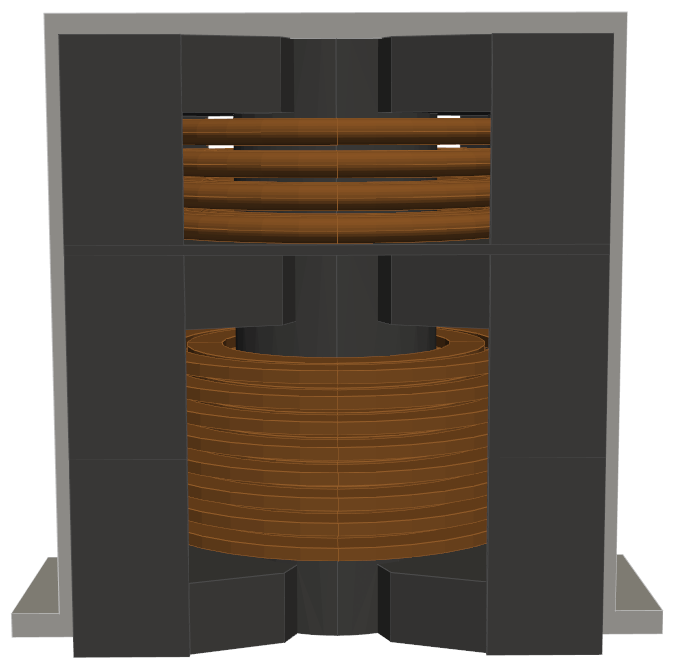
Video (20 min): this transformer with its integrated resonant inductor, from set-up to losses and temperature (recorded in an earlier TRAFOLO version).
Modelling Instructions
Setup
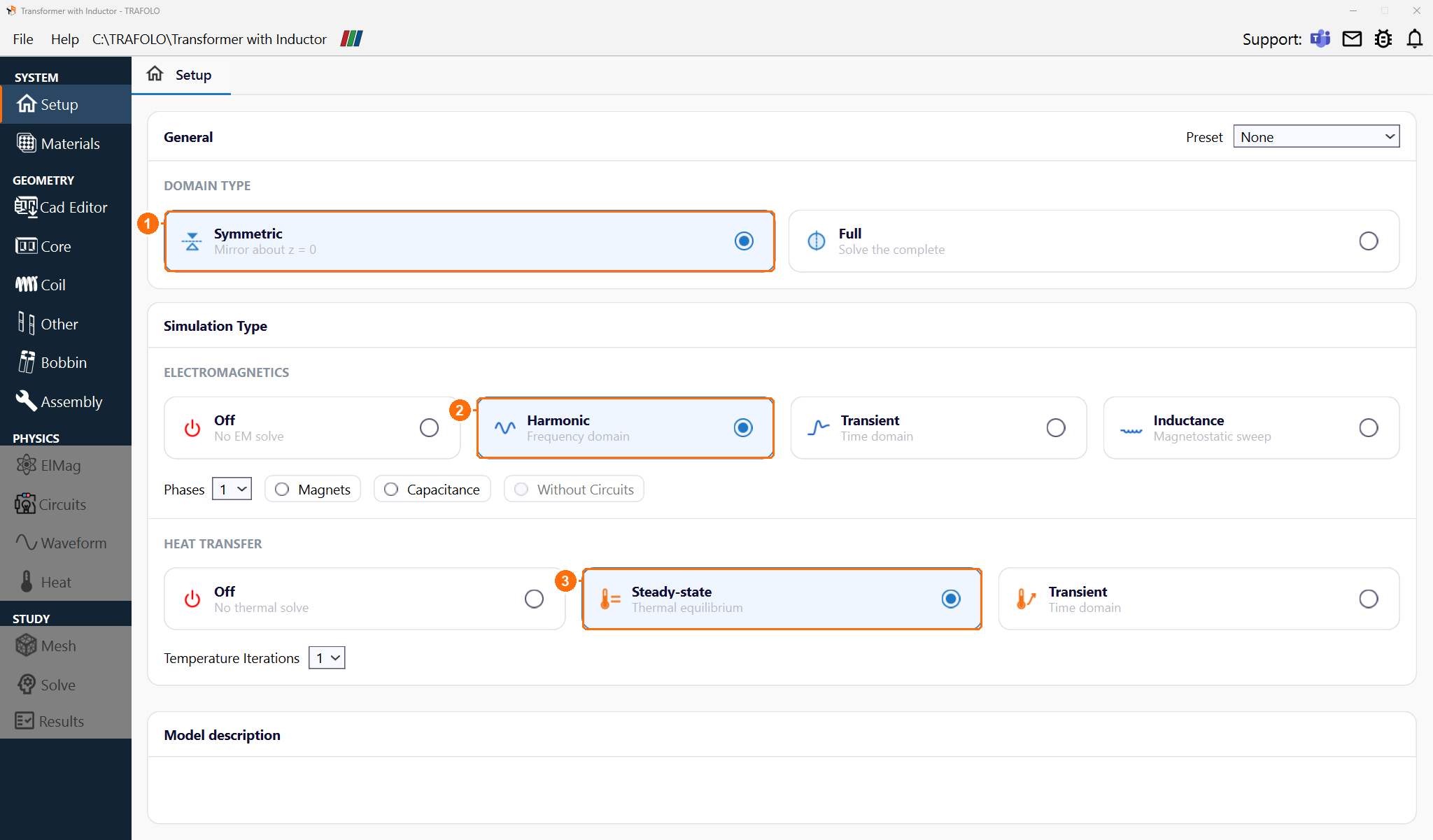
- Under DOMAIN TYPE, select Symmetric. TRAFOLO models the half above z = 0 and scales the results to the whole component.
- Under ELECTROMAGNETICS, select Harmonic: the excitation is a 150 kHz sine.
- Under HEAT TRANSFER, select Steady-state and keep Temperature Iterations at 1.
Materials
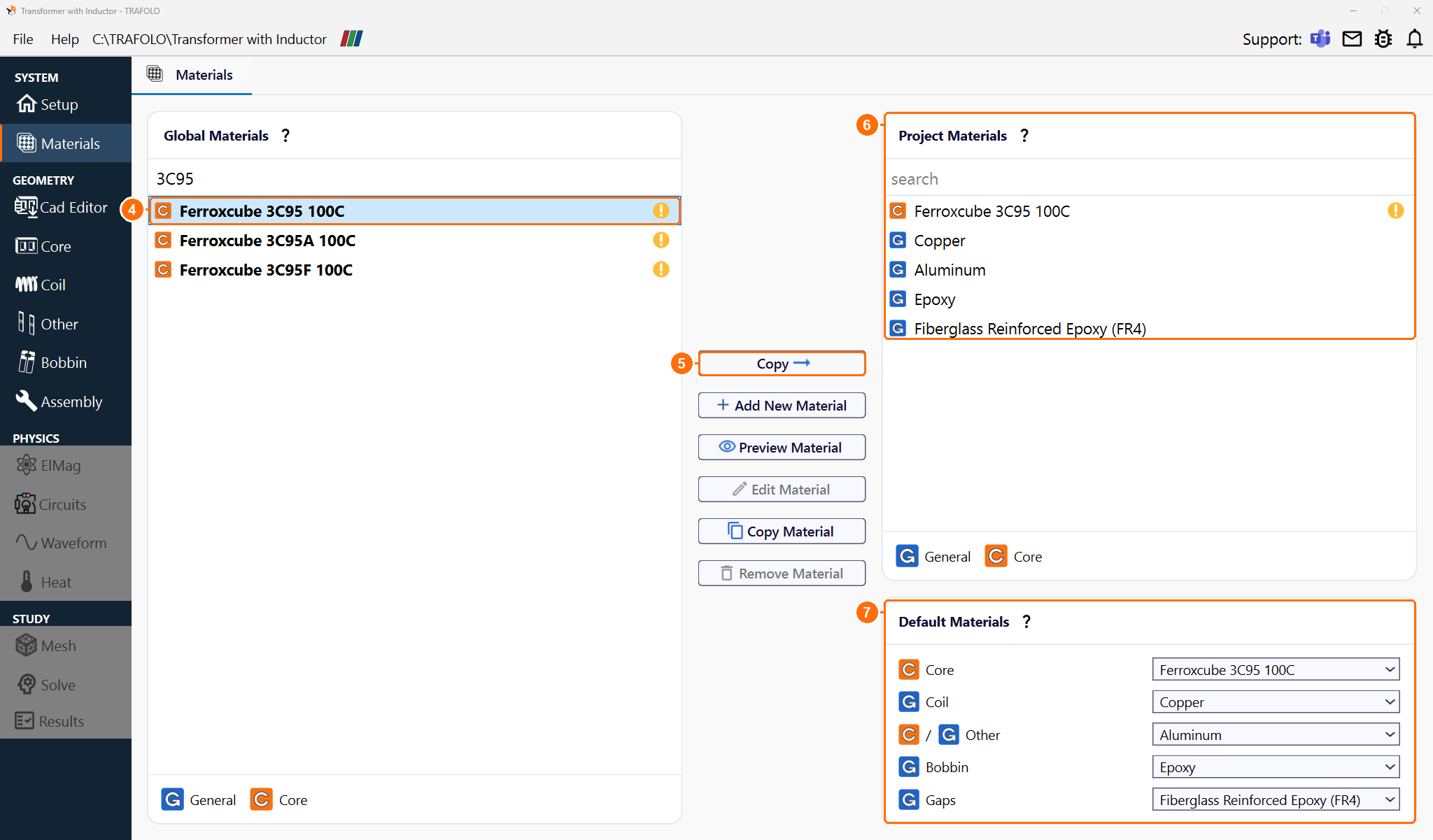
- Under Global Materials, select Ferroxcube 3C95 100C and click Copy.
- Copy Copper, Aluminum, Epoxy and Fiberglass Reinforced Epoxy (FR4) the same way. All five appear under Project Materials.
- Under Project Materials, select Ferroxcube 3C95 100C and click Edit Material.
-
On General, select Relative Permeability, keep its value, 3.88e3, and click Save.
The library copy comes with Complex Permeability, which takes the core loss from its imaginary part instead of from the Core Loss tab. The example uses a constant permeability.
-
Under Default Materials, set the material of each component:
| Core | Coil | Other | Bobbin | Gaps |
|---|---|---|---|---|
| Ferroxcube 3C95 100C | Copper | Aluminum | Epoxy | Fiberglass Reinforced Epoxy (FR4) |
Core
- On Core, click New Group. Group1core appears: Btm in the example.
- Click Configure next to Group1core.
- Set Source to Template, Scale to mm, Gap Type to Virtual and Virtual Gap to 20 µm: the contact gap between the two halves, not meshed.
-
In Geometry Builder, set Type to PQ, enter the dimensions in mm, keep Mirror ticked and click Apply:
A B C D E F G 21.3 8.1 14 5.15 18 8.8 12 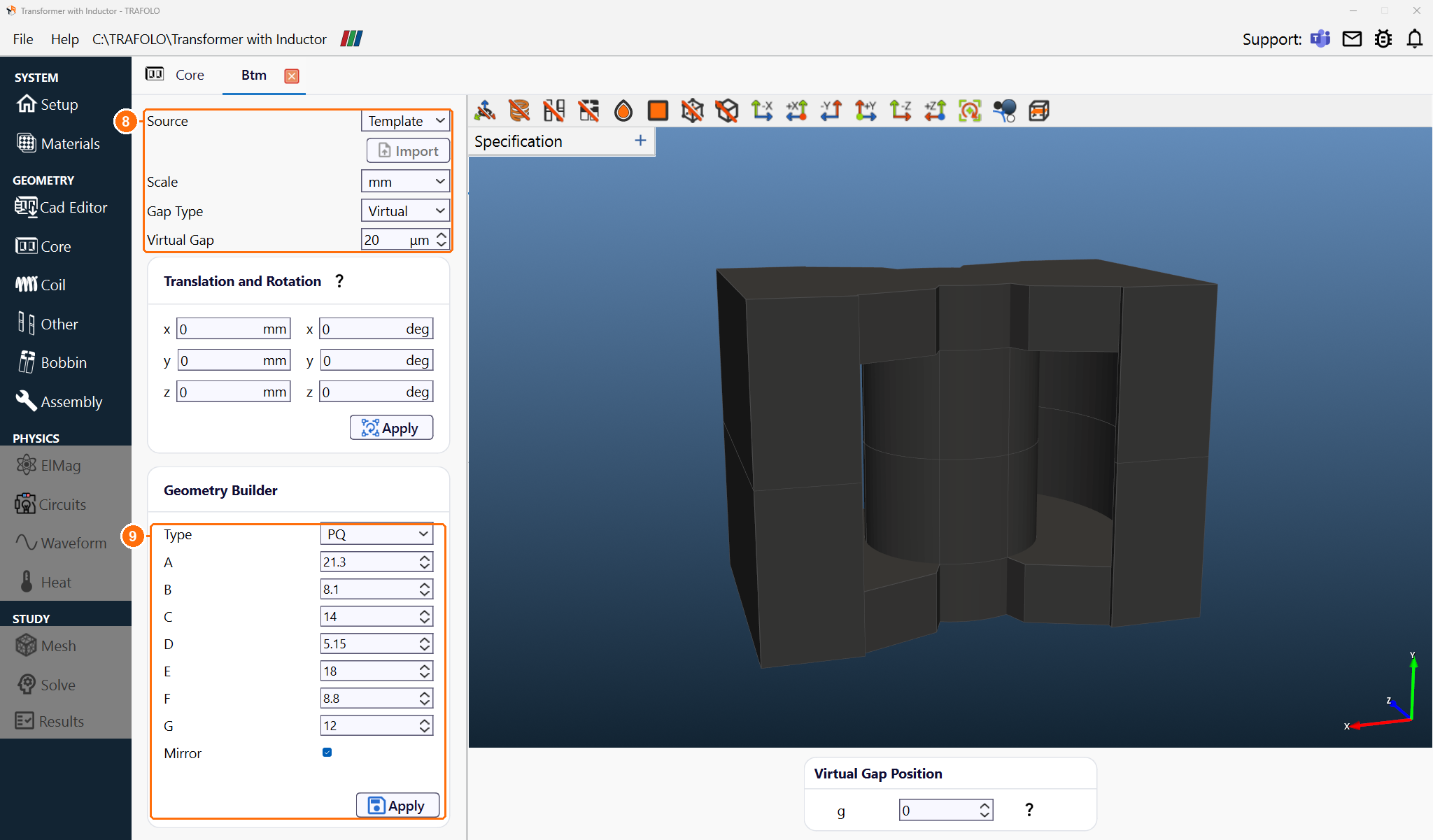
Btm: Source, Scale, Gap Type, Virtual Gap (8); PQ dimensions, Mirror, Apply (9). -
Back on Core, click New Group again, then Configure next to Group2core: Top in the example.
- Set Source to Template, Scale to mm and Gap Type to None.
- In Geometry Builder, set Type to PQ with the same dimensions, untick Mirror and click Apply. This builds one half.
- Under Translation and Rotation, set y to −8.5 mm and the x rotation to 180 deg and click Apply. The half now sits upside down above Btm, from y = 8.5 to 16.6 mm, 0.4 mm clear of it.
Coil
- On Coil, click New Group. Group1coil, the inductor, appears.
- Click Configure next to Group1coil.
- Set Source to Template, Scale to mm, Wire Type to Stranded & Litz and Turns per solid to 1: each of the 12 bodies is one turn.
-
In Geometry Builder, set Type to Matrix, enter the dimensions in mm and click Apply: 3 turns per layer in 4 layers, round wire of 1 mm.
A B C D R H N r M W 0 0 1 1 5 4.75 4 0.5 3 3.5 -
Under Translation and Rotation, set y to 11 mm and click Apply. The inductor then sits in the window of Top, y = 8.6 to 13.4 mm.
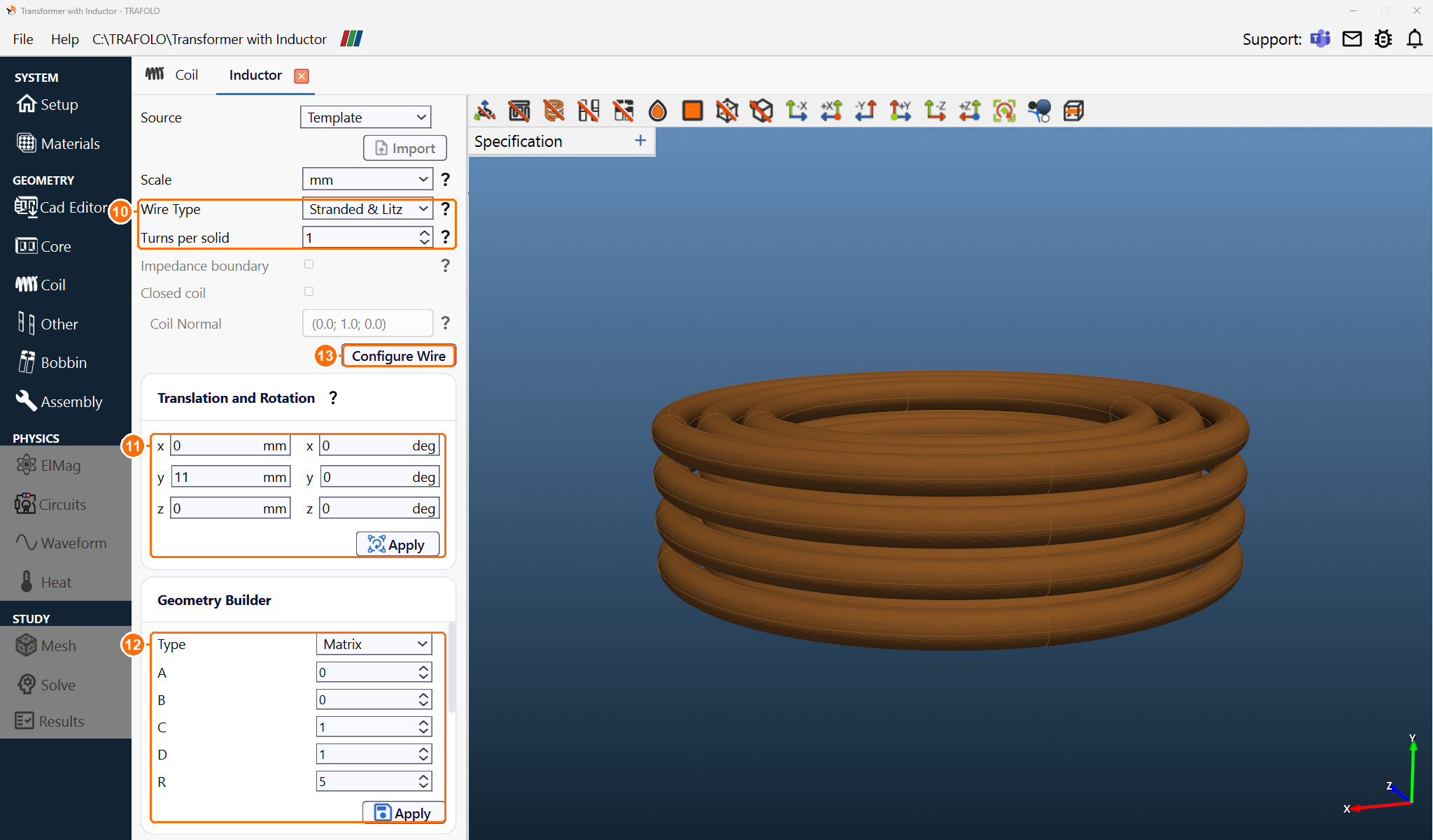
Group1coil, the inductor: wire (10), y 11 mm (11), Matrix dimensions (12), Configure Wire (13). -
Click Configure Wire. In the Group1coil_2D tab (named after the group, so Inductor_2D in the example), select Homogenization and set:
Setting Value Packing Hexagonal Strand Thickness 0.1 mm Max Frequency ≤ 1MHz Fill Factor 0.5 -
Next to Fill Factor, click Calculate, keep Strand Type Round and Strand thickness 0.1, set N strands to 50 and click Accept. Fill Factor becomes 0.5: 50 strands of 0.1 mm fill half of the 1 mm wire. Max Frequency ≤ 1MHz covers the 150 kHz excitation.
-
Click Generate Mesh: TRAFOLO builds the 2D model of the strand bundle; without it the run stops.
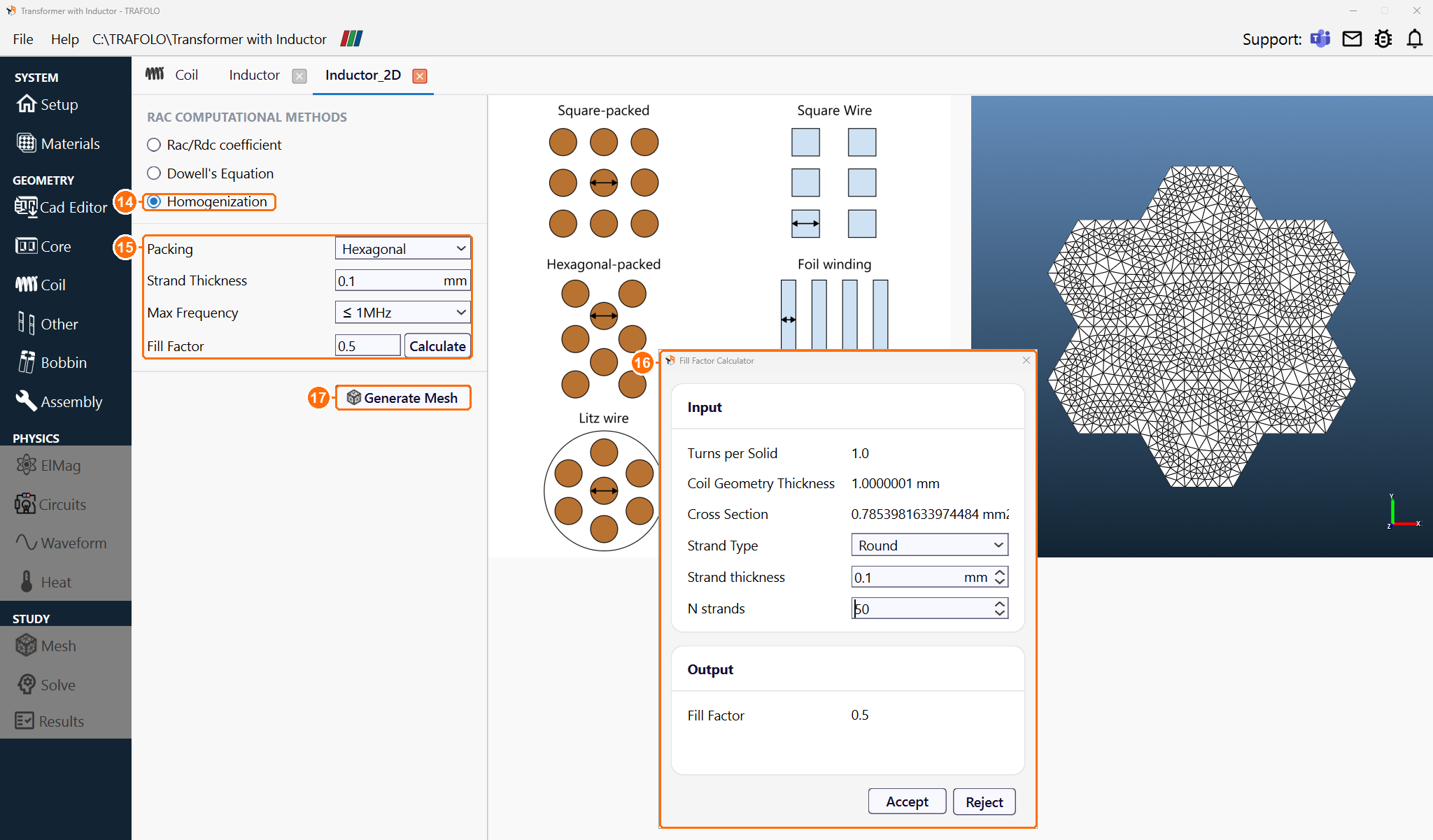
Homogenization (14), wire settings (15), calculator with 50 strands (16), Generate Mesh (17); right, the strand mesh. -
Back on Coil, click New Group, then Configure next to Group2coil.
- Set Source to Template, Scale to mm and Wire Type to Massive (solid).
-
In Geometry Builder, set Type to Matrix, enter the dimensions in mm and click Apply: 2 turns per layer in 2 layers of 1.5 mm × 0.5 mm.
A B C D R H N r M W 0 0 1.5 0.5 5 1.5 2 0 2 3.5 -
Under Translation and Rotation, set y to 3 mm and click Apply.
- Build Group3coil, Group4coil and Group5coil the same way, or copy Group2coil with ⋮ and change only y. Primary and secondary layers alternate:
| Coil group | Name in the example | Winding | y (mm) |
|---|---|---|---|
| Group2coil | Sec1 | Secondary | 3 |
| Group3coil | Pri1 | Primary | 1 |
| Group4coil | Sec2 | Secondary | −1 |
| Group5coil | Pri2 | Primary | −3 |
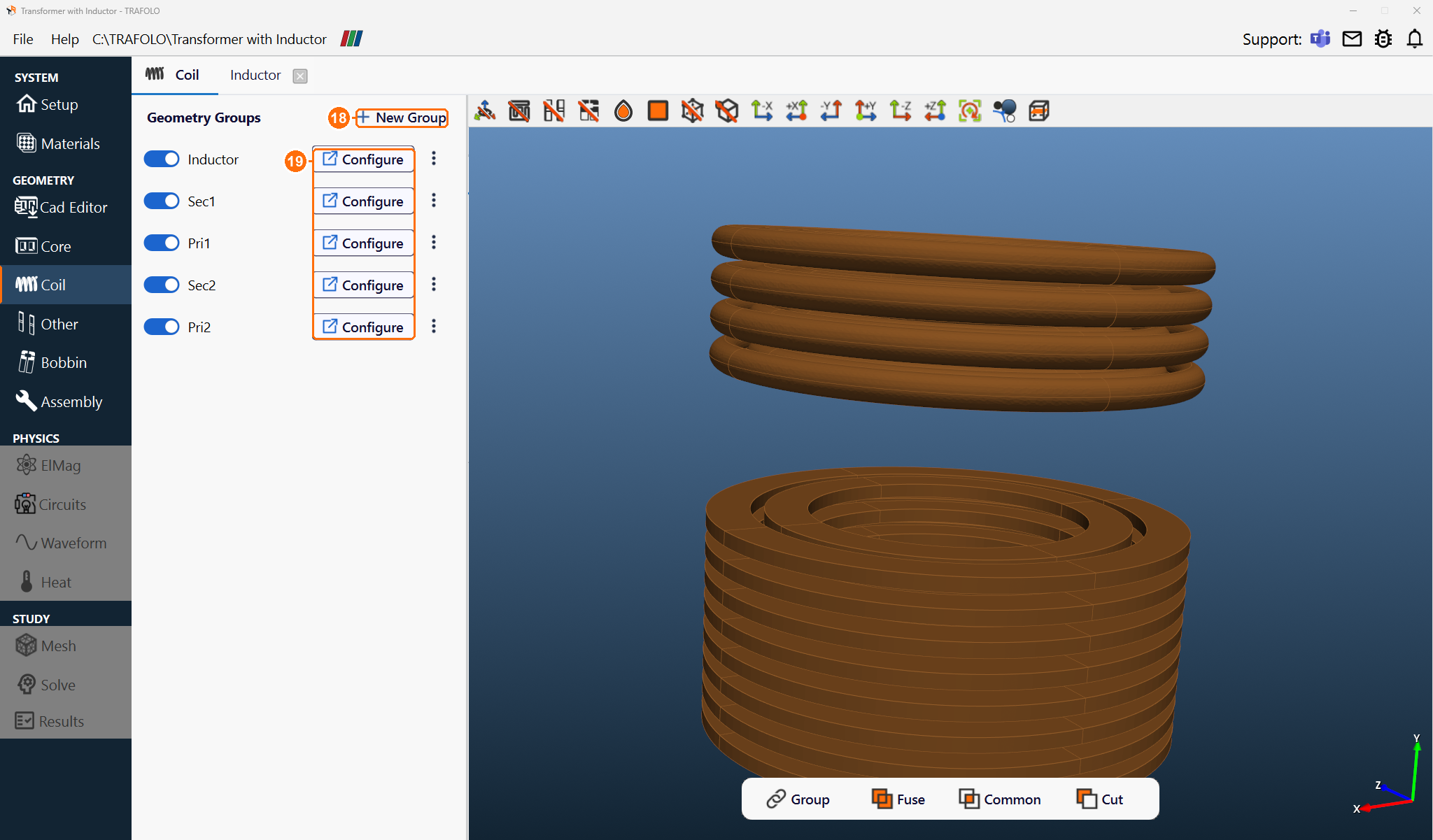
Other
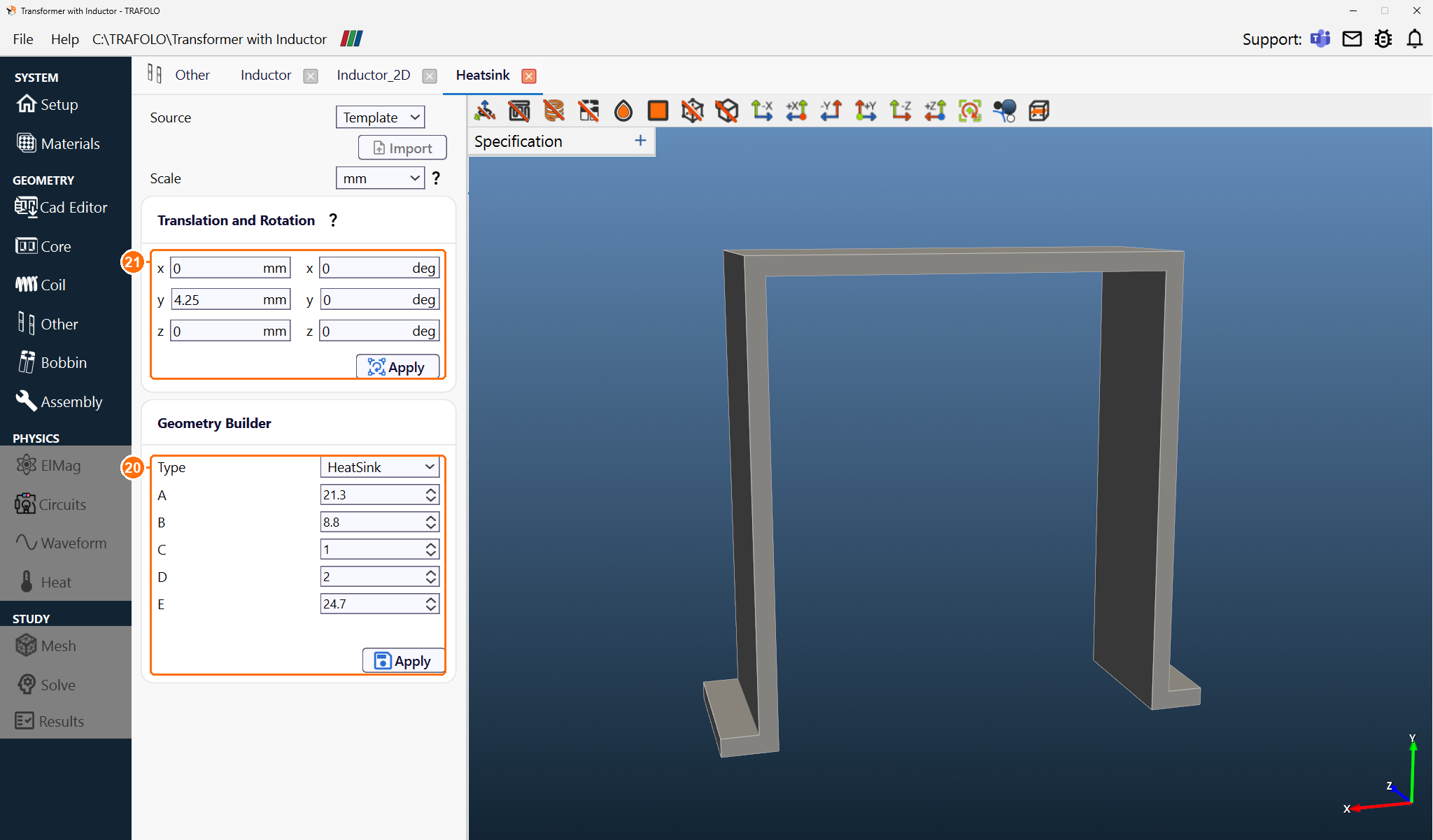
- On Other, click New Group. Group1othergeometry, the heatsink, appears.
- Click Configure next to Group1othergeometry.
- Set Source to Template and Scale to mm.
-
In Geometry Builder, set Type to HeatSink, enter the dimensions in mm and click Apply:
A B C D E 21.3 8.8 1 2 24.7 -
Under Translation and Rotation, set y to 4.25 mm and click Apply.
Bobbin
- On Bobbin, click New Group. Group1bobbin, the encapsulation, appears.
- Click Configure next to Group1bobbin.
- Set Source to Template and Scale to mm.
-
In Geometry Builder, set Type to Cylinder, enter the dimensions in mm and click Apply:
H Rin Rout 18.8 0 9.1 -
Under Translation and Rotation, set y to 4.25 mm and click Apply.
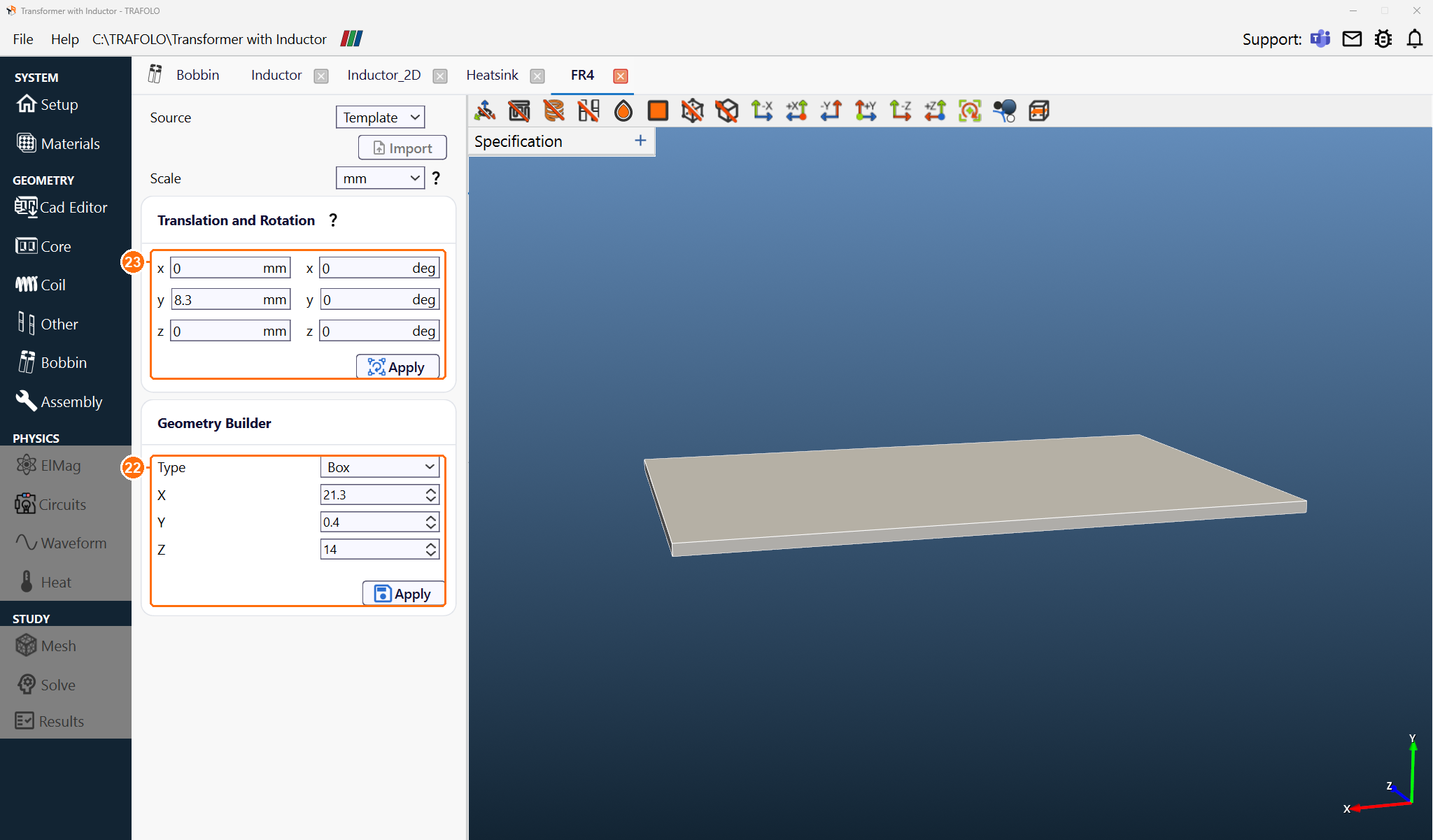
- Back on Bobbin, click New Group again, then Configure next to Group2bobbin: the spacer between Btm and Top.
- Set Source to Template and Scale to mm. In Geometry Builder, set Type to Box with X 21.3, Y 0.4 and Z 14 mm, and click Apply.
- Under Translation and Rotation, set y to 8.3 mm and click Apply. The spacer fills y = 8.1 to 8.5 mm and takes the Bobbin material, Epoxy.
Assembly
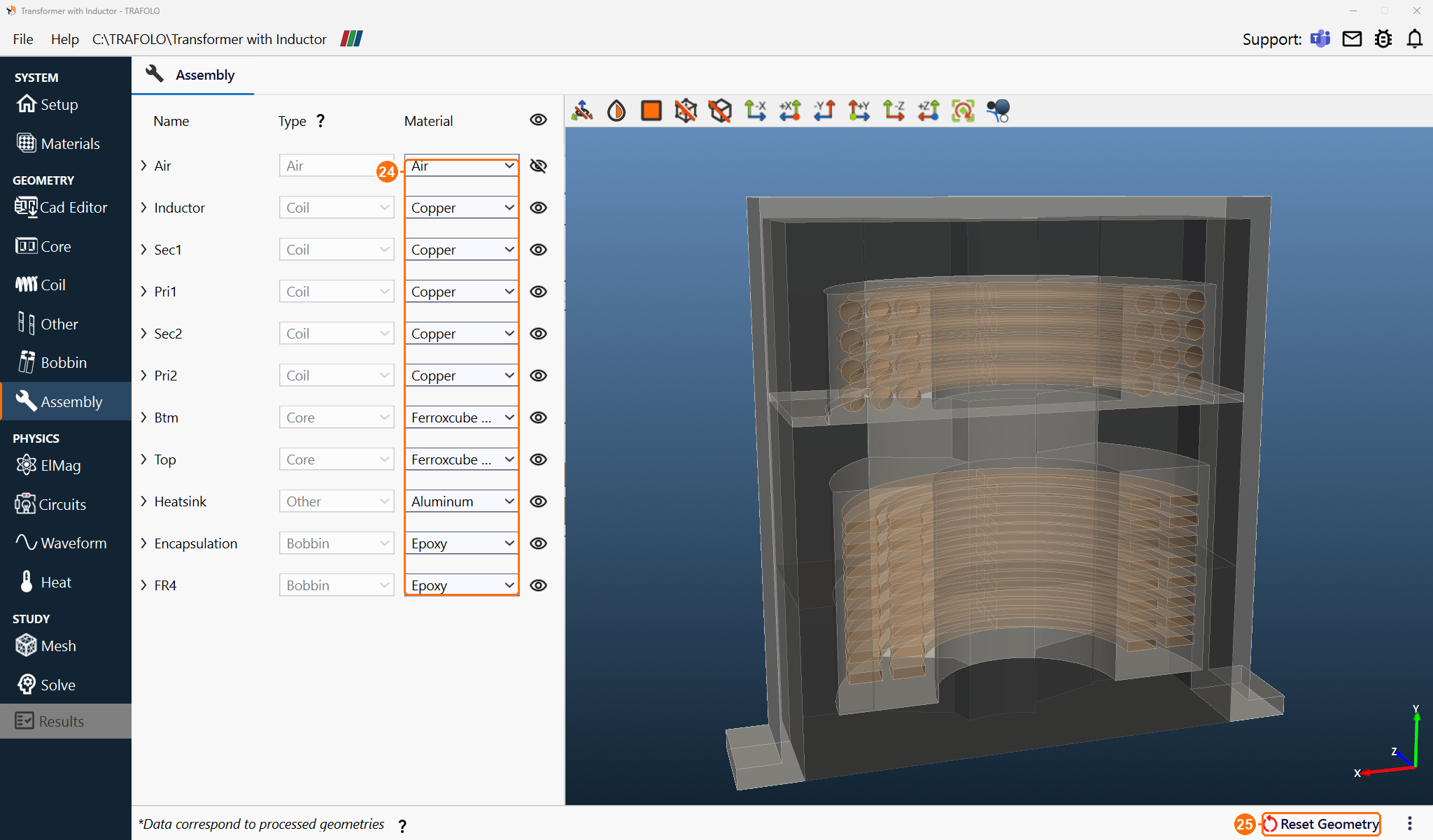
- On Assembly, click Assemble Geometry. Each body takes the default material of its component.
ElMag
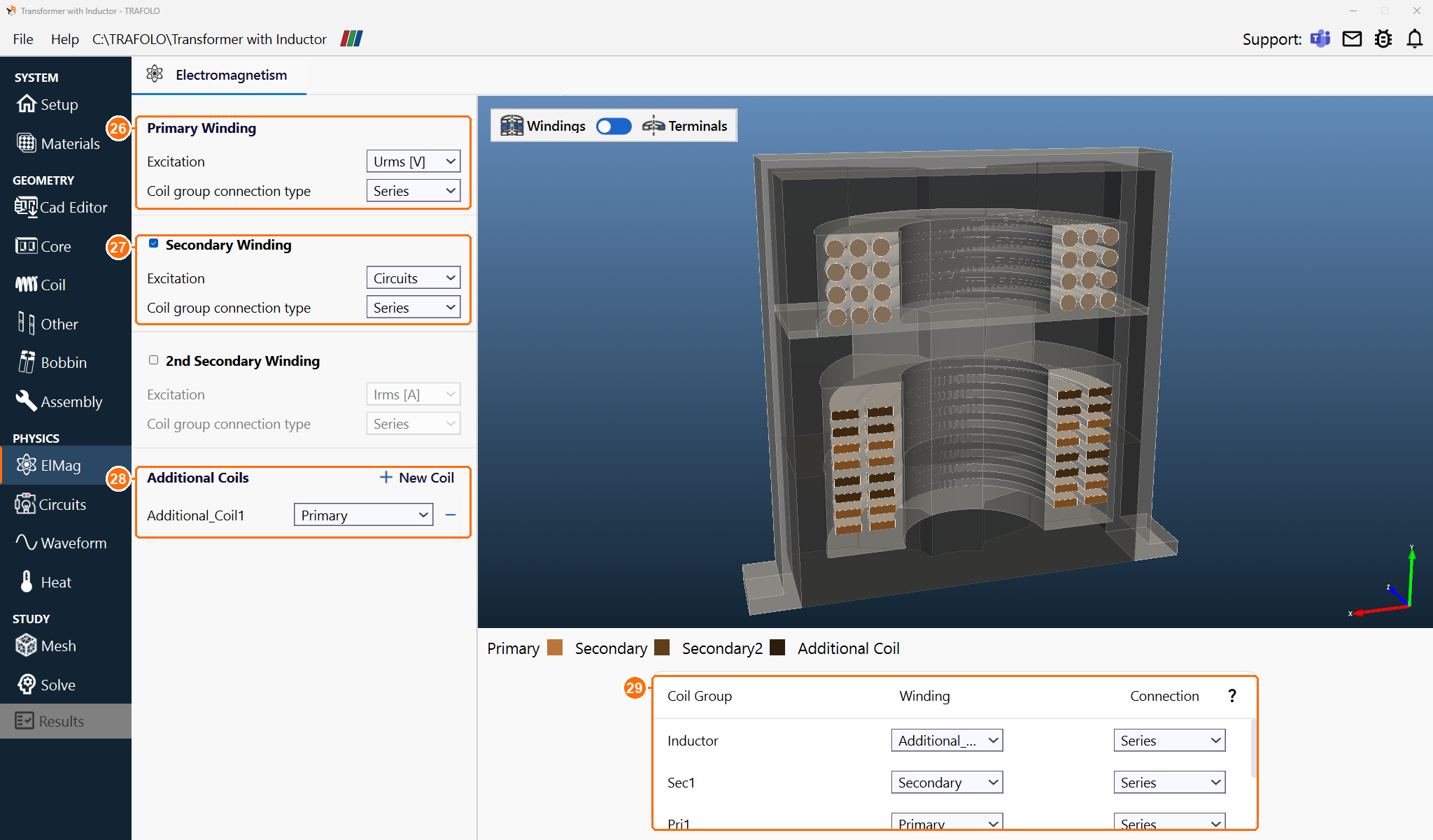
- Under Primary Winding, set Excitation to Urms [V] and Coil group connection type to Series.
- Tick Secondary Winding, set Excitation to Circuits and Coil group connection type to Series: the secondary has no source of its own and drives the load resistor.
- Leave 2nd Secondary Winding unticked.
- Under Additional Coils, click New Coil and set the drop-down next to Additional_Coil1 to Primary: the inductor is then in series with the primary.
- In the coil group table, set the groups:
| Coil Group | Winding | Connection |
|---|---|---|
| Group1coil | Additional_Coil1 | Series |
| Group2coil | Secondary | Series |
| Group3coil | Primary | Series |
| Group4coil | Secondary | Series |
| Group5coil | Primary | Series |
Circuits
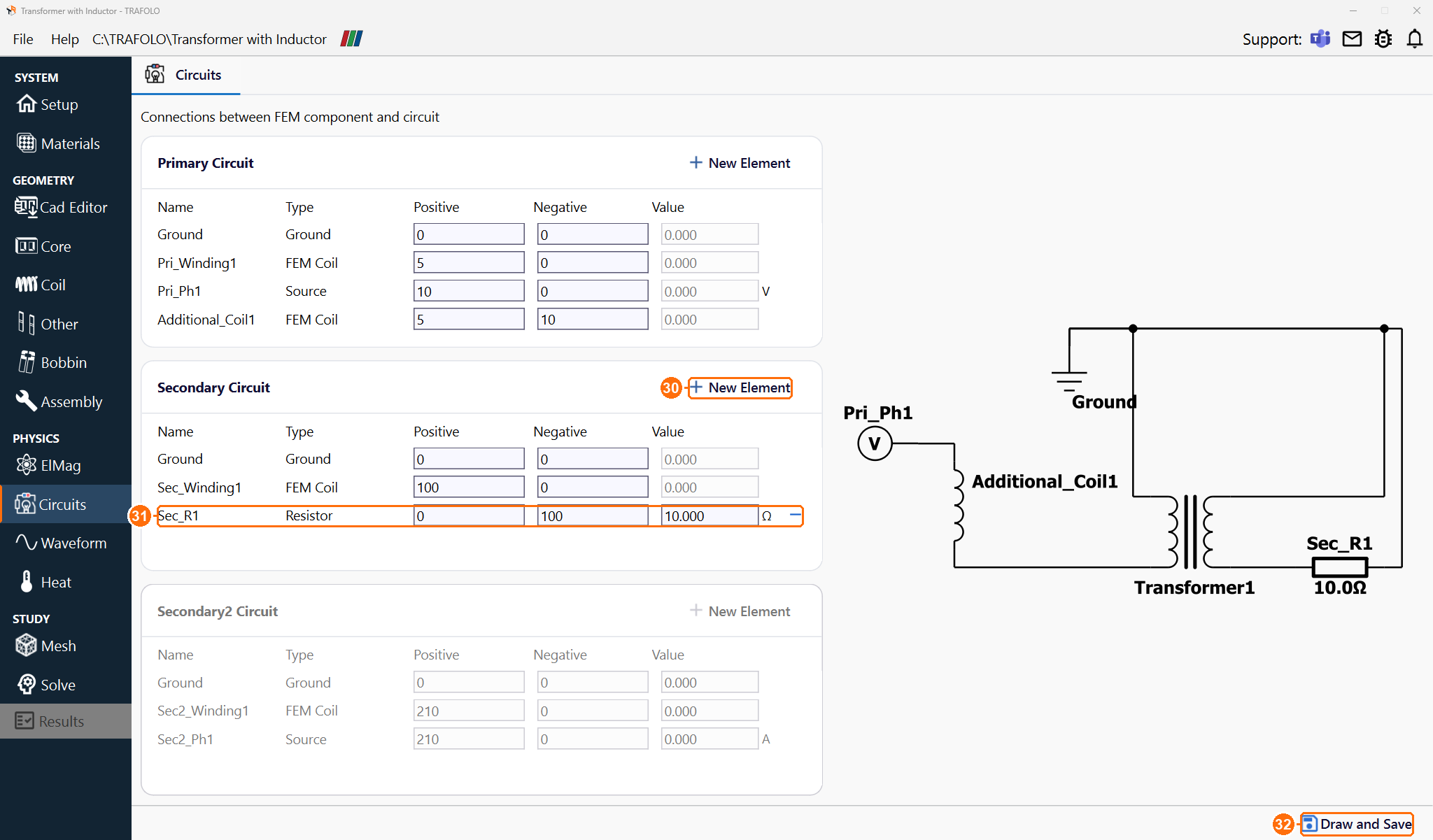
TRAFOLO builds one circuit per winding and places Additional_Coil1 in the primary circuit. Elements with the same node number are connected; node 0 is ground.
- In the secondary circuit, click New Element, choose Resistor and set its value to 10 Ω.
-
Set or check the node numbers. The source then drives the inductor and the primary in series:
Circuit Element Positive node Negative node Primary Pri_Ph1, the source 10 0 Primary Additional_Coil1, Group1coil 5 10 Primary Pri_Winding1, Group3coil and Group5coil 5 0 Secondary Sec_Winding1, Group2coil and Group4coil 100 0 Secondary Sec_R1, the load 0 100 -
Click Draw and Save: TRAFOLO saves the circuits and redraws the diagram.
Waveform
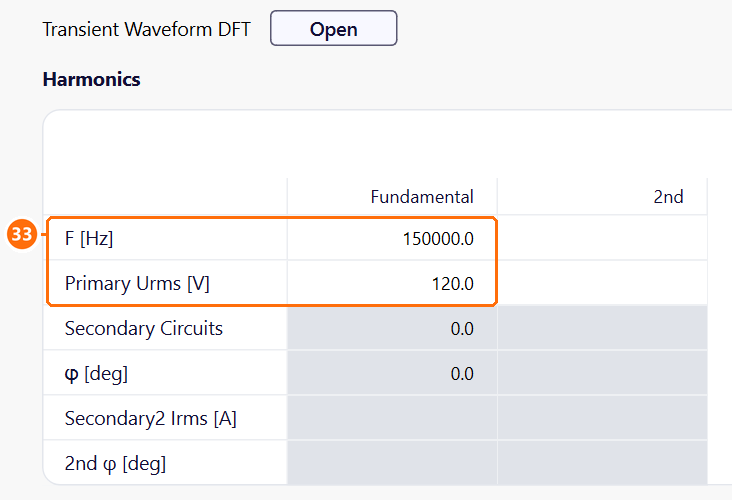
- In the Harmonics table, column Fundamental, set F [Hz] to 150000 and Primary Urms [V] to 120.
Heat
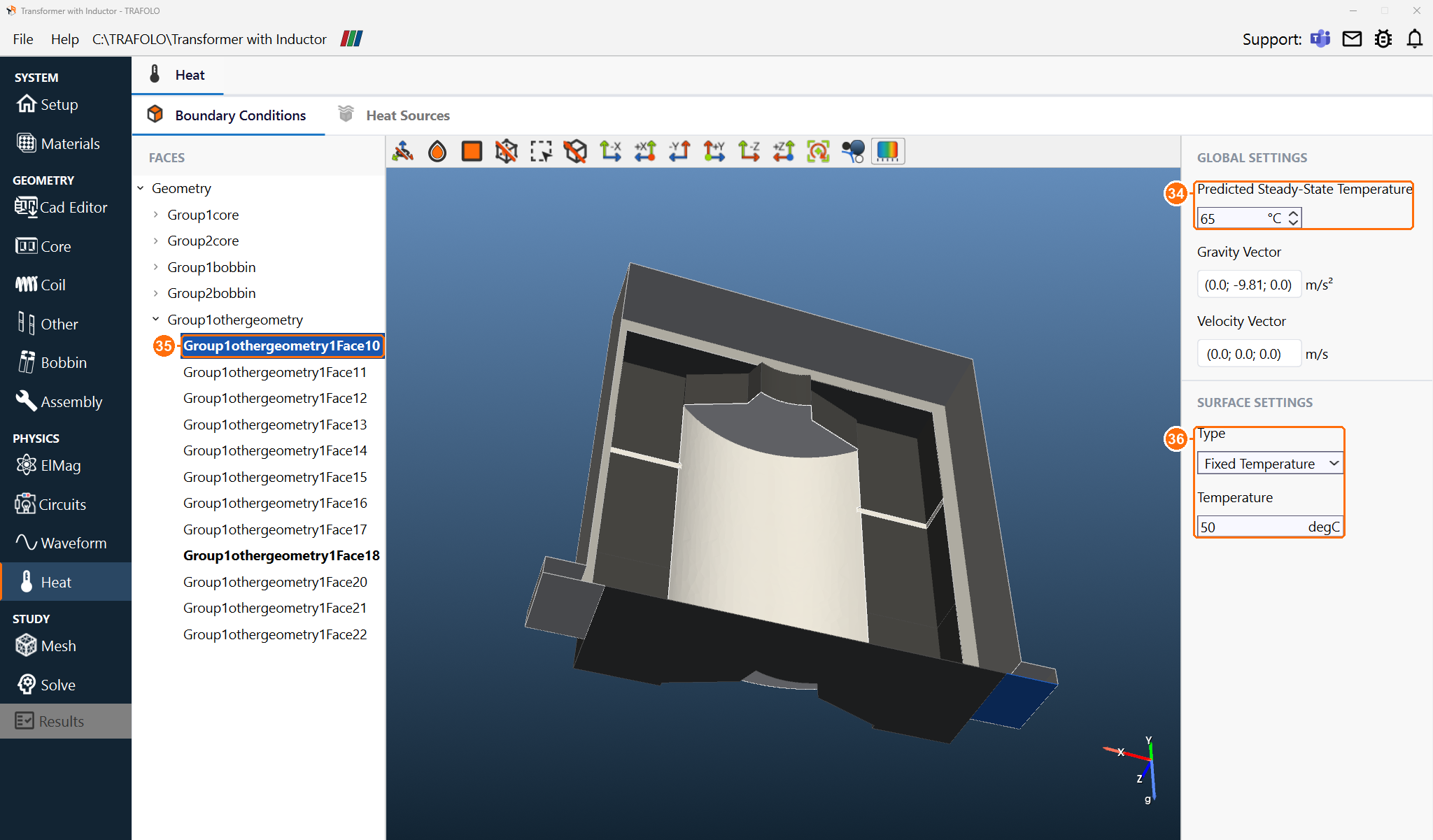
- Under GLOBAL SETTINGS, set Predicted Steady-State Temperature to 65 °C: TRAFOLO evaluates the copper resistance at this temperature. Ferroxcube 3C95 100C has no Thermal Coefficients, so its core loss comes from the 100 °C data whatever this value is.
- Under FACES, select Geometry: settings made there apply to every face. Under SURFACE SETTINGS, keep Type Convection, set External temperature to 50 °C and tick Auto next to Heat transfer coefficient. TRAFOLO then estimates the coefficient of each face for free convection in still air.
- Under FACES, select the three bottom faces Group1core1Face5, Group1othergeometry1Face10 and Group1othergeometry1Face18, set Type to Fixed Temperature and Temperature to 50 °C. They stand for the mounting surface, which acts as a heat sink.
Mesh
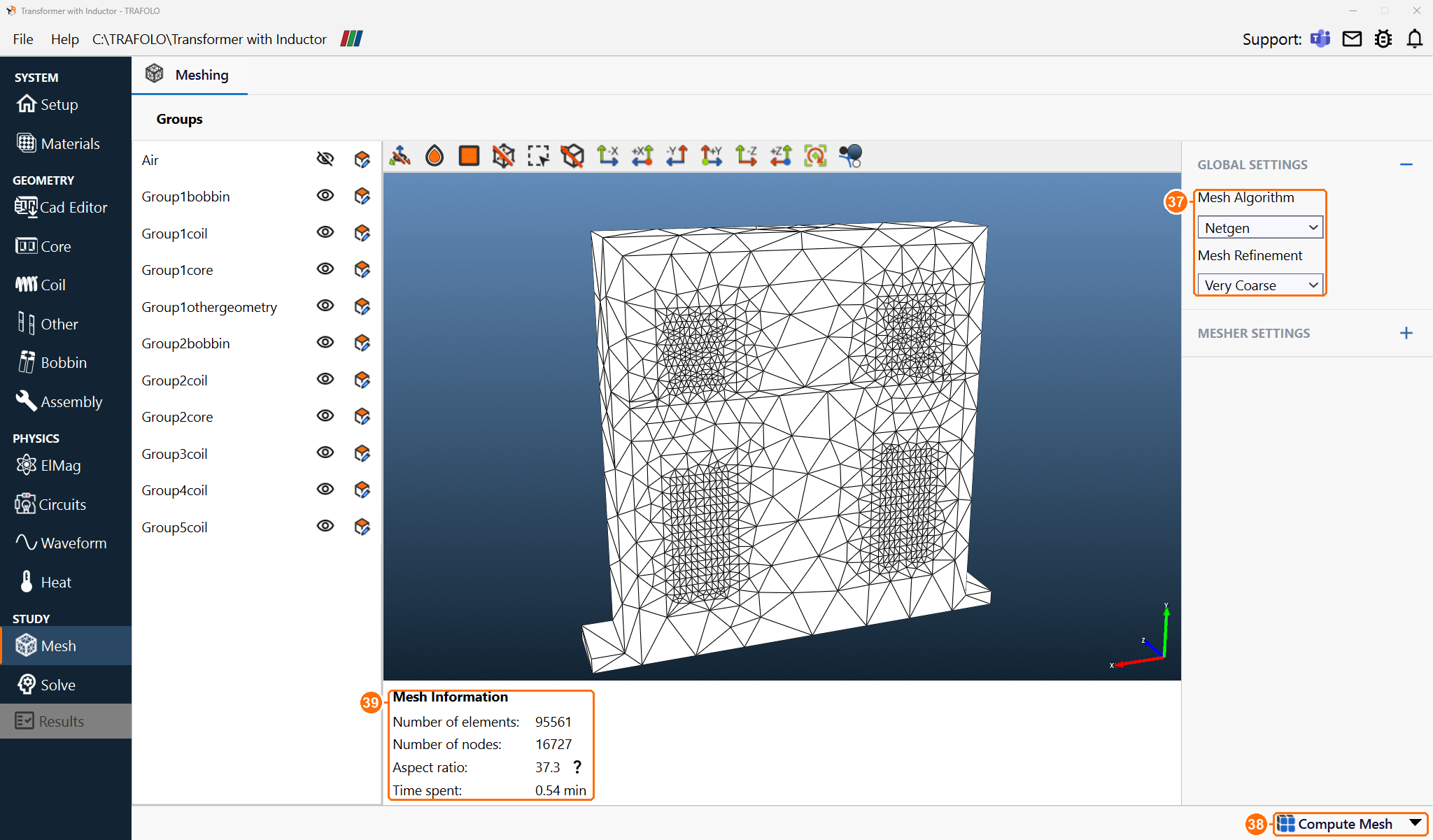
- Open GLOBAL SETTINGS (+) and set Mesh Algorithm to Netgen and Mesh Refinement to Very Coarse.
- Click Compute Mesh. On a new model TRAFOLO first evaluates the mesh parameters when the tab opens (status Mesh evaluated successfully); until then the button reads Evaluate Mesh, so click that first if it does. The mesh has 95,561 elements, with an aspect ratio of 37.3.
Solve
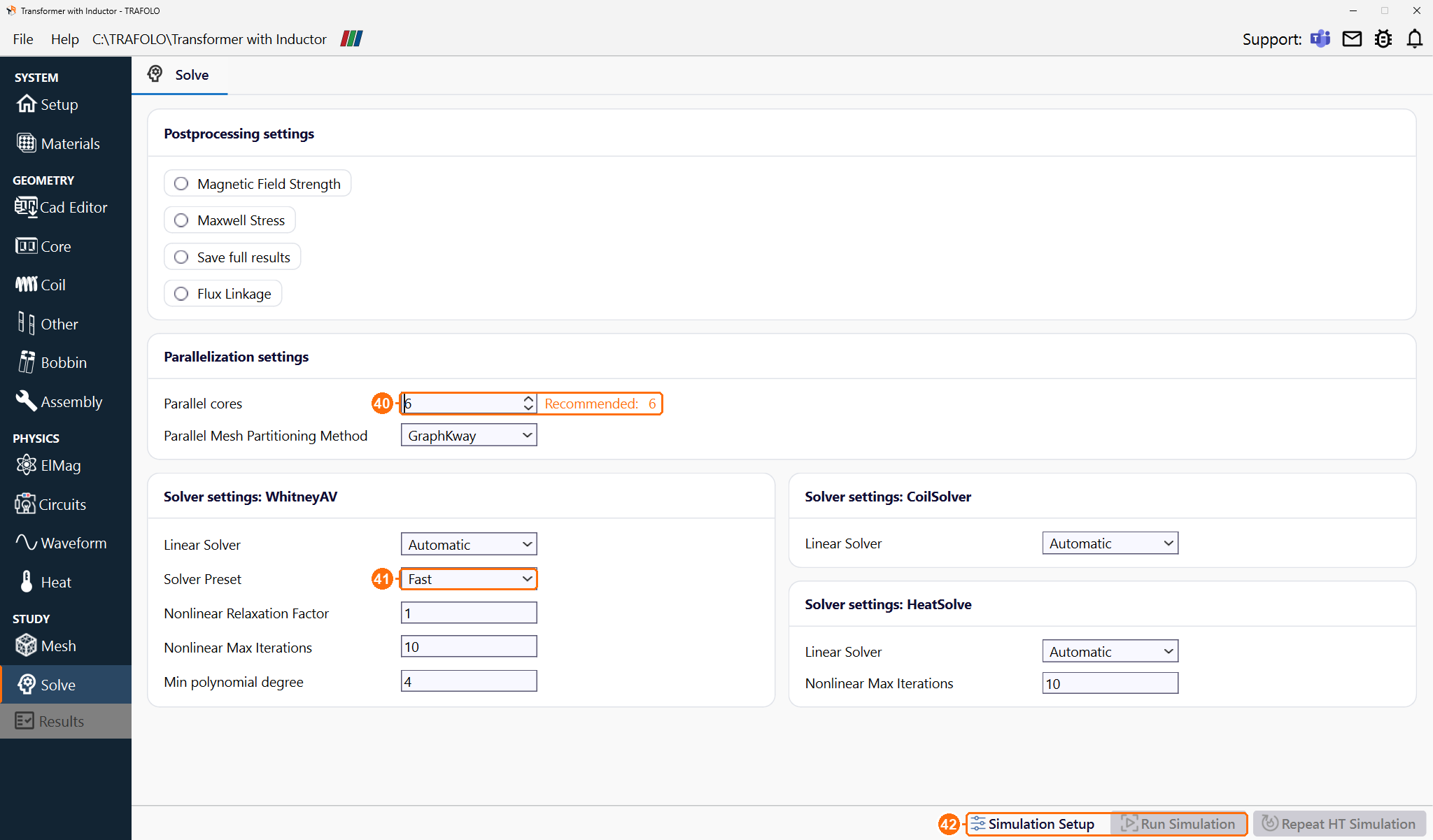
- Set Parallel cores to the number of performance cores of your CPU (TRAFOLO shows a Recommended value next to it) and keep Solver Preset Fast.
- Click Simulation Setup, then Run Simulation. The run takes about 1.5 min on 6 cores and ends with Solved successfully.
Results
At 120 V RMS and 150 kHz with the 10 Ω load (Results › Summary):
| Primary winding | Secondary winding | Inductor | Windings | Core | Heatsink (Other) | Total |
|---|---|---|---|---|---|---|
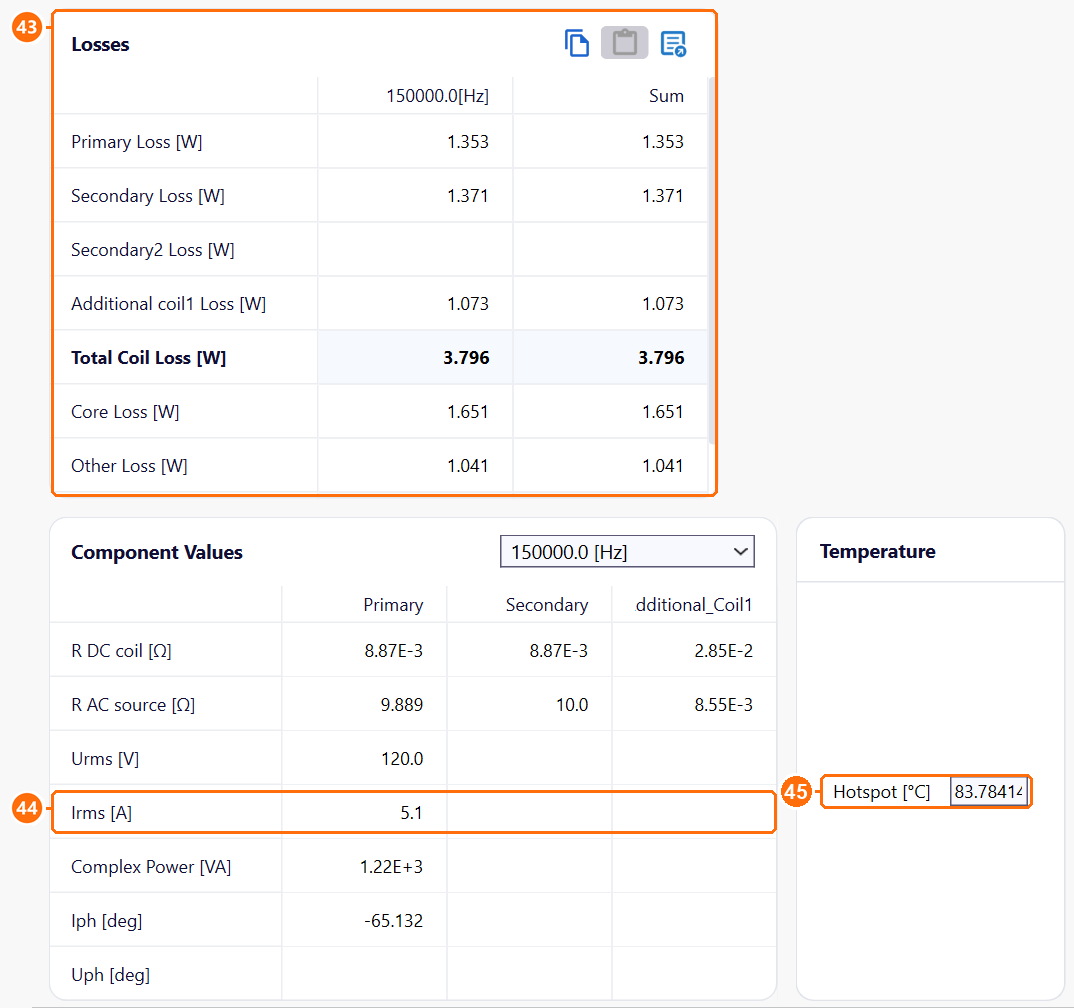
| 1.353 W | 1.371 W | 1.073 W | 3.796 W | 1.651 W | 1.041 W | 6.49 W |
The primary draws 5.1 A RMS at −65.1°. With its R AC source of 9.889 Ω the component takes 5.1² × 9.889 Ω = 257 W; 6.49 W of it, 2.5 %, are losses and the rest reaches the 10 Ω load.
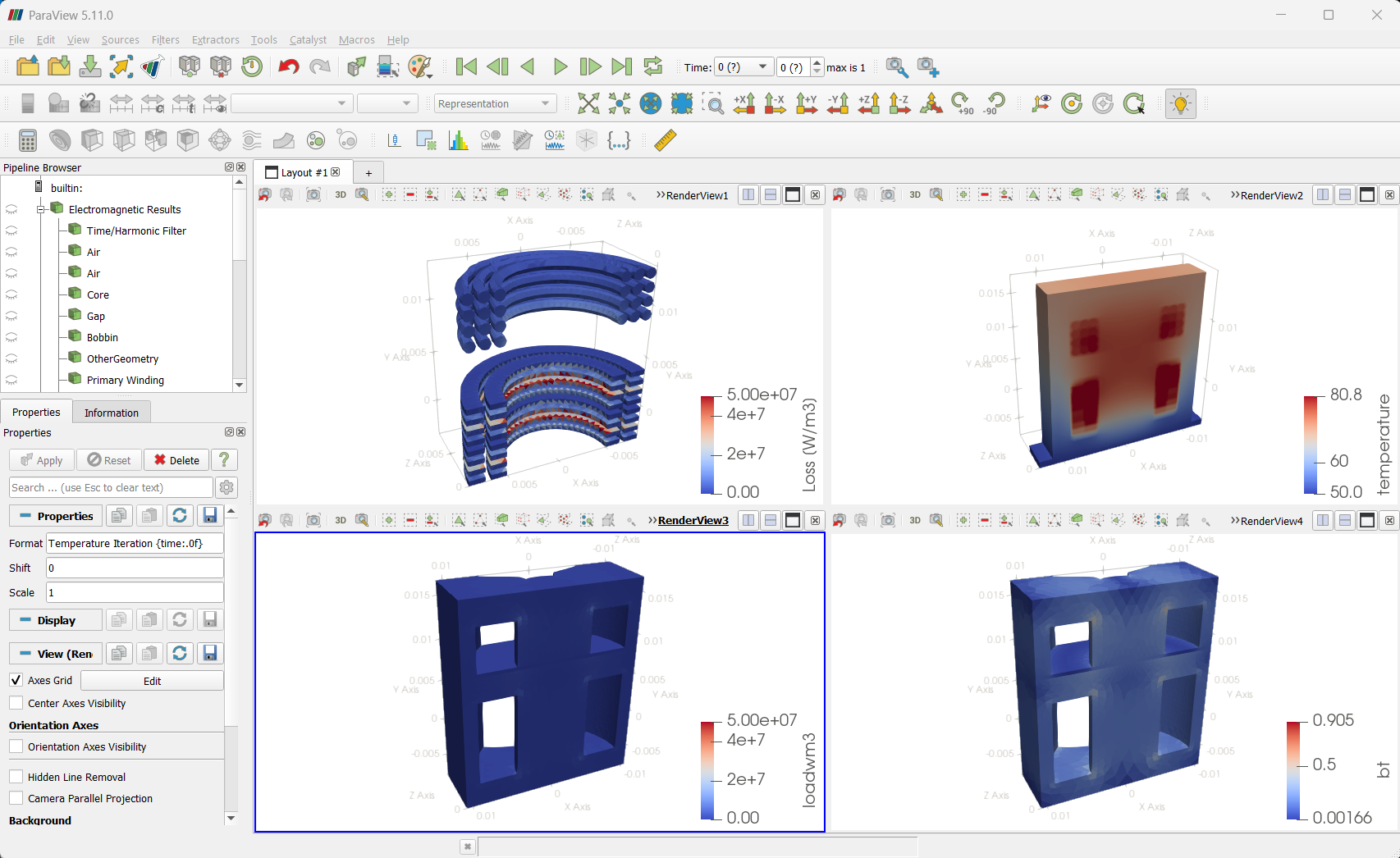
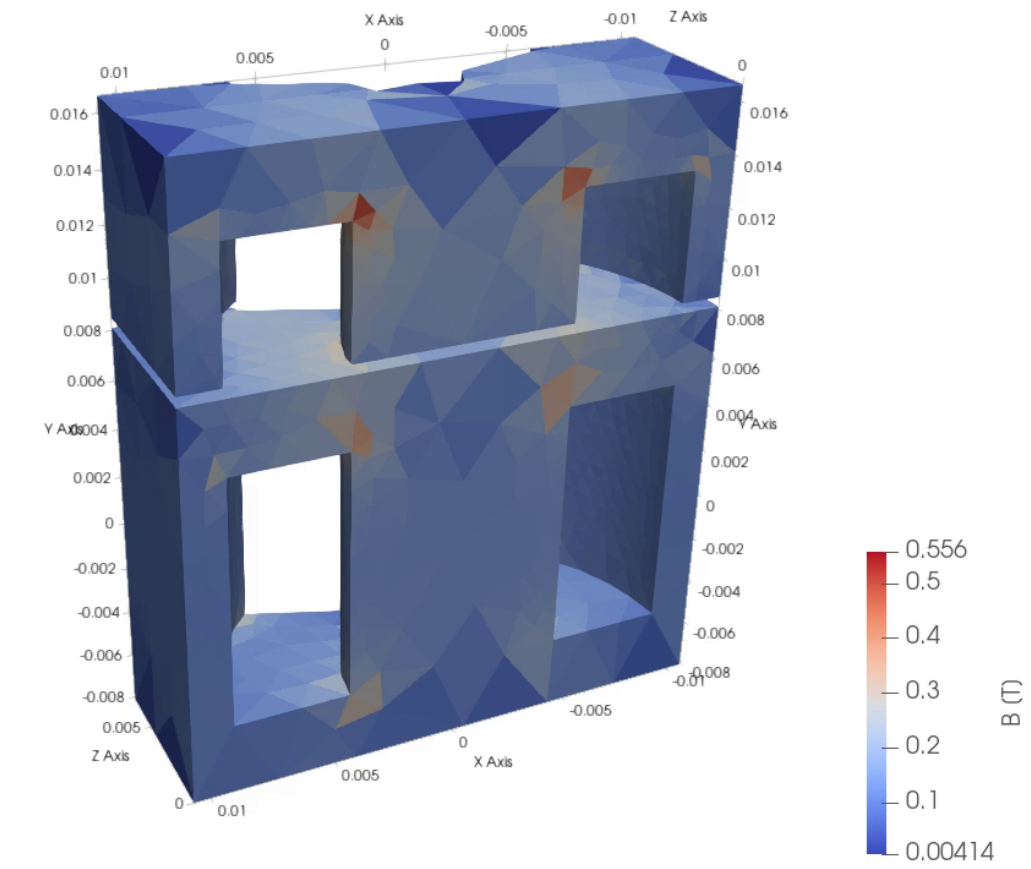
Flux density is mostly 0.1 to 0.2 T and peaks at 0.56 T at the inner corners of the windows (Magnetic Flux).
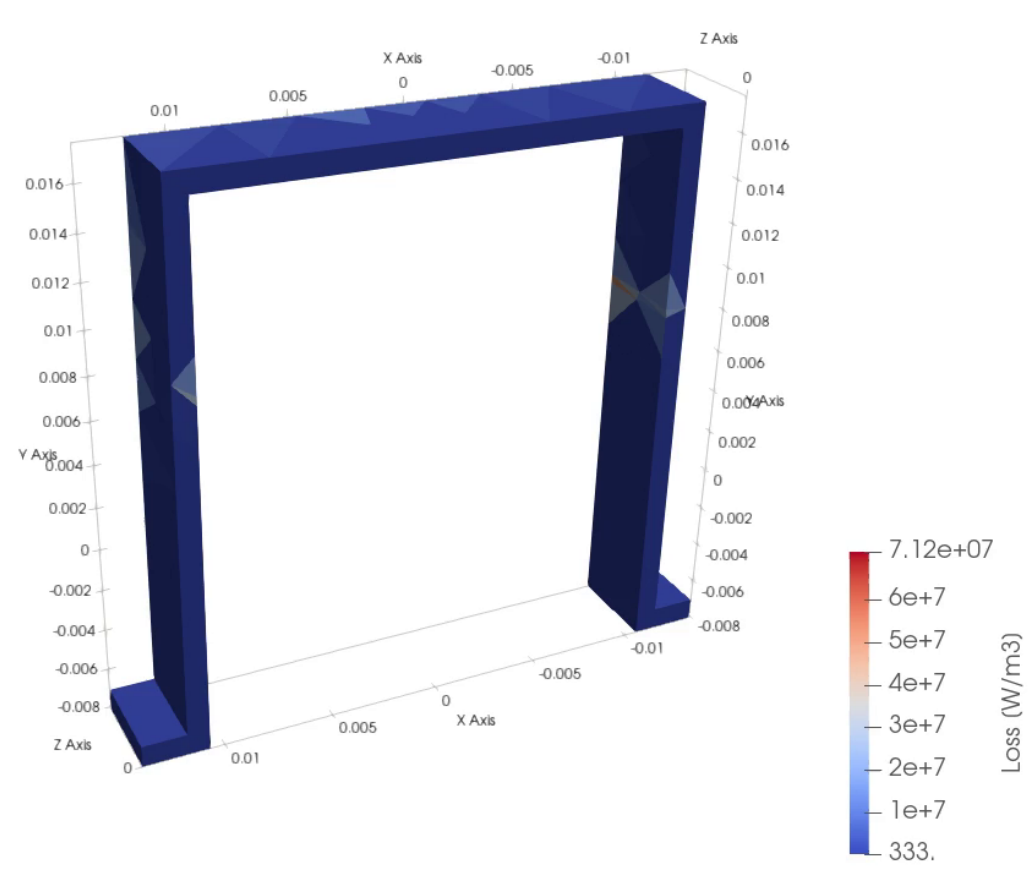
The aluminum heatsink loses 1.04 W, 16 % of the total: the fringing field of the gaps induces eddy currents in it, mostly in the legs at the height of the spacer (Other Losses).
The hotspot is 83.8 °C, in the transformer windings; the parts near the 50 °C mounting faces stay close to 50 °C (Temperature). TRAFOLO evaluated the copper resistance at the predicted 65 °C, 19 K below the hotspot; the core loss comes from the 100 °C data of 3C95 100C at any temperature. For a design check, set Predicted Steady-State Temperature to 84 °C and run again, or raise Temperature Iterations on Setup.
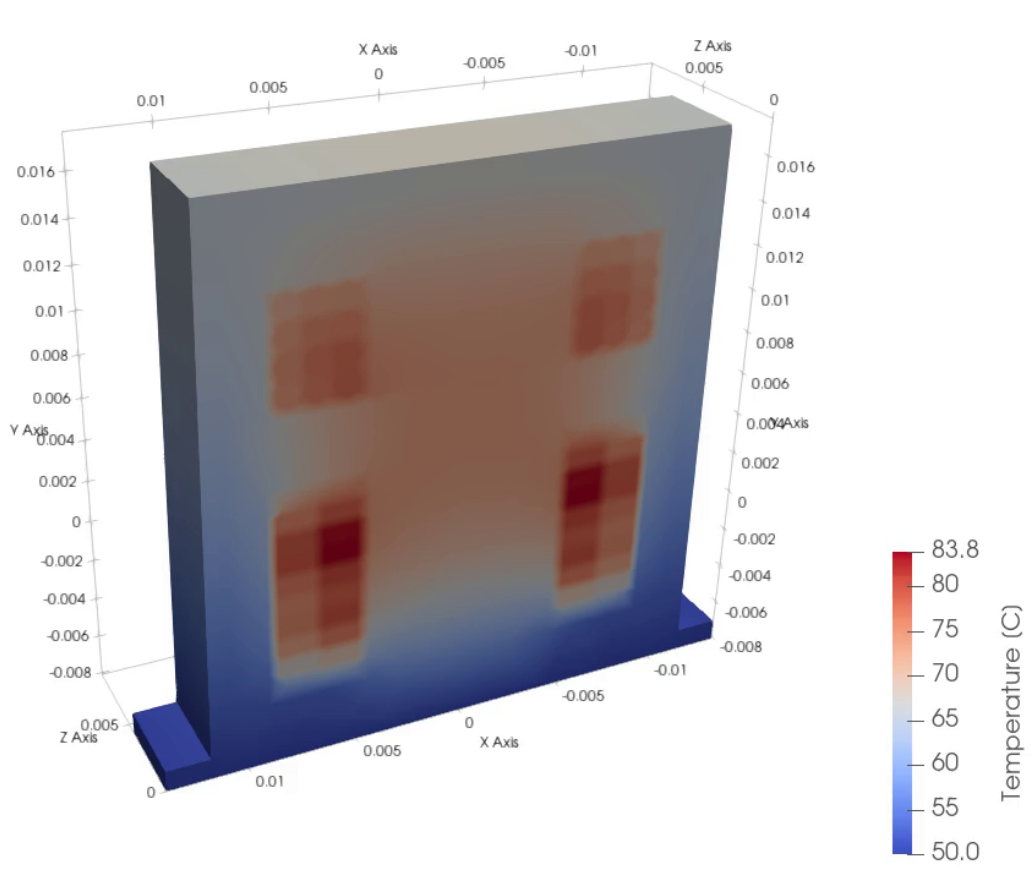
The example ships with these views but without 3D field data: run it before Open in ParaView (ParaView (post-processing).