Importing GDSII and OASIS Layouts from KLayout
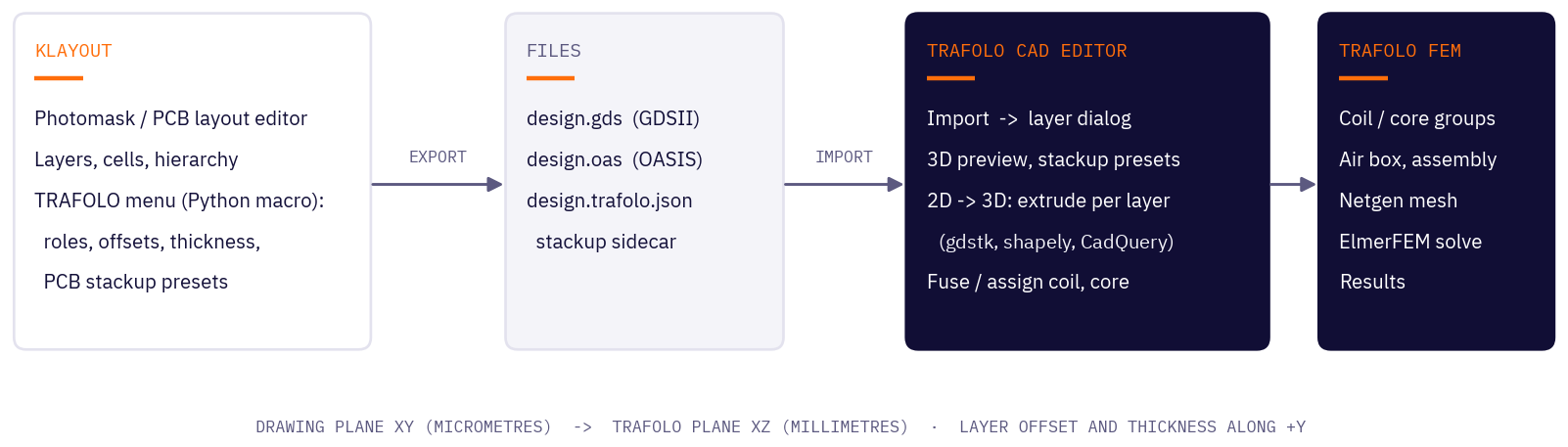
Turn a layout drawn in KLayout into a TRAFOLO model: PCB planar transformers, thin-film spiral inductors, planar toroids and other integrated magnetic components. A free KLayout macro exports the layout with its layer stack; the Cad Editor in TRAFOLO turns every layer into 3D solids at its height.
- Files: the KLayout macro, seven example layouts and the stack file format are in the public GitHub repository TRAFOLO/KLayout-to-TRAFOLO (MIT licence). Code › Download ZIP on that page gets all of them.
- You need: TRAFOLO 1.43 or newer. KLayout 0.30 or newer only to edit layouts or export your own; the example layouts import into TRAFOLO without KLayout.
- Formats: GDSII (.gds) and OASIS (.oas). The layer heights come from a stack file,
<name>.trafolo.json, next to the layout.
Video (5 min): a thin-film spiral inductor from KLayout to a solved TRAFOLO model.
Install the KLayout macro
- Install KLayout 0.30 or newer and start it once. This creates your KLayout user folder,
C:\Users\<your name>\KLayout. - Copy
macro\trafolo_export.lymfrom the repository into%USERPROFILE%\KLayout\pymacros\: the user folder, not the folder KLayout is installed in. On Linux and macOS the folder is~/.klayout/pymacros/. - Restart KLayout. A TRAFOLO menu appears between Macros and Help, with Export for TRAFOLO… and TRAFOLO documentation.
To update the macro, copy the new file over the old one and restart KLayout.
Export a layout from KLayout
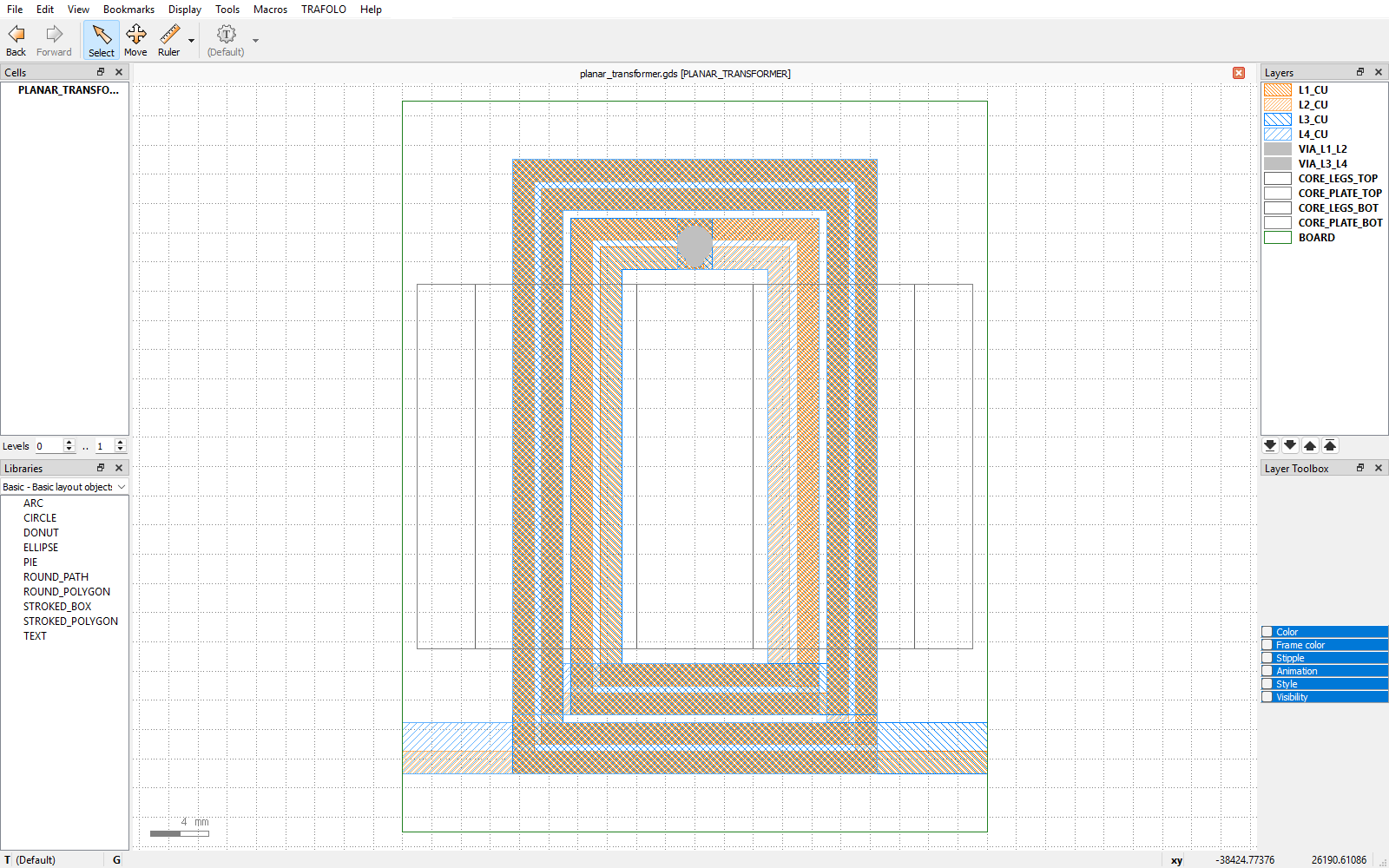
The steps use the four-layer PCB planar transformer of the repository, examples\planar_transformer.gds: the primary on L1_CU and L2_CU (4 + 4 turns), the secondary on L3_CU and L4_CU (2 + 2 turns), each pair joined by a via layer, and a planar E core in two halves.
- In KLayout, open the
.gdswith File › Open, then loadplanar_transformer.lypwith File › Load Layer Properties, so the layers have names and colours. - Choose TRAFOLO › Export for TRAFOLO…. The dialog lists every layer that holds shapes.
- Set the columns of each layer (table below). For PCB copper, pick a PCB stackup preset (1) and click Apply to coil layers (2); type the vias and the core layers by hand.
- Choose the output format (7) and click Export (9). KLayout writes
<name>_trafolo.gdsand the stack file<name>_trafolo.trafolo.json. Keep both in one folder: TRAFOLO finds the stack file by its name.
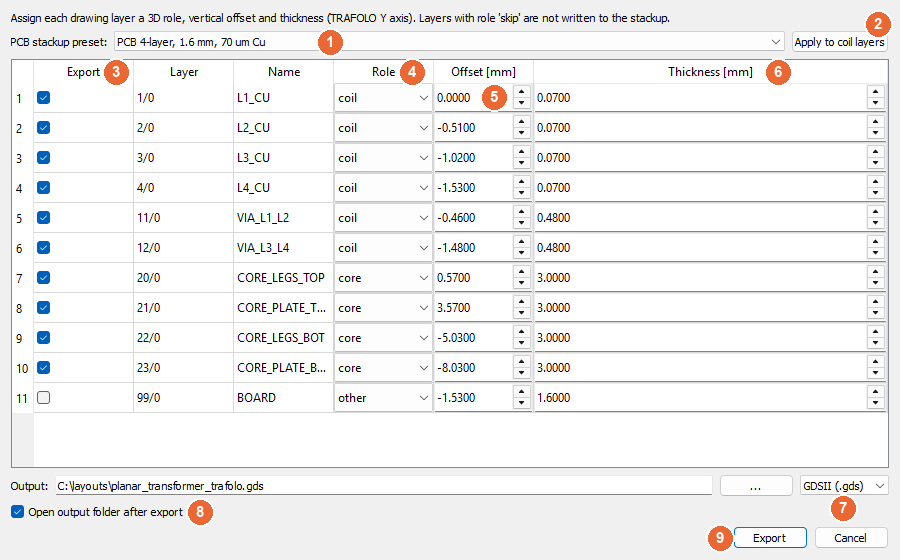
| # | Setting | What it does |
|---|---|---|
| 1 | PCB stackup preset | Copper layers of a standard 1.6 mm board: 2, 4 or 6 layers, 35 or 70 µm copper. |
| 2 | Apply to coil layers | Writes the preset's offsets and thicknesses into the layers with role coil. |
| 3 | Export (column) | Untick to keep the layer in the stack file but leave it out of the 3D model. |
| 4 | Role | coil (conductors and vias), core (magnetic material), bobbin, other, or skip to leave the layer out of the stack file. Guessed from the layer name: core or ferrite gives core; board, pcb or fr4 gives other; any other name gives coil. |
| 5 | Offset [mm] | Height of the layer's bottom face. |
| 6 | Thickness [mm] | Layer thickness, measured upwards from the offset. |
| 7 | Output format | GDSII (.gds) or OASIS (.oas). |
| 8 | Open output folder after export | Opens the folder in Explorer; Windows only, so untick it on Linux and macOS. |
| 9 | Export | Writes the layout and its stack file. |
Layer values of the planar transformer example
| Layer | Name | Role | Offset [mm] | Thickness [mm] | Built |
|---|---|---|---|---|---|
| 1/0 | L1_CU | coil | 0 | 0.07 | yes |
| 2/0 | L2_CU | coil | −0.51 | 0.07 | yes |
| 3/0 | L3_CU | coil | −1.02 | 0.07 | yes |
| 4/0 | L4_CU | coil | −1.53 | 0.07 | yes |
| 11/0 | VIA_L1_L2 | coil | −0.46 | 0.48 | yes |
| 12/0 | VIA_L3_L4 | coil | −1.48 | 0.48 | yes |
| 20/0 | CORE_LEGS_TOP | core | 0.57 | 3 | yes |
| 21/0 | CORE_PLATE_TOP | core | 3.57 | 3 | yes |
| 22/0 | CORE_LEGS_BOT | core | −5.03 | 3 | yes |
| 23/0 | CORE_PLATE_BOT | core | −8.03 | 3 | yes |
| 99/0 | BOARD | other | −1.53 | 1.6 | no |
The copper rows are the preset PCB 4-layer, 1.6 mm, 70 µm Cu. The vias are 0.48 mm tall, so they overlap the copper they connect. The board stays off: the copper lies inside its volume, which one plain solid cannot represent.
Import the layout into TRAFOLO
- Create a project and open the Cad Editor tab.
- Click Import and pick the
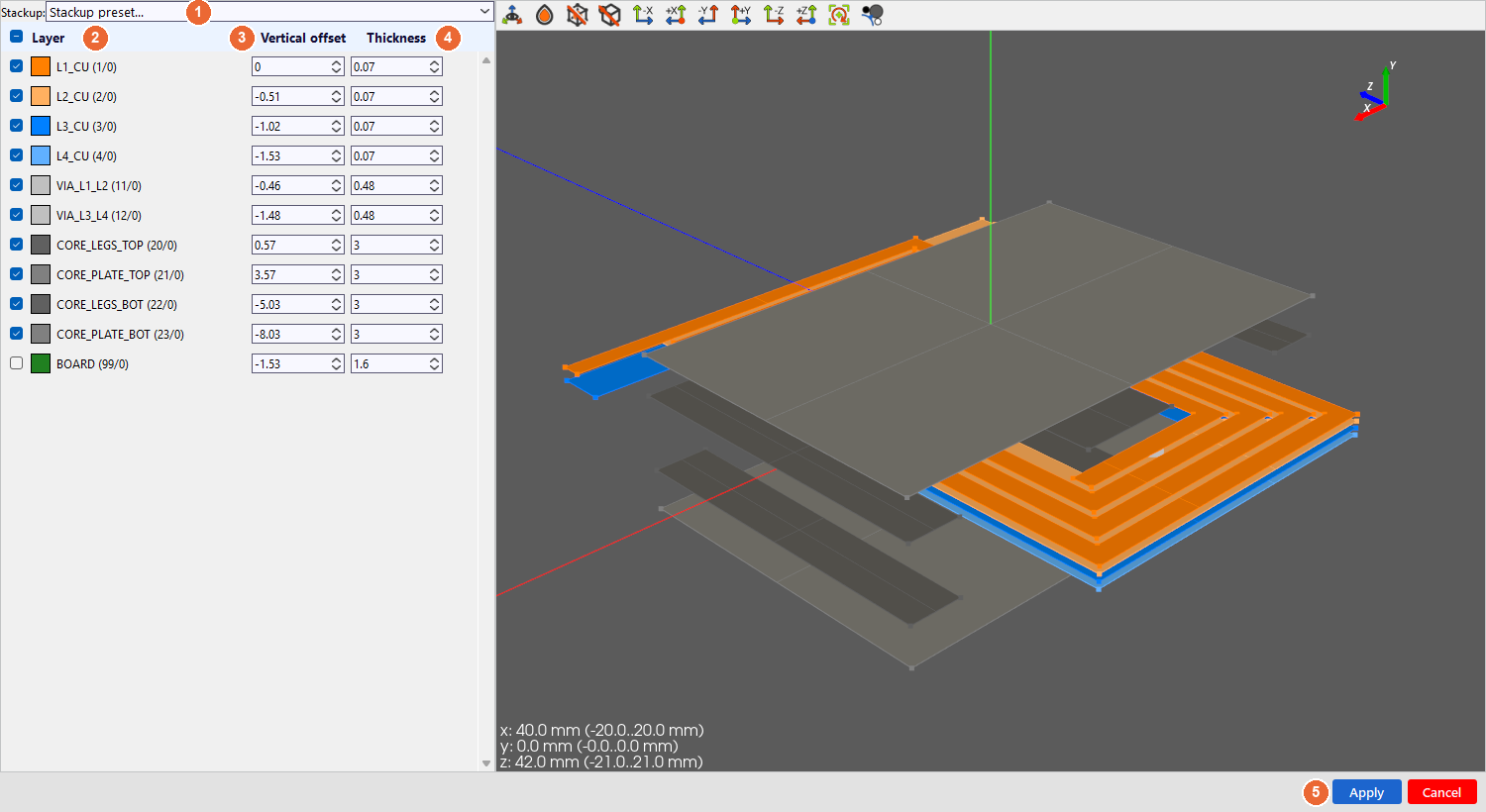
.gdsor.oas(file types KLayout GDSII and KLayout OASIS). The layer dialog opens with the values of the stack file and a 3D preview of every layer. - Tick the layers to build (2) and correct Vertical offset (3) or Thickness (4) where needed. Without a stack file the values are empty: type them, or pick a preset in Stackup (1).
- Click Apply (5). Every layer becomes one or more solids at its height.
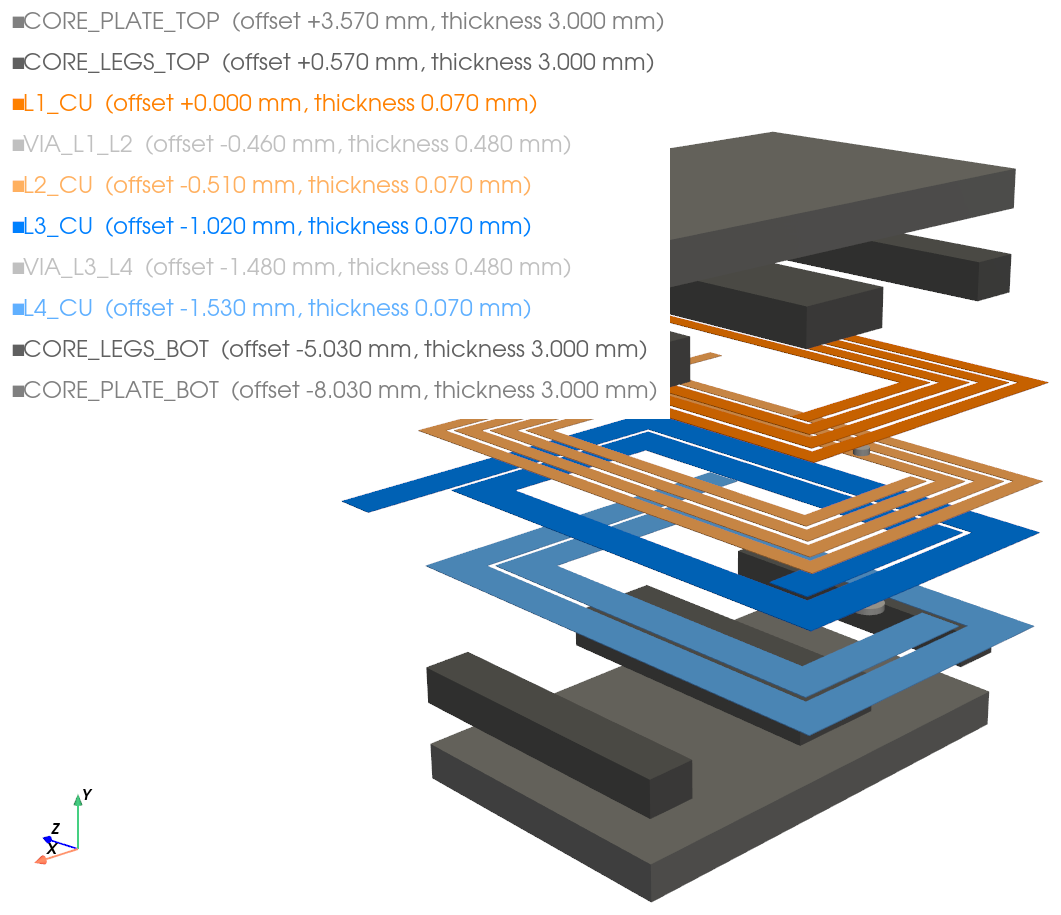
Build the model
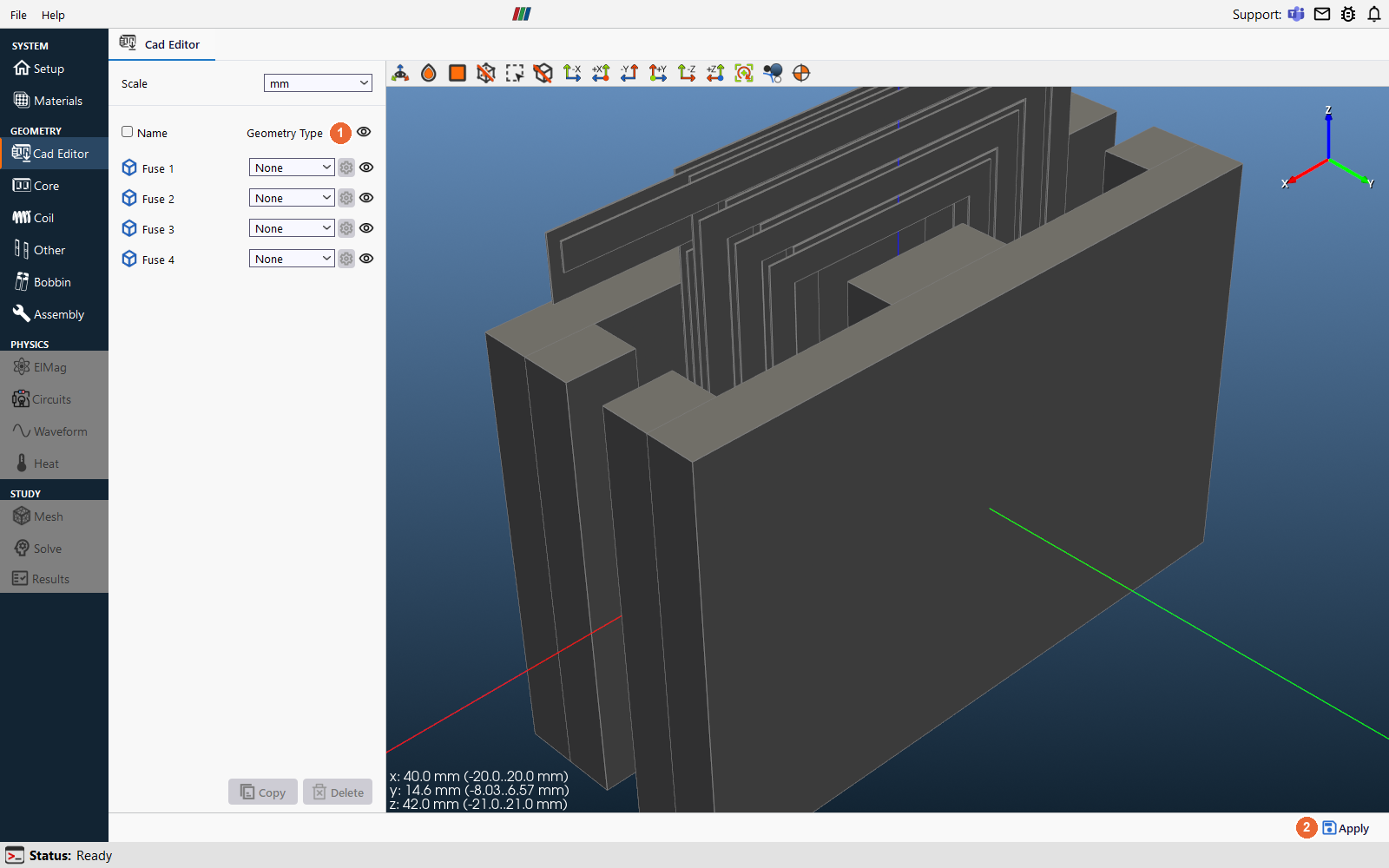
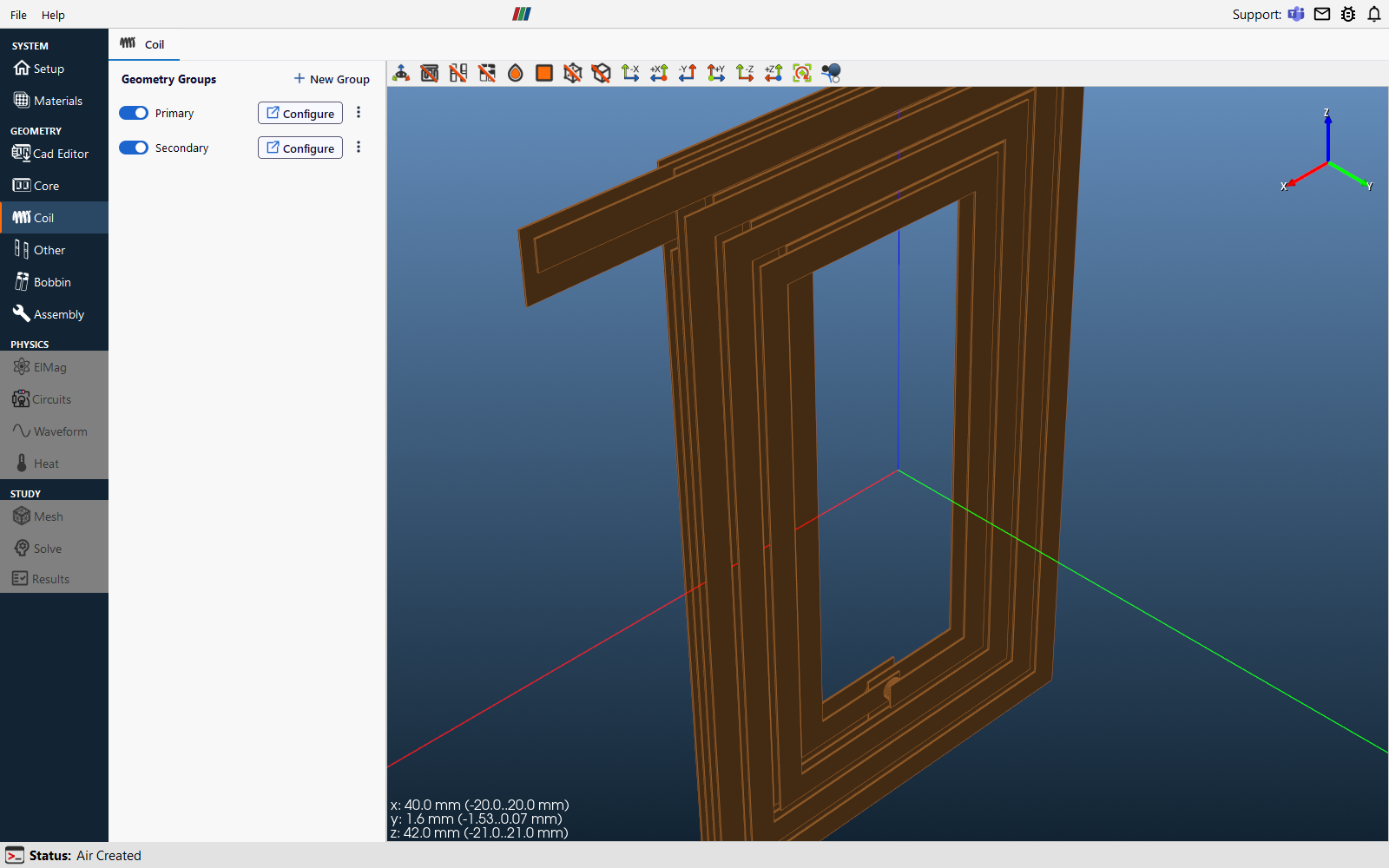
- Select the layers of one winding, click Boolean and choose Fuse: L1_CU, VIA_L1_L2 and L2_CU give the primary, L3_CU, VIA_L3_L4 and L4_CU the secondary. Fuse the legs and the plate of each core half the same way.
- Set the Geometry Type (1) of each fused solid: Coil for the two windings, Core for the two core halves. Fused solids start as None.
- Click Apply (2). TRAFOLO creates one coil group per winding and one core group per core half.
Set up and solve the example
From here the model is set up like any other. The planar transformer example:
| Tab | Setting |
|---|---|
| Setup | ELECTROMAGNETICS Harmonic, HEAT TRANSFER Off, DOMAIN TYPE Full |
| Materials | Copy Copper and a ferrite, for example Ferroxcube 3C95, from Global Materials; assign them to the windings and the core halves on Assembly |
| Coil | Wire Type Massive (solid) for both groups: the 4 + 4 and 2 + 2 turns are drawn in the layout |
| ElMag | Primary group in the primary winding, Secondary group in the secondary winding |
| Waveform | 100 kHz; primary 2 A rms; secondary 4 A rms at −179° |
| Assembly | In Air Domain, lock X min at −20 mm and X max at 20 mm, the planes where the terminal traces leave the board; leave the other limits automatic. Click Assemble Geometry: TRAFOLO finds the terminals on the faces that touch the air box. |
| Mesh | Mesh Algorithm Netgen, Mesh Refinement Coarse for a first run; Compute Mesh |
| Solve | Simulation Setup, then Run Simulation |
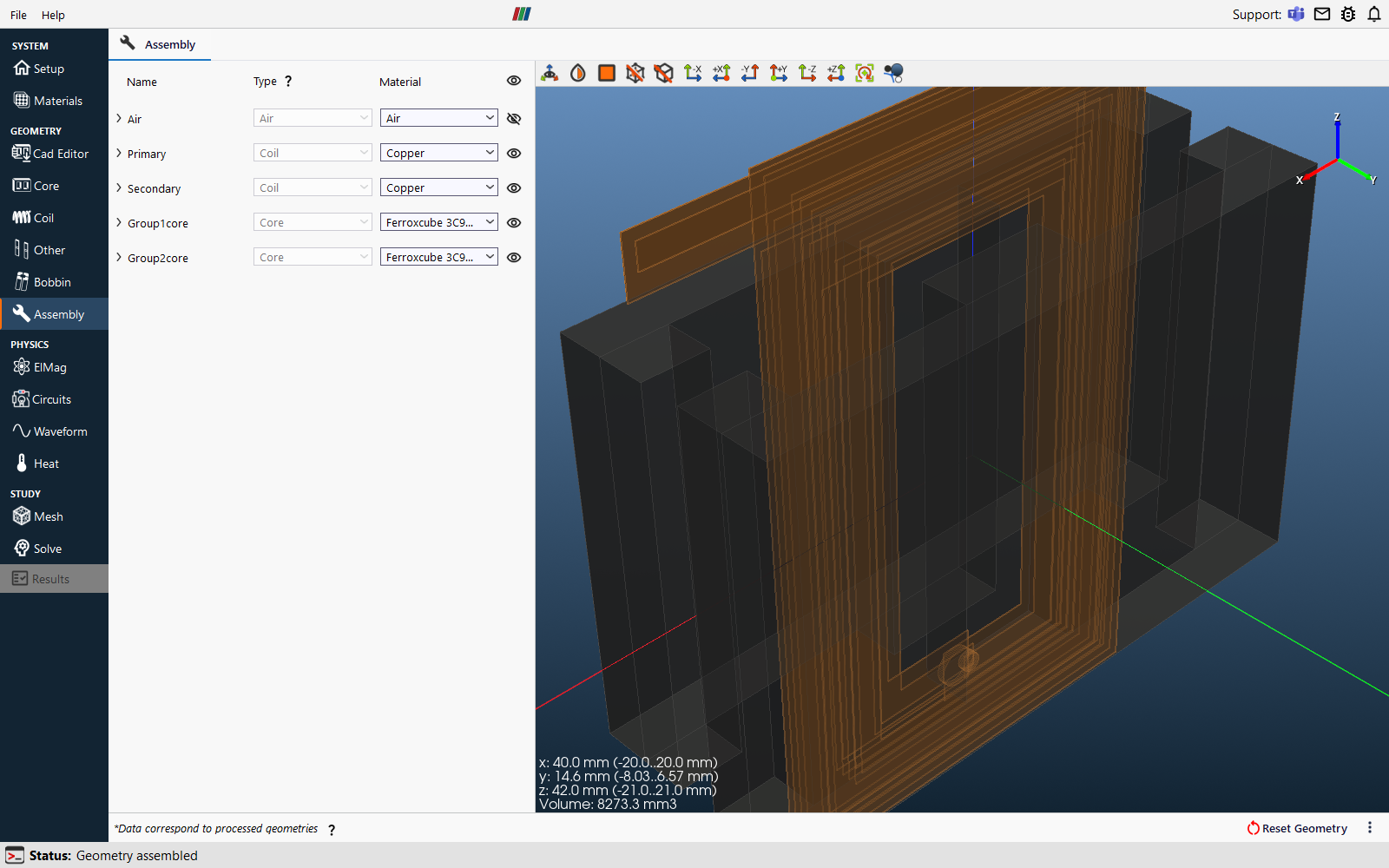
Check the result
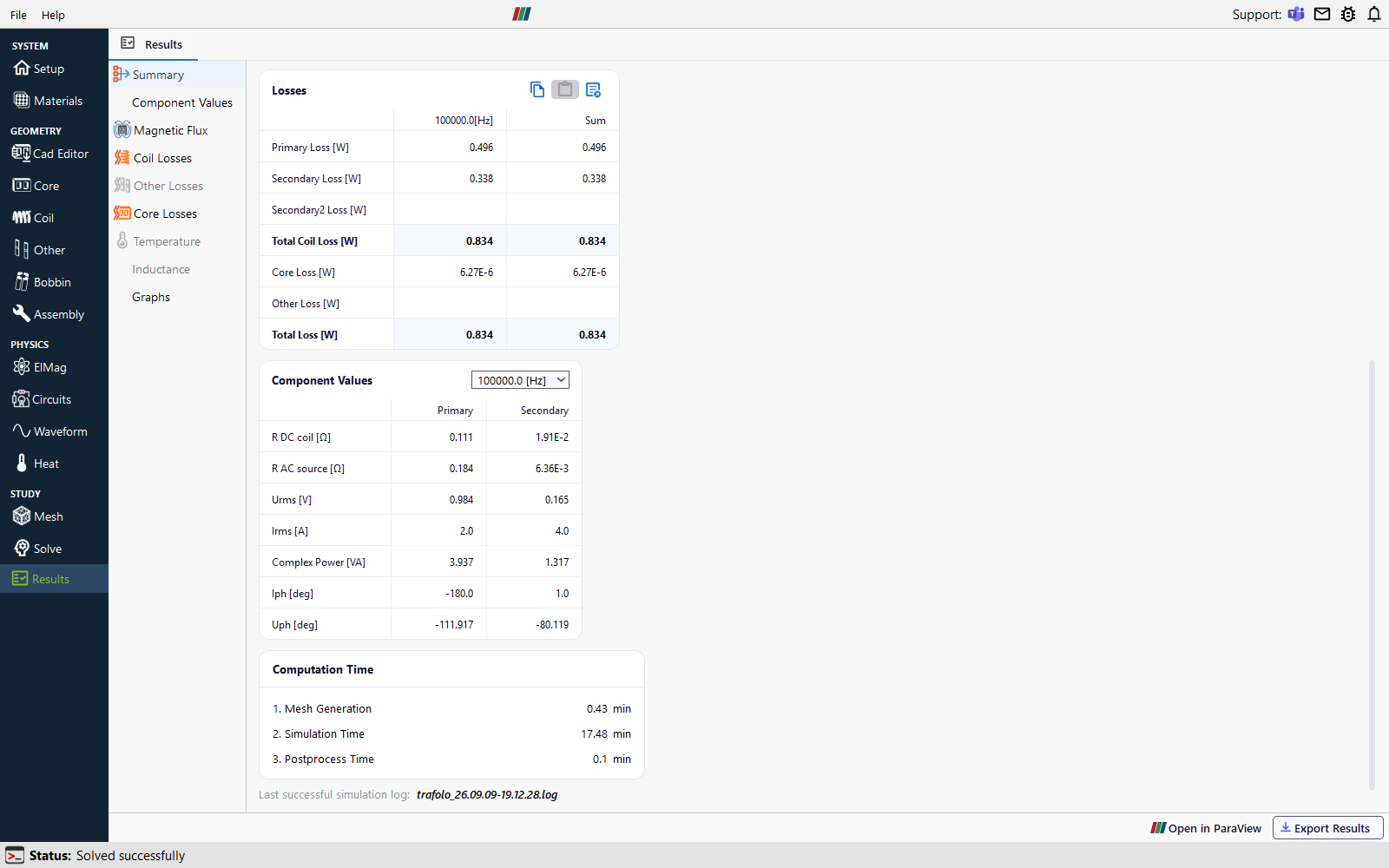
In the run shown (about 69 000 elements; mesh 0.4 min, solve 17.5 min) the winding losses are 0.496 W in the primary and 0.338 W in the secondary.
- AC resistance: the loss over the current squared gives 0.496 W / (2 A)² = 0.124 Ω for the primary, 1.12 times its 0.111 Ω R DC coil, and 0.338 W / (4 A)² = 0.0211 Ω for the secondary, 1.11 times its 0.0191 Ω. The copper is a third of the skin depth thick (0.07 mm against 0.21 mm at 100 kHz), so the rise comes from the field of the neighbouring turns and layers (proximity effect).
- Core loss: 6 µW. The ampere-turns of the windings, 8 × 2 A and 4 × 4 A, cancel up to the 1° phase difference, so the core carries almost no flux: this example tests the winding losses.
- R AC source on the Component Values card is not the AC resistance here: with both windings driven, each winding's voltage also carries the coupling to the other winding. Take the AC resistance from the losses.
Stack file
A layout holds 2D shapes only. The stack file <name>.trafolo.json gives each layer its height. The export macro writes it; you can also write or edit it by hand. TRAFOLO reads it when you import <name>.gds or <name>.oas from the same folder.
- Size: the shapes are converted from the layout's database unit to millimetres, so a layout drawn in micrometres arrives at the right size. The
unitsfield (mmorum) applies to the stack values only. - Axes: the layout's XY plane becomes the XZ plane in TRAFOLO;
offsetandthicknessrun along +Y. - Vias: let them overlap the metal they connect (0.5 µm into each layer in the examples). Solids that only touch do not fuse.
- Names and colours come from a
.lypfile of the same name next to the layout; values in the stack file win.
Stack file fields and an example
{
  "version": 1,
  "units": "um",
  "source": "KLayout",
  "layers": [
    {"layer": 1,  "datatype": 0, "name": "M1_BOTTOM_CU", "offset": 0.0,  "thickness": 10.0, "role": "coil", "enabled": true},
    {"layer": 2,  "datatype": 0, "name": "VIA_CU",       "offset": 9.5,  "thickness": 16.0, "role": "coil", "enabled": true},
    {"layer": 3,  "datatype": 0, "name": "M2_TOP_CU",    "offset": 25.0, "thickness": 10.0, "role": "coil", "enabled": true},
    {"layer": 10, "datatype": 0, "name": "MAG_CORE",     "offset": 12.0, "thickness": 5.0,  "role": "core", "enabled": true},
    {"layer": 1,  "datatype": 2, "name": "PAD_OPEN",     "offset": 0.0,  "thickness": 0.0,  "role": "other", "enabled": false}
  ]
}
| Field | Type | Meaning |
|---|---|---|
version |
integer | Format version, always 1 |
units |
mm or um |
Unit of every offset and thickness in the file |
source |
text | Free text, for example the program that wrote the file; not used by the import |
layer, datatype |
integers | GDSII layer and datatype numbers; both must match, so 1/0 and 1/2 are different layers |
name |
text | Display name; optional |
offset |
number | Height of the layer's bottom face |
thickness |
number | Thickness upwards from the offset; 0 imports the layer as a flat face |
role |
text | coil, core, bobbin or other: the geometry type of the imported solids |
enabled |
true or false | false keeps the layer in the dialog but does not build it |
color |
[r, g, b] | Optional colour in TRAFOLO, 0 to 255 per channel |
Example layouts
Each example comes as .gds and .oas, with a .lyp and a .trafolo.json, in the repository's examples folder. Any of them imports straight into TRAFOLO.
| Layout | Units | Size | What it is |
|---|---|---|---|
| planar_transformer | mm | 40 × 50 mm | Four-layer PCB planar transformer with a planar E core |
| spiral_single | µm | 800 × 800 µm | Thin-film spiral power inductor die |
| spiral_array | µm | 1.8 × 1.8 mm | The same die as a 2 × 2 array, drawn like a production layout |
| spiral_inductor | µm | 260 × 430 µm | Square spiral with an air-bridge crossover |
| racetrack_inductor | µm | 640 × 400 µm | Racetrack spiral under a magnetic film |
| planar_toroid | µm | 2.2 × 2.2 mm | Annular magnetic core with a wedge-and-via winding |
| flat_solenoid | µm | 2.1 × 2.4 mm | Frame core with a flat-layer solenoid winding |
Common problems
- The file dialog offers no .gds or .oas: update TRAFOLO to 1.43 or newer.
- "Layout contains no polygons": the file holds no shapes, or only text labels. Labels are ignored, and layers with only labels are skipped.
- A layer is missing from the layer dialog: only layers with shapes are listed. Check the layer and datatype numbers: 1/0 and 1/2 are different layers.
- The offsets and thicknesses are empty: the stack file must sit in the layout's folder and carry its name,
design.gdswithdesign.trafolo.json. - The model is 1000 times too large or too small: the
unitsfield of the stack file does not match its values. - Fuse gives two solids instead of one: the parts only touch. Let the via layer overlap the copper above and below.
- Assembly finds no terminals: draw the terminal traces to the edge of the device and lock the air box limits to those planes on Assembly.
- Assembly fails with an intersection: two solids fill the same volume, usually copper inside a board layer. Leave the board layer off, or cut the windings out of it in the Cad Editor before giving it a dielectric material.
- No TRAFOLO menu in KLayout: in Macros › Macro Development,
trafolo_exportmust be listed under Python. If it is missing, the file is in the wrong folder or does not end in.lym; if it is listed, tick Run on startup in its properties. - Export fails on Linux or macOS after writing the files: untick Open output folder after export. The files are already written.
Open an issue in the GitHub repository for import problems; attach the layout and its .trafolo.json.
Related
- Importing CAD Geometries: STEP, IGES and DXF files
- Import / CAD Editor: the tab's settings and tools
- Assembly: the air domain and the terminals
- Planar Inductor: a planar winding from CAD, solved with skin and proximity effects
- Thin-film spiral inductor from KLayout to TRAFOLO (TRAFOLO on YouTube)